Dental Implant Diagram Generator
Make dental implant diagrams with labeled parts, 4-step procedure sequences and implant vs bridge comparisons for patient education. Clinician review needed.
Create Your Dental Implant Diagram
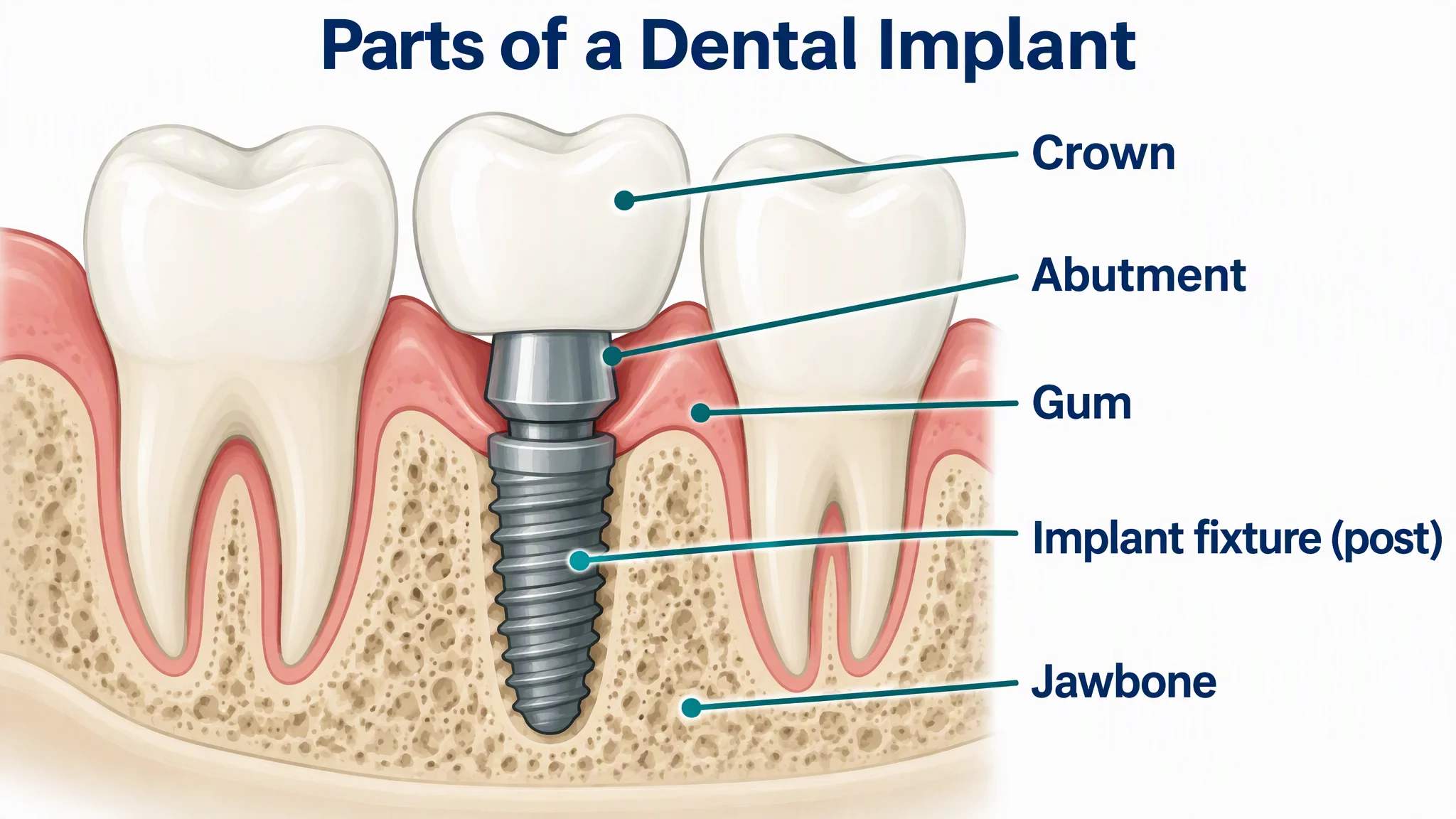 Example: Parts of a dental implantView full size
Free preview on this page · Clean file download needs a
Your dental implant diagram will appear here
Simplified illustrations for explanation, not clinical or surgical guidance. Check every label and that the post is below the gumline, and have a clinician review before use with patients. No real patient data.
Dental Implant Diagram Examples
Four AI diagrams with the prompt shown and known flaws noted. Simplified illustrations, not clinical or surgical guidance. No real patients. A clinician should review every picture before patient use.
Parts of a dental implant (AI labeled diagram)
AI-generated from the prompt shown, and all five labels and the title came out spelled as written on the first try. The layers run in a plausible order: the screw-shaped fixture sits in the jawbone below the gumline, the abutment passes up through the gum, and the crown sits above the gum between two natural teeth. Known flaws: the fixture is drawn as one smooth threaded post with no internal screw or connection; the abutment looks like a wide metal collar, and real abutments come in many shapes and materials; the gum hugs the abutment very tightly and the bone sits right at the fixture shoulder, which is an idealized picture; the neighboring teeth are simplified. Use it to show the idea, not a specific implant system.
Dental implant in 4 steps (AI diagram)
AI-generated from the prompt shown, and the title, four step labels and numbers came out as written. This is the second try. In the first try panels 1 and 2 looked almost the same and the implant showed through a dip in the gum, so we asked again for a tool placing the implant and a fully closed gum in panel 2. Known flaws: panel 1 shows the implant already seated while a handpiece-like tool sits above it, so the action is implied and not shown; panel 2 shows the gum closed over the implant but the new bone is only implied by the tight fit; the real sequence varies a lot between patients (an extraction or bone graft may come first, the abutment may be placed at a later visit or on the same day, and healing time differs), and the picture shows none of that and gives no timeline; the abutment in panel 3 looks small next to the implant; the crown in panel 4 is drawn wider than the gap and overlaps the neighboring teeth; both are idealized. It is a simplified patient education sequence, not a surgical guide.
Implant vs bridge (AI comparison)
AI-generated from the prompt shown, and the title, both headings and both captions came out as written. The left panel shows one implant in the bone with a single crown between two untouched neighbors. The right panel shows a three-unit bridge: the two neighboring teeth are reshaped and capped, and the joined false tooth in the middle sits above the gum without reaching the bone. Known flaws: the false tooth floats with a visible gap above the gum, and that gap is exaggerated, since a real bridge false tooth usually rests close to the gum; the reshaped neighbor teeth are drawn as smooth stumps and the crown margins are not shown; in the implant panel the abutment is hidden under the crown, so that panel does not show all three implant parts; bone height looks idealized on both sides. The picture says nothing about cost, lifespan or which option suits a patient, since that is a decision for the dentist and patient.
Parts of braces (AI labeled diagram)
AI-generated from the prompt shown, and the title and the four labels "Bracket", "Archwire", "Elastic tie" and "Molar band" came out spelled as written. Braces are not dental implants: this is a related orthodontic example, included because the same labeled style works for other chairside explanations. This is the second try: in the first try the leader dot for "Bracket" landed on the tooth beside a bracket, so we added to the prompt that each dot must sit on the named part, and now all four dots land on their parts. Known flaws: the elastic ties are drawn as small blue frames around the brackets, a simplification; the teeth are drawn very even, with no crowding or bite problem, so it shows the hardware and not a treatment plan; molar bands appear on the back molars in this view, which is one common setup and not the only one. It is a parts diagram, not a treatment-stage diagram.
These are simplified illustrations for explanation, not clinical or surgical guidance. Need the anatomy of a natural tooth first? Use our free Tooth Diagram page. Saving a natural tooth instead of replacing it? See the Root Canal Procedure Diagram Generator. For other body parts try the Medical Illustration Generator, and for charts and posters the Medical Infographic Maker.
What this page is for
This page is for dentists, dental hygienists, patient coordinators, front desk teams and dental or dental hygiene students who need a dental implant picture for a chairside conversation, a handout, a treatment-option discussion, a waiting-room display or a lecture slide. You describe the picture and the exact wording, and the generator drafts it: an implant parts diagram, a four-step procedure sequence, an implant versus bridge comparison, or a related restoration such as a crown, a bridge or braces. The braces picture in the gallery is a related orthodontic example, not an implant picture. It is a drafting tool, not a library of approved patient materials. The pictures are simplified illustrations to help explain an idea. They are not clinical or surgical guidance, they do not diagnose, and a clinician should review every picture before it reaches a patient.
How this differs from our tooth and root canal pages
- Our Tooth Diagram page is a free anatomy resource for a natural tooth: enamel, dentin, pulp and tooth types. Use it when you need the anatomy of a healthy tooth. Our Root Canal Procedure Diagram Generator is about saving a natural tooth by cleaning and filling its canals. This page is about replacing a missing tooth: an implant fixture in the bone, the abutment, the crown, and how that compares with a bridge.
- The Medical Illustration Generator draws general anatomy and procedures for teaching. Use this page when the picture you want is a dental implant or a related restoration with the labels in plain words.
The parts of a dental implant
- Dental education pages commonly describe three main parts. The implant fixture (also called the post) is a screw-shaped piece, usually titanium, placed in the jawbone where it acts as the root of the new tooth. The abutment is the connector that sits at and above the gumline and holds the crown. The crown is the visible tooth replacement, made to match the neighboring teeth. Some sources also name a small abutment screw that holds the abutment to the fixture. Bone typically grows around the fixture over weeks to months, and healing time varies by patient. This bonding is called osseointegration.
- Because the details vary by implant system and by patient, write the labels you want into the prompt and check that each one points at the right part. The gum and bone labels help patients see that the post is below the gumline and the crown is above it.
Implant, bridge and crown: what each picture should show
- An implant replaces the root as well as the crown, so the picture should show a post in the bone. A traditional bridge replaces a missing tooth by joining crowns on the neighboring teeth to a false tooth in the gap, so the picture should show the neighbors reshaped and the false tooth above the gum, not in the bone. A single crown caps an existing tooth that still has a root.
- If you ask for a bridge or a crown, say how many units, which teeth hold it, and whether the roots are natural. AI often draws a bridge with a post in the bone or a crown with no tooth under it, so look at the roots and the bone before you use the result.
How to make an implant handout you can defend
- Pick one message and one audience, such as "adult patients, what an implant is made of" or "dental students, implant parts".
- Take the steps and terms from your own practice protocol or a named professional source, and write them into the prompt as exact labels in order.
- Say what the jaw segment looks like: which tooth is missing and what the neighbors are. Ask for a calm, simple style without blood.
- Add your own source line and "For education only" as footer text if you want them on the image.
- Generate, then read every word and check that the post is below the gumline, the abutment passes through the gum and the crown is above it. If one thing is wrong, generate again.
- Have a dentist review the final picture and wording before it goes to a patient.
Accuracy and what AI gets wrong
The four pictures on this page were generated from the prompts shown, and each caption lists the flaws we found. The words in the final images came out right. The anatomy was looser: our first four-step sequence drew the first two panels almost the same and left the implant showing through a dip in the gum, and in every picture the bone, gum and abutment are idealized. Other common problems are a bridge drawn with a post in the bone, an implant drawn above the gum, a label pointing at the wrong part, and a crown floating off the abutment. Treat each picture as a draft. It does not diagnose, it does not give medical advice, and it must be reviewed by a qualified clinician before use with patients.
Keep it calm
Patients who read an implant handout are often nervous about surgery. Prefer soft colors, no blood and plain words such as "place the implant" and "heal and bond". Leave exact timelines, success rates and costs to the clinician, who can say them in their own words for the specific patient.
Privacy and use with patients
Do not enter patient names, dates of birth, record numbers, x-rays or real patient results. Describe the jaw segment in general terms. Check your practice's policy on AI tools and on what may go into patient materials, and follow its review and sign-off rules.
Free trial and downloads
Start free with 2 image credits, valid for 7 days, no card required. Free accounts download PNG or JPG.
Frequently Asked Questions
Related Medical Tools
 Medical
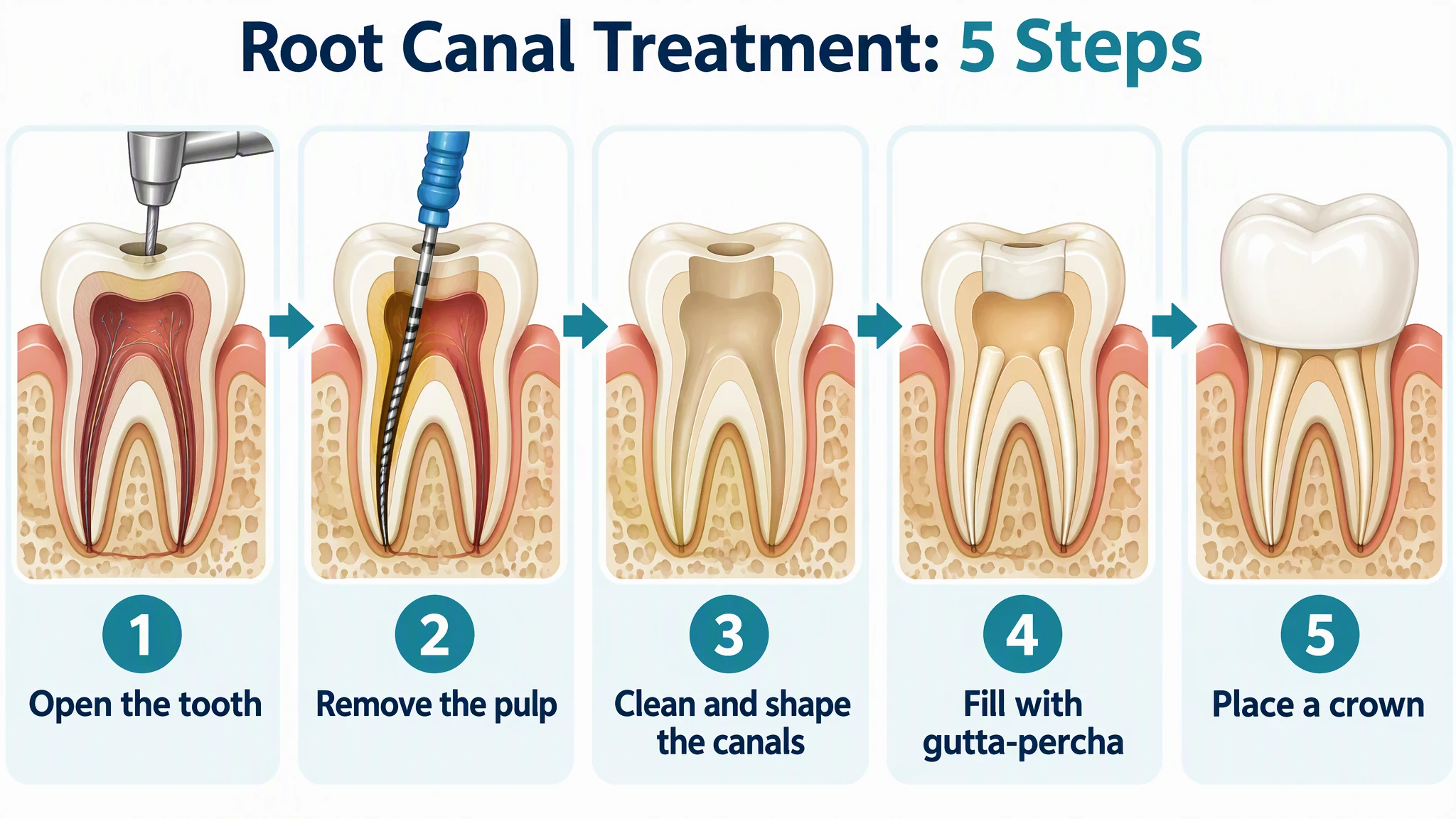
Root Canal Procedure Diagram Generator
Make root canal step diagrams, tooth cutaways, and before and after pictures for patient handouts.
 Biology
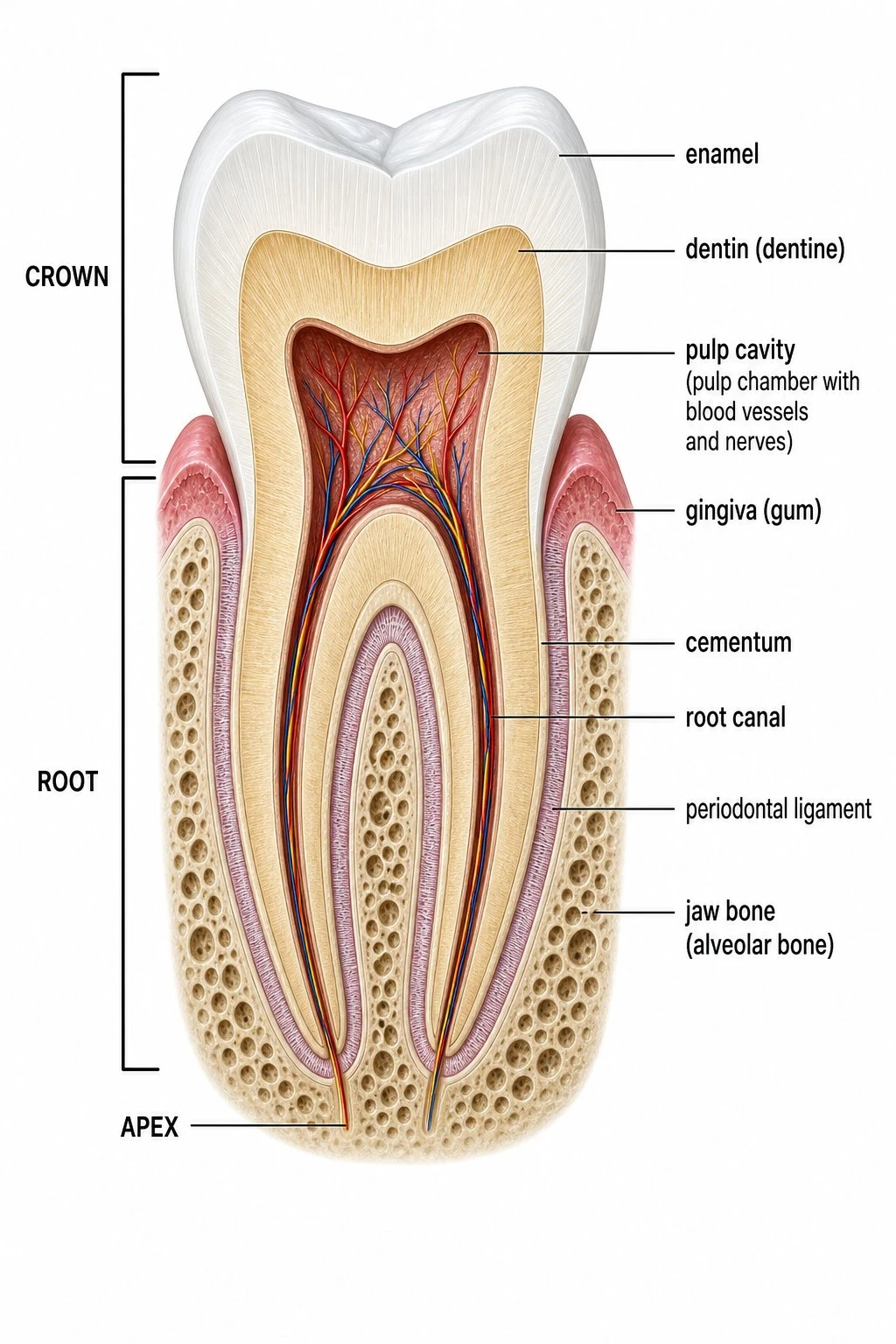
Tooth Diagram
Free tooth anatomy diagrams: labeled cutaway, blank worksheet, tooth types, and coloring pages.
 Medical
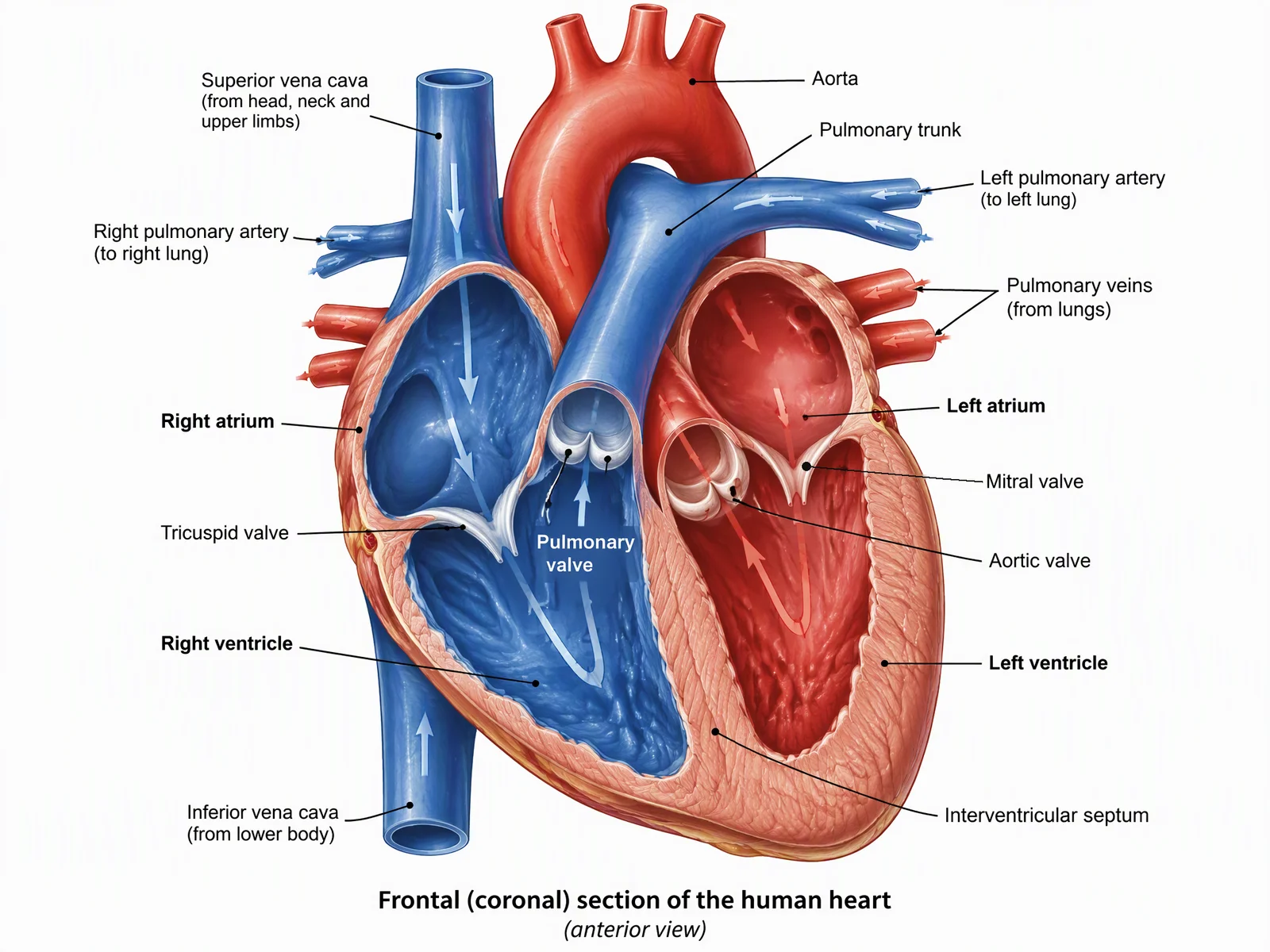
Medical Illustration Generator
Create labeled medical and anatomy illustrations for teaching and patient education.
 Medical
Medical Infographic Maker
Make medical and patient education infographics from facts you cite. Clinician review needed.