Canva for Diagrams: Honest Review & Alternatives
An honest review of Canva's diagramming features in 2026. See where Canva excels, where it falls short, and which specialized alternatives work better.
Can Canva Really Handle Your Diagramming Needs in 2026?
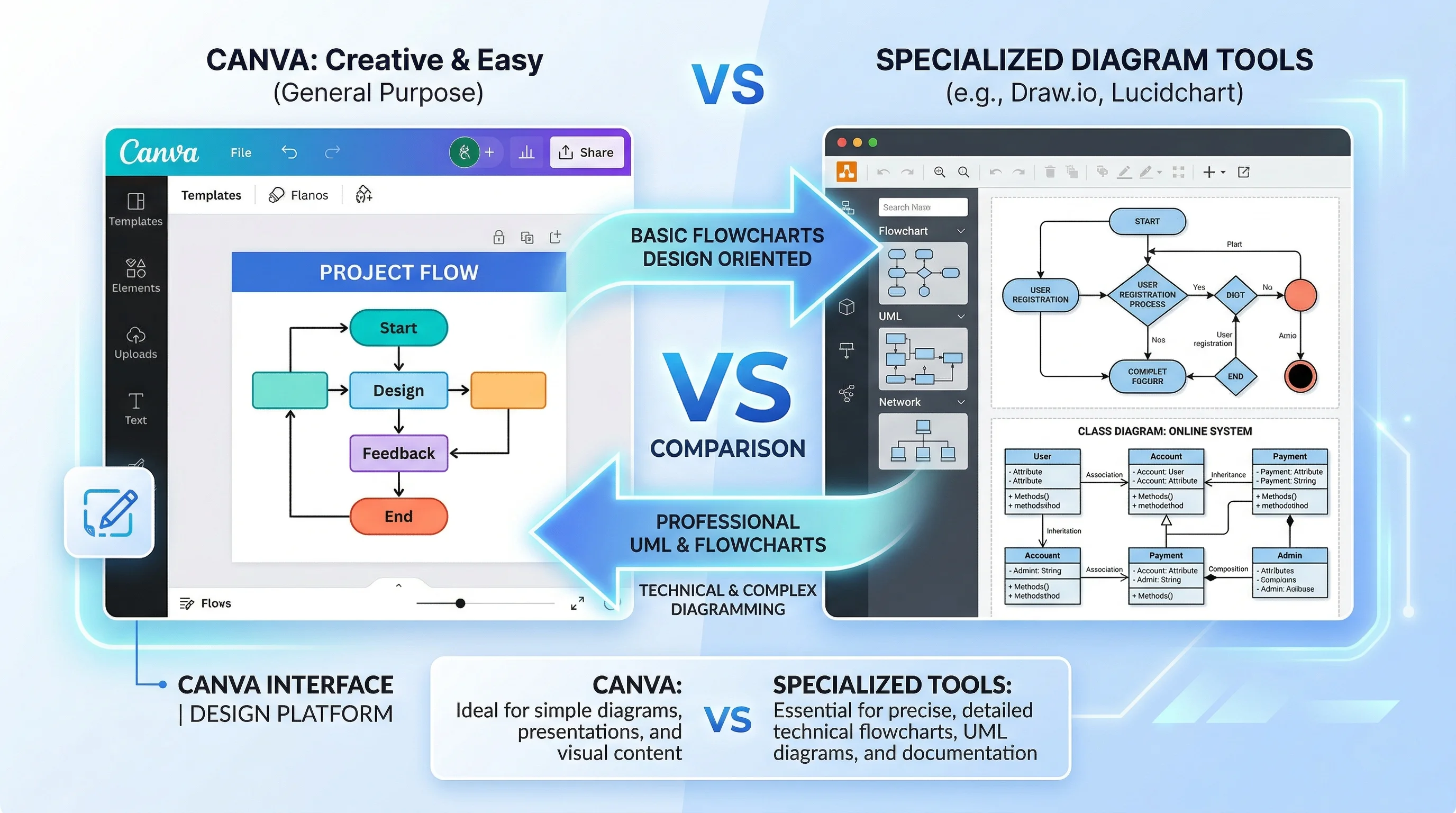
Canva has grown from a simple social media graphic maker into a full design suite used by over 190 million people worldwide. Along the way, it added flowchart templates, a whiteboard feature, and an expanding library of diagram shapes. For many casual users, the question is no longer "can Canva make diagrams?" but "should Canva be your go-to diagramming tool?"
The honest answer: it depends on what kind of diagrams you need. Canva is genuinely great for certain types of visual work and genuinely frustrating for others. This guide breaks down exactly where Canva excels at diagramming, where it falls short, and which alternative tools do a better job for specific use cases.
Text to Diagram Generator
Skip the drag-and-drop entirely. Describe your diagram in plain text and get a polished result in seconds — flowcharts, mind maps, UML, and more.
Try it free →What Canva Offers for Diagrams: A Fair Review
Before jumping to alternatives, let us give Canva credit where it is due. The platform has invested heavily in diagramming features over the past two years, and for non-technical users, it remains one of the most approachable options available.
Template Library
Canva offers thousands of diagram-related templates across categories like flowcharts, mind maps, organizational charts, Venn diagrams, and process charts. These templates are professionally designed and visually polished — far more attractive than what you get out of the box from most dedicated diagramming tools. If your primary goal is a good-looking diagram for a presentation or social media post, Canva's templates are hard to beat.
Drag-and-Drop Editor
The core editor is intuitive. You can add shapes from the Elements panel, connect them with lines, adjust colors and fonts, and arrange everything on a clean canvas. For someone who has never used a diagramming tool before, Canva's learning curve is almost flat. Everything feels familiar if you have ever used any modern design app.
Canva Whiteboard
Introduced in late 2023 and expanded significantly since, Canva Whiteboard provides an infinite canvas for brainstorming, mind mapping, and freeform visual planning. It includes sticky notes, connectors, shapes, drawing tools, and real-time collaboration. For team brainstorming sessions, it is a decent option that does not require a separate tool subscription.
Collaboration Features
Canva supports real-time collaboration on all plans, including the free tier. Multiple people can edit the same design simultaneously, leave comments, and share via link. For teams already embedded in the Canva ecosystem, this keeps everything in one place.
AI-Powered Features
Canva has integrated AI across its platform, including Magic Design for generating layouts from prompts and Magic Write for text generation. For diagrams specifically, you can describe a flowchart or process and get a template suggestion — though the AI generates design layouts rather than accurate diagram structures.
Free Tier
Canva's free plan is genuinely generous for diagram creation. You get access to most diagram templates, unlimited designs, 5GB of cloud storage, and the core editor features. Many users never need to upgrade for basic diagramming work.
Where Canva Falls Short for Diagrams
Here is where the review gets honest. While Canva is a capable design tool, it was not built for diagramming, and that shows in several important ways.
No UML or Technical Diagram Support
If you need UML class diagrams, sequence diagrams, activity diagrams, or component diagrams, Canva simply does not support them. There are no UML shape libraries, no standard notation elements, and no way to enforce the structural rules that technical diagrams require. Software developers and architects will hit a wall immediately.
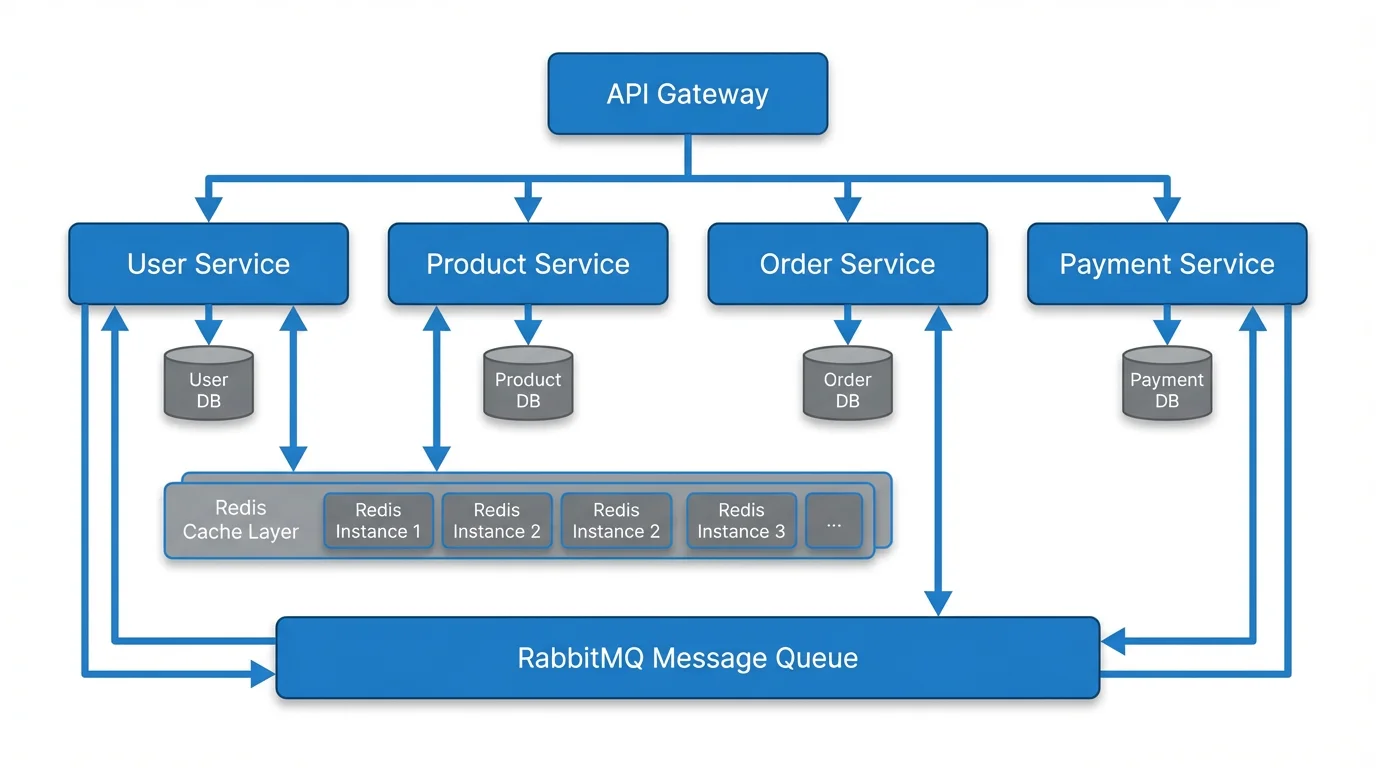
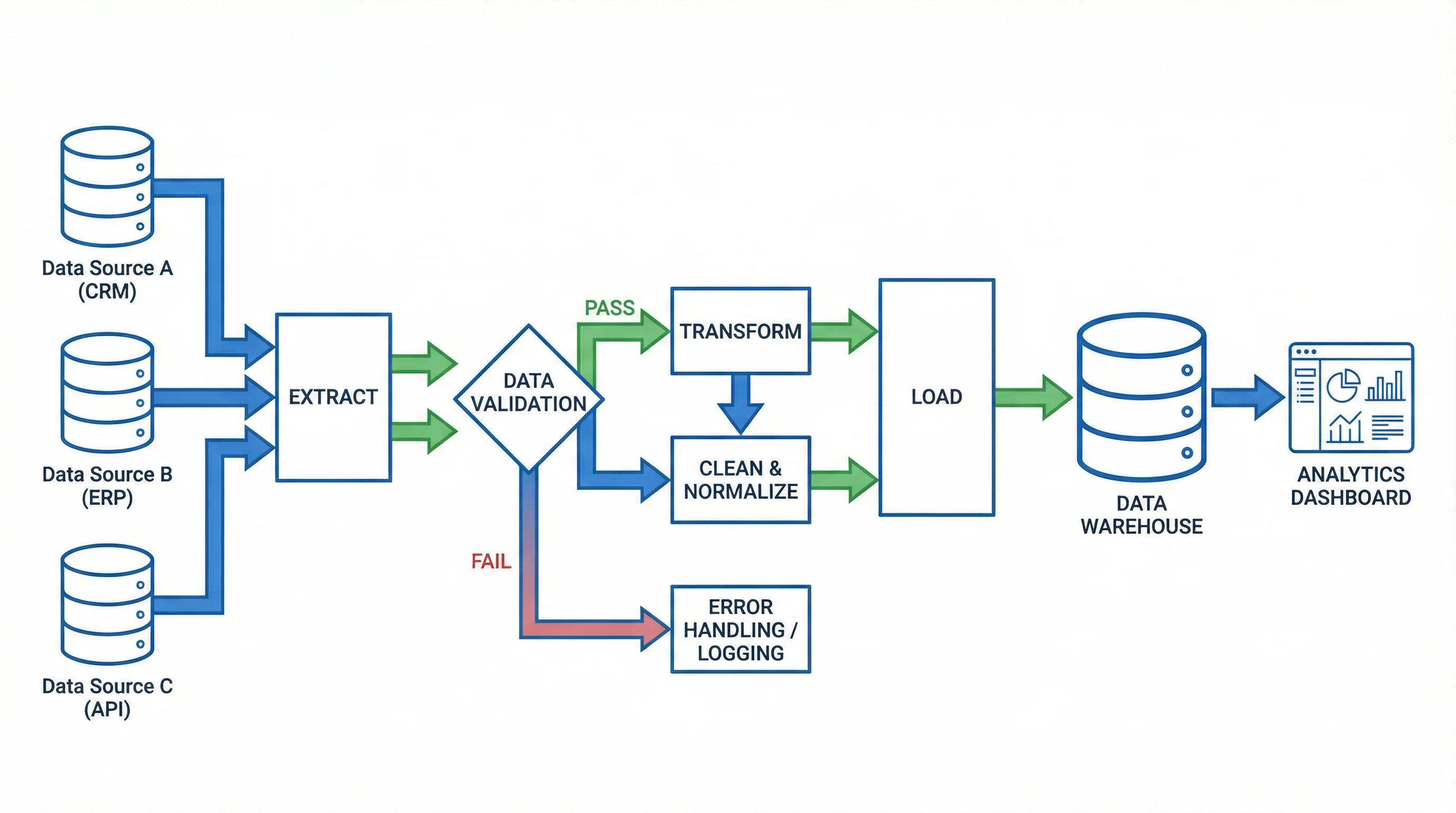
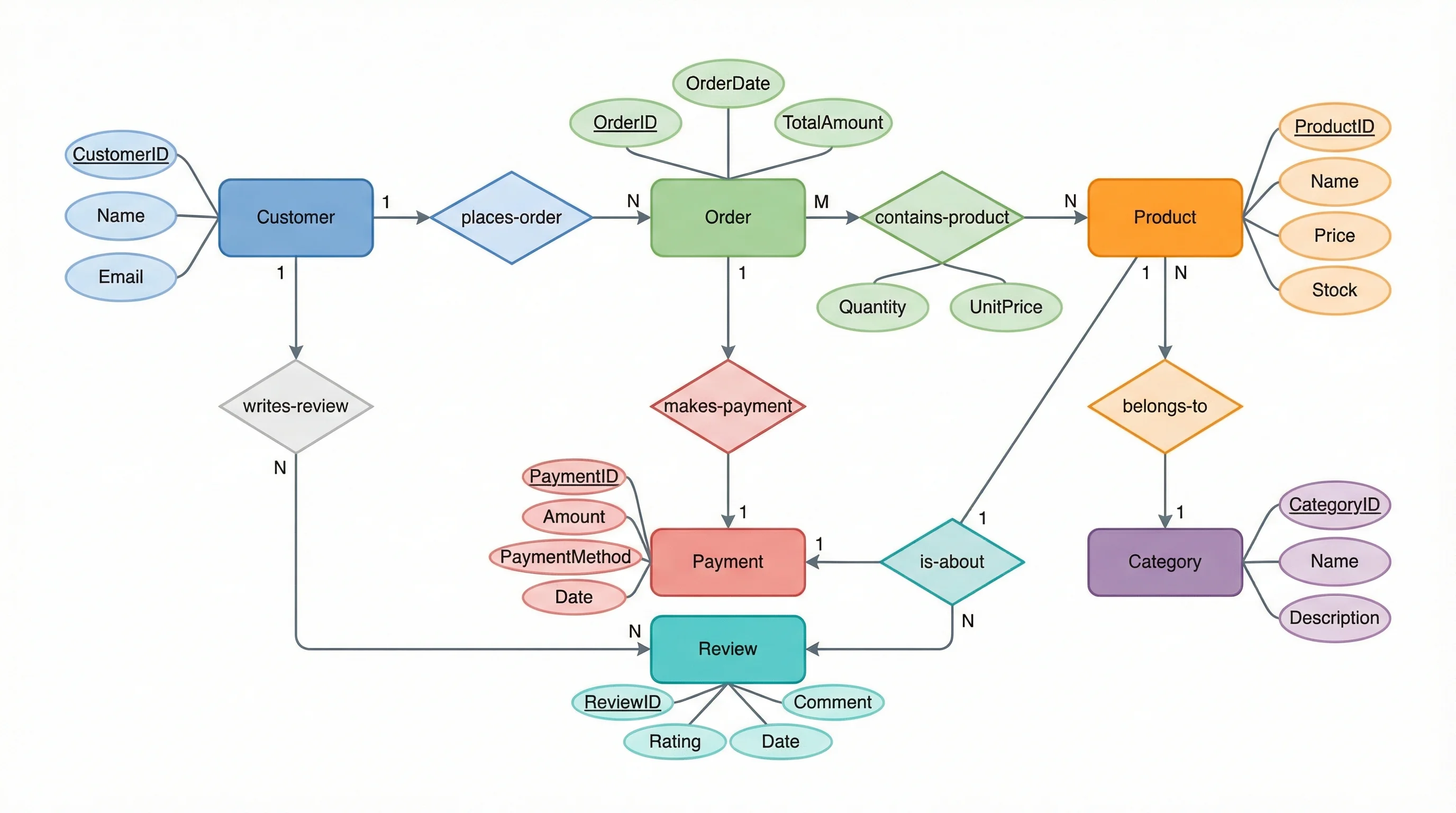
The same applies to other technical diagram types: ER diagrams, BPMN process models, network topology diagrams, and data flow diagrams all require specialized notation that Canva does not offer.
Limited Connector Logic
In dedicated diagramming tools, connectors are smart — they route around shapes, maintain connections when you move elements, and support different line types (orthogonal, curved, straight). Canva's connectors are basic lines that you position manually. Move a shape, and you often need to reposition every connected line by hand. For anything beyond a simple 5-box flowchart, this becomes tedious.
No Diagram-Specific Features
Dedicated diagramming tools offer features that Canva lacks entirely:
- Auto-layout algorithms that arrange nodes automatically for readability
- Swimlane support for organizing process steps by role or department
- Shape data for attaching metadata to diagram elements
- Layer management for complex diagrams with overlapping elements
- Notation validation that ensures your diagram follows standard rules
- Snap-to-grid and alignment guides designed specifically for diagram clarity
Canva has basic alignment tools, but they are designed for graphic design, not structured diagramming.
Export Limitations on Free Plan
While Canva lets you export PNG and JPG for free, SVG export requires Canva Pro ($12.99/month). This is a significant limitation for anyone who needs scalable vector diagrams for documentation, research papers, or print materials. Most dedicated diagramming tools offer SVG export on their free plans.
Scalability Issues
Canva handles simple diagrams with 10-20 elements well. But try creating a complex system architecture diagram with 50+ shapes and connections, and the experience degrades. Elements become difficult to select, the canvas gets cluttered without proper layering, and there is no way to create sub-diagrams or linked pages the way tools like Draw.io or Lucidchart allow.
No Code-Based Diagram Generation
Modern development workflows increasingly use diagram-as-code approaches — defining diagrams in text (Mermaid, PlantUML) that live alongside source code in version control. Canva has no support for this workflow. You cannot import or export diagram code, and there is no API for programmatic diagram generation.
Better Alternatives for Different Use Cases
The best Canva alternative depends on what you are trying to create. Here are the tools that outperform Canva for specific diagramming needs.
For Technical and Software Diagrams: Draw.io (Diagrams.net)
Draw.io is the gold standard for free, full-featured diagramming. It supports UML, ER diagrams, network diagrams, BPMN, and dozens of other notation standards out of the box. Smart connectors route automatically, and the shape library is massive. It works offline, integrates with Google Drive and Confluence, and is completely free with no feature restrictions.
Why it beats Canva: Technical notation support, smart connectors, unlimited free usage, Visio import, offline support.
For AI-Powered Diagram Generation: ConceptViz
If you want to skip the manual drag-and-drop process entirely, ConceptViz lets you describe your diagram in plain text and generates a polished result in seconds. It supports flowcharts, mind maps, UML diagrams, ER diagrams, network diagrams, Venn diagrams, and more. This is especially valuable when you know what you want to communicate but do not want to spend time on layout and styling.
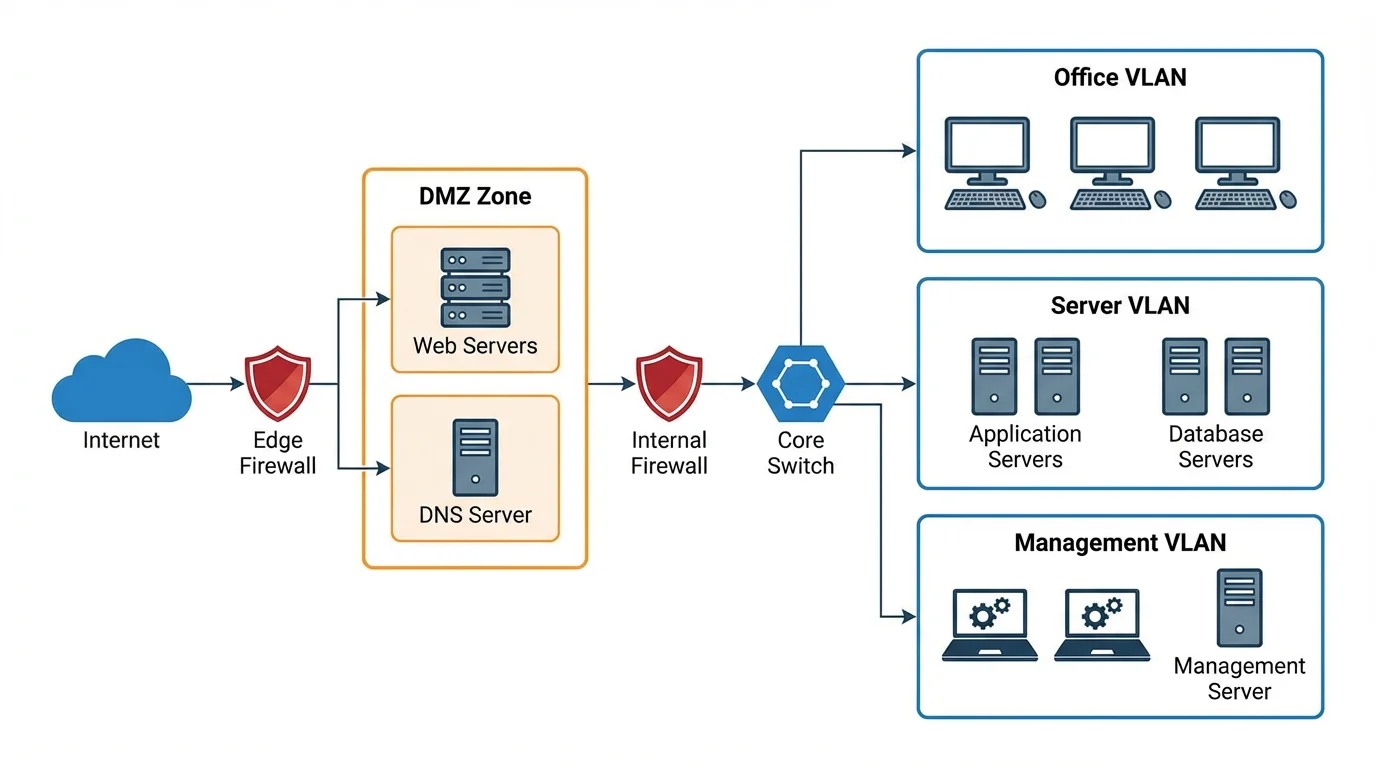
Why it beats Canva: No design skills needed, supports technical diagram types, faster workflow, SVG export included.
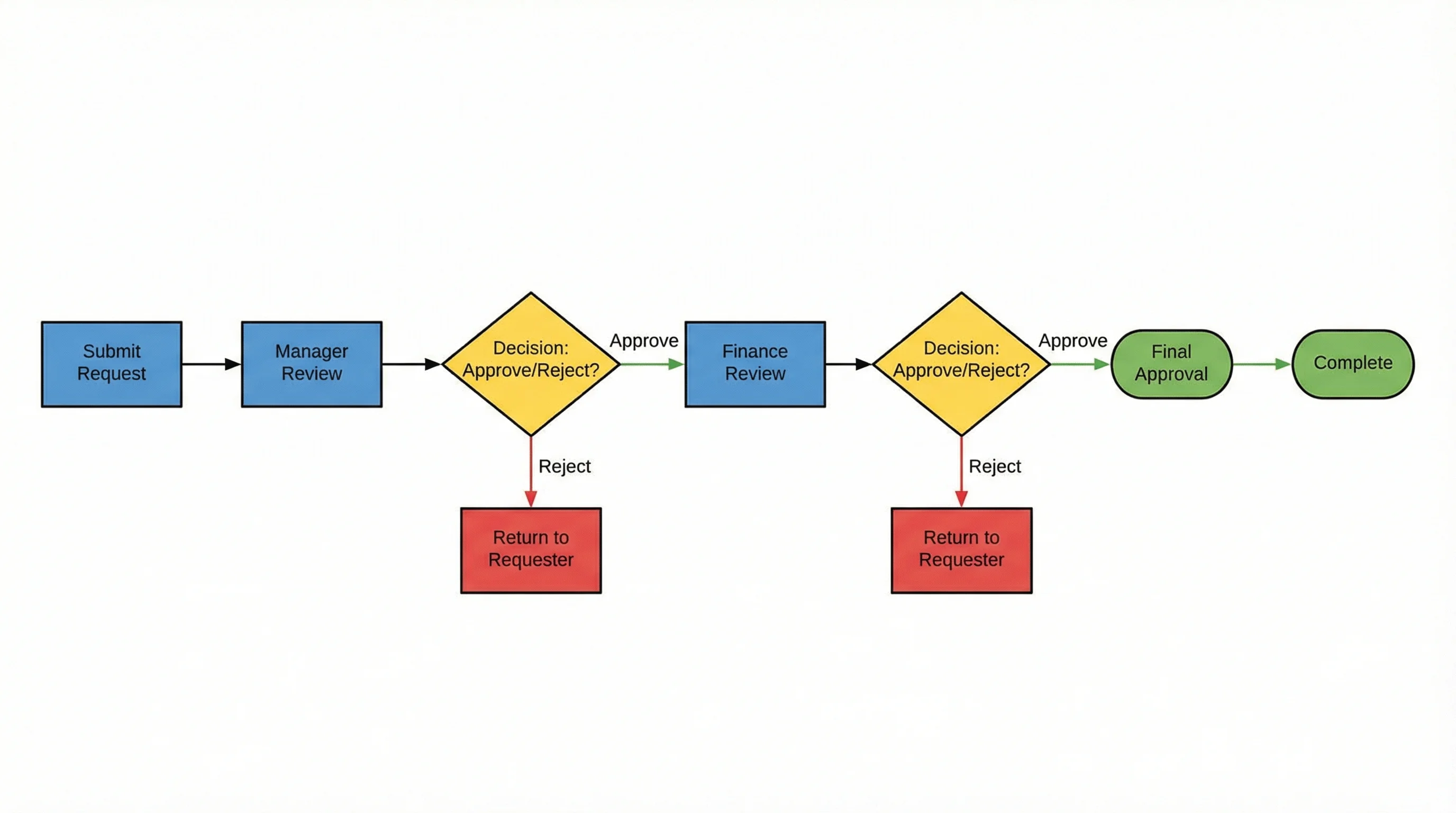
AI Flowchart Generator
Describe your process in plain language and get a professional flowchart instantly. No manual layout required.
For Team Whiteboarding: Miro
If your primary use for Canva's diagramming features is collaborative brainstorming, Miro is purpose-built for this. Its infinite whiteboard canvas supports real-time collaboration with live cursors, voting, timers, and built-in facilitation tools. The diagramming shapes pack covers flowcharts, UML basics, and concept maps. Three free boards are included on the free plan.
Why it beats Canva: Superior real-time collaboration, infinite canvas, built-in workshop tools, dedicated diagramming shapes.
For Developer Workflows: Mermaid.js
Mermaid.js is a text-based diagramming tool that renders diagrams from Markdown-like syntax. It integrates natively with GitHub, GitLab, Notion, and most documentation platforms. Developers can define flowcharts, sequence diagrams, class diagrams, ER diagrams, and Gantt charts directly in their Markdown files — keeping diagrams in version control alongside code.
Why it beats Canva: Code-based workflow, version control friendly, renders in Markdown, supports technical diagram types, completely free and open source.
For Polished Business Diagrams: Lucidchart
Lucidchart offers a premium diagramming experience with smart shapes, auto-layout, data linking, and deep integrations with Google Workspace, Atlassian, and Microsoft tools. Its free tier is limited to 3 editable documents, but the quality of the output and the diagramming features far exceed what Canva offers.
Why it beats Canva: Professional-grade features, smart connectors, data-driven diagrams, enterprise integrations.
For Hand-Drawn Style: Excalidraw
Excalidraw produces charming hand-drawn-style diagrams that are perfect for informal documentation, blog posts, and presentations where a polished corporate look is not required. It is open source, completely free, works offline, and supports real-time collaboration via shared links without requiring accounts.
Why it beats Canva: Unique visual style, instant collaboration without accounts, open source, completely free.
Comparison Table: Canva vs. Specialized Diagramming Tools
| Feature | Canva | Draw.io | ConceptViz | Miro | Lucidchart | Mermaid.js |
|---|---|---|---|---|---|---|
| Best for | Visual design | Technical diagrams | AI-generated diagrams | Team brainstorming | Business documentation | Developer workflows |
| UML support | None | Full | Yes (AI) | Basic | Full | Partial |
| ER diagrams | None | Full | Yes (AI) | None | Full | Yes |
| Flowcharts | Templates only | Full editor | AI-generated | Yes | Full editor | Yes |
| Smart connectors | No | Yes | N/A | Basic | Yes | Auto-rendered |
| Auto-layout | No | Yes | AI-powered | No | Yes | Yes |
| SVG export (free) | No | Yes | Yes | No | No | Yes |
| Offline support | No | Yes (desktop) | No | No | No | Yes (local) |
| Code-based input | No | XML | Natural language | No | No | Markdown syntax |
| Real-time collab | Yes | Limited | No | Yes | Yes | No |
| Free tier | Generous | Unlimited | Free credits | 3 boards | 3 documents | Unlimited |
| Learning curve | Very low | Medium | Very low | Medium | Medium | Medium-high |
| Template library | Extensive | Moderate | AI-generated | Large | Large | N/A |
| Pricing | Free / $12.99 mo | Free | Free + credit packs | Free / $8 mo | Free / $7.95 mo | Free |
When to Stick with Canva for Diagrams
Despite its limitations, Canva remains the right choice in certain scenarios:
- You need a visually polished diagram for a presentation or social media. Canva's design DNA means its output looks better than most diagramming tools without extra effort.
- You already use Canva for other design work. Keeping everything in one tool reduces context switching and maintains brand consistency.
- Your diagrams are simple. A basic flowchart with fewer than 15 boxes, a Venn diagram, or an organizational chart works fine in Canva.
- You prioritize ease of use above all else. For someone who finds Draw.io or Lucidchart intimidating, Canva's familiar interface is a real advantage.
- You need design elements alongside your diagram. Combining diagrams with illustrations, photos, icons, and branded elements is where Canva truly shines.
When to Switch to a Specialized Tool
Move beyond Canva when:
- You need technical diagram notation (UML, BPMN, ER, network) — use Draw.io or Lucidchart
- You want diagrams generated from text descriptions — use ConceptViz
- Your diagrams have 20+ connected elements — use Draw.io for its superior canvas management
- You need diagrams in version control — use Mermaid.js or PlantUML
- You need free SVG export — use Draw.io, ConceptViz, or Excalidraw
- You are running collaborative workshops — use Miro for its facilitation features
- You need to import or export Visio files — use Draw.io or Lucidchart
Frequently Asked Questions
Can you make flowcharts and diagrams in Canva?
Yes, Canva supports basic flowcharts, mind maps, organizational charts, Venn diagrams, and process diagrams through its template library and shape editor. You can drag and drop shapes, add connectors, and customize colors and fonts. However, Canva lacks support for technical diagram types like UML, ER diagrams, network diagrams, and BPMN process models.
Is Canva good enough for professional diagrams?
Canva produces visually attractive diagrams suitable for presentations, marketing materials, and social media. However, for professional technical documentation — software architecture, database schemas, network topology, or standardized process flows — dedicated tools like Draw.io, Lucidchart, or ConceptViz offer the notation accuracy, smart connectors, and export options that Canva lacks.
What is the best free alternative to Canva for diagramming?
Draw.io (Diagrams.net) is the best free alternative for general-purpose diagramming, offering unlimited documents, full UML and ER diagram support, smart connectors, and SVG export — all completely free. For AI-powered diagram generation from text descriptions, ConceptViz offers free credits on signup. Excalidraw is the best free option for hand-drawn-style diagrams with instant collaboration.
Can Canva create UML diagrams?
No, Canva does not support UML (Unified Modeling Language) diagrams. There are no UML shape libraries, standard notation elements, or structural validation features in Canva. For UML diagrams, use Draw.io for a free GUI-based editor, PlantUML or Mermaid.js for code-based generation, or ConceptViz for AI-powered UML creation from text descriptions.
Does Canva support SVG export for diagrams?
SVG export in Canva requires a Pro subscription at $12.99 per month. The free plan only supports PNG, JPG, and PDF exports. If you need free SVG export for your diagrams, Draw.io, ConceptViz, and Excalidraw all offer vector export on their free plans.
Is Canva Whiteboard good for diagramming?
Canva Whiteboard is useful for informal brainstorming and mind mapping with its infinite canvas, sticky notes, and real-time collaboration. However, it lacks the structured diagramming features found in dedicated whiteboard tools like Miro — including facilitation tools, voting, timers, and dedicated diagramming shape packs. For serious whiteboarding, Miro is a better choice.
What are the best diagramming tools in 2026?
The best diagramming tools in 2026 depend on your use case. Draw.io is the best free general-purpose option. ConceptViz is the fastest for AI-generated diagrams from text. Lucidchart leads for enterprise documentation. Miro excels at collaborative whiteboarding. Mermaid.js and PlantUML are the top choices for developers who want diagrams in code. Canva remains strong for design-focused visuals that need to look polished in presentations.
Can I use AI to generate diagrams instead of Canva?
Yes, AI-powered tools like ConceptViz let you describe a diagram in plain text and receive a polished result in seconds. This approach is faster than manually building diagrams in Canva and supports technical diagram types including flowcharts, UML, ER diagrams, mind maps, and network diagrams. You can try it at conceptviz.com/tools/text-to-diagram-generator.
Conclusion
Canva is a remarkable design tool that has rightfully earned its place in millions of workflows. For simple, visually polished diagrams — especially when they are part of a larger design project — it remains an excellent choice. The template library is extensive, the editor is intuitive, and the free tier is genuinely useful.
But Canva is not a diagramming tool. It is a design tool that can make diagrams. That distinction matters when you need technical notation, smart connectors, auto-layout, code-based workflows, or scalability beyond a few dozen shapes.
The good news is that the diagramming landscape in 2026 offers strong options for every use case:
- For the fastest workflow: ConceptViz's Text to Diagram Generator turns descriptions into diagrams in seconds
- For full-featured free diagramming: Draw.io covers nearly every diagram type without restrictions
- For team collaboration: Miro brings real-time whiteboarding and facilitation tools
- For developer documentation: Mermaid.js keeps diagrams in version control with your code
Choose the tool that fits your actual needs — not the one with the biggest brand name. Sometimes that is Canva. Often, for diagrams, it is something more specialized.
Related guides: Best Free Diagram Software Compared, UML Diagram Types Complete Guide, How to Create a Data Flow Diagram, and Best Canva Alternatives for Science Diagrams.
更多文章
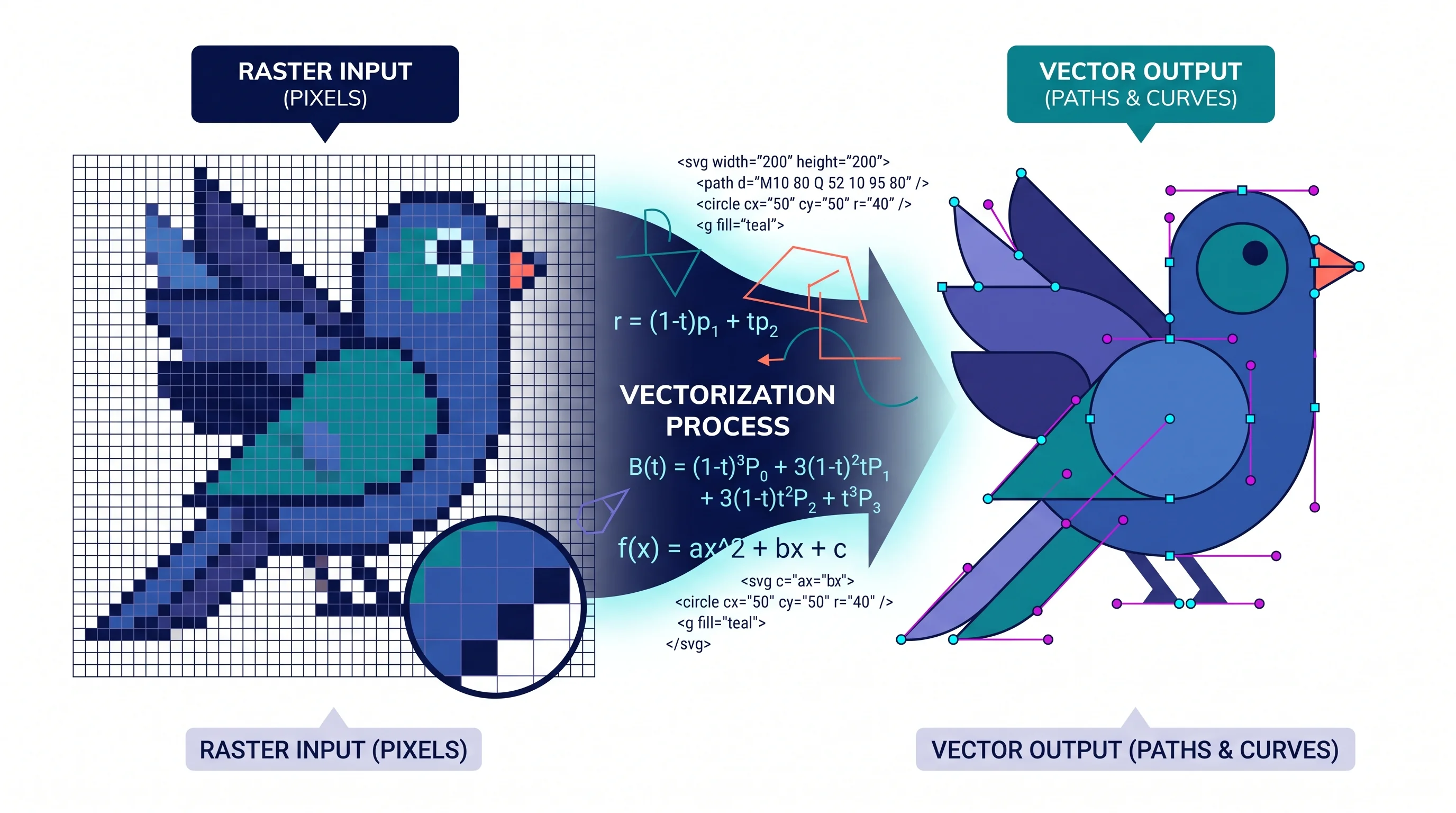
How to Create a Vector Image: A Complete Guide for Beginners and Researchers
Learn how to create vector images using Inkscape, Adobe Illustrator, and AI tools. Complete guide covering SVG format, tracing raster images, scientific illustration, and best practices.
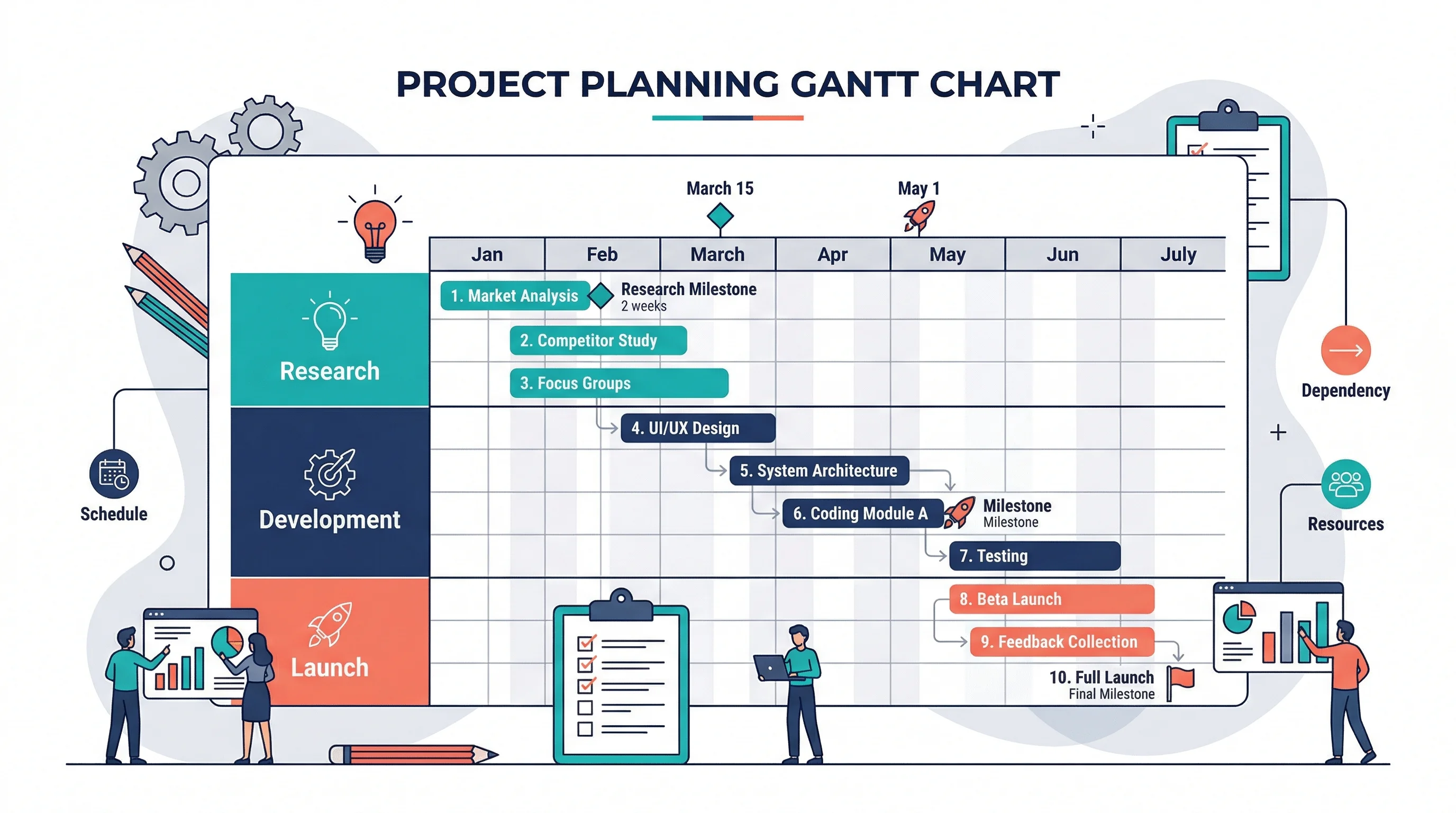
How to Make a Gantt Chart: Step-by-Step Guide for Projects and Research (2026)
Learn how to make a Gantt chart for project planning, research schedules, and launch timelines. Covers manual logic, Excel workflows, common mistakes, and when to use timeline tools instead.
How to Write a Research Manuscript: Complete IMRaD Format Guide
Master the art of writing research manuscripts with this comprehensive IMRaD format guide. Learn the best writing order, avoid common rejection reasons, and get your paper published.