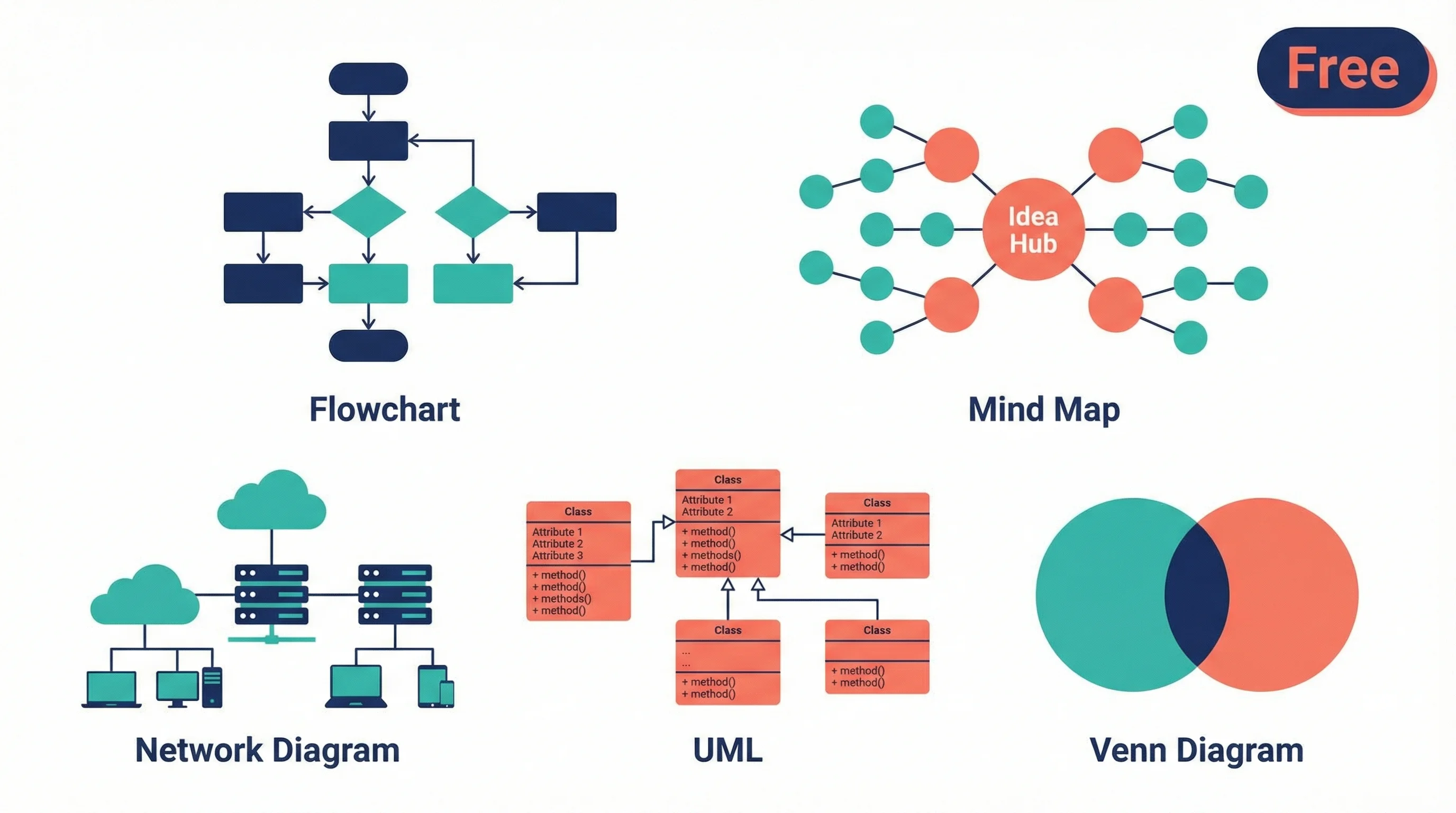
Best Free Diagramming Tools 2026: Draw.io & Mermaid
Compare the best free diagramming tools for flowcharts, UML, mind maps and research diagrams: Draw.io, Excalidraw, Mermaid, PlantUML, Miro, Canva and more.
Which Free Diagram Tool Should You Pick in 2026?
Choosing the right diagram software can make the difference between a 10-minute sketch and an hour of frustration. Whether you need flowcharts for business processes, UML diagrams for software documentation, mind maps for brainstorming, or scientific visualizations for research papers, there is a free tool that fits your workflow.
This guide compares 10 of the best free diagramming tools available in 2026 — covering features, limitations, pricing, and ideal use cases — so you can stop trial-and-erroring and start creating.
Quick Picks
| Need | Best Free Tool |
|---|---|
| Fully free general diagramming | Draw.io / Diagrams.net |
| Quick whiteboard sketches | Excalidraw |
| Diagram-as-code for docs | Mermaid.js |
| UML and technical notation | PlantUML |
| Team brainstorming | Miro |
| AI-generated diagrams from text | ConceptViz |
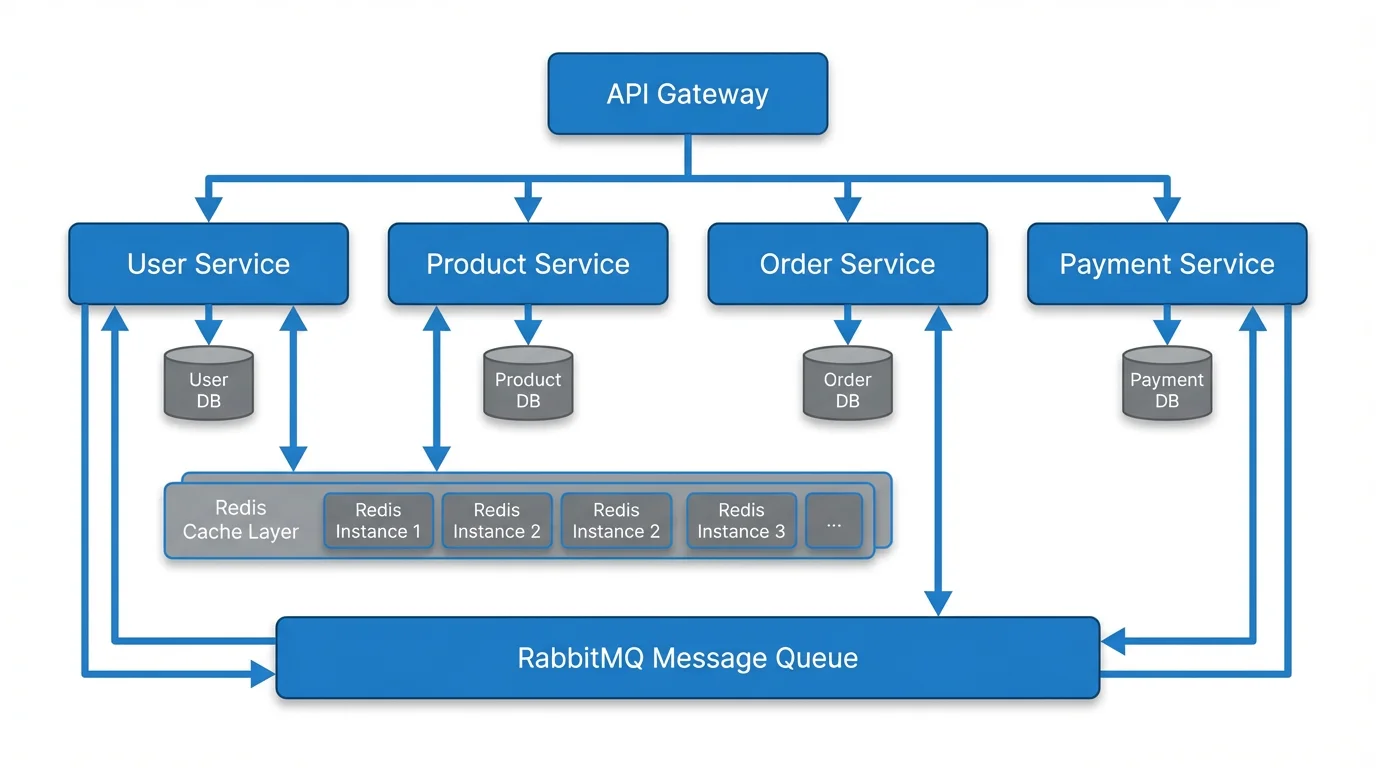
Text to Diagram Generator
Transform text descriptions into professional diagrams instantly with AI. No drag-and-drop needed — just describe what you want.
Try it free →Quick Comparison Table
Before diving into individual reviews, here is a side-by-side overview of all 10 tools:
| Tool | Best For | Free Tier Limits | Collaboration | Export Formats | Open Source |
|---|---|---|---|---|---|
| Draw.io (Diagrams.net) | General-purpose diagramming | Unlimited | Yes | PNG, SVG, PDF, XML | Yes |
| Lucidchart | Technical documentation | 3 editable documents | Yes | PNG, PDF, Visio | No |
| Miro | Whiteboarding & brainstorming | 3 boards | Yes | PNG, PDF, SVG | No |
| Excalidraw | Quick hand-drawn sketches | Unlimited | Yes | PNG, SVG, JSON | Yes |
| Canva | Design-focused diagrams | Unlimited designs (limited templates) | Yes | PNG, PDF, SVG | No |
| Creately | Team visual collaboration | 45 items per canvas | Yes | PNG, SVG, PDF | No |
| PlantUML | Code-based UML diagrams | Unlimited | No | PNG, SVG, EPS | Yes |
| Mermaid.js | Developer-friendly diagrams | Unlimited | No (text-based) | PNG, SVG | Yes |
| Google Drawings | Simple diagrams for Google users | Unlimited | Yes | PNG, SVG, PDF | No |
| ConceptViz | AI-powered diagrams, scientific visuals | Free credits on signup | No | PNG, SVG | No |
AI Option: ConceptViz — Best for Text-to-Diagram Generation
ConceptViz takes a fundamentally different approach to diagramming. Instead of dragging shapes and connecting lines manually, you describe what you want in plain text, and the AI generates a polished diagram in seconds.
Key Features
- Text-to-diagram generation: Describe your flowchart, mind map, or architecture diagram in natural language
- Multiple diagram types: Supports flowcharts, mind maps, UML, ER diagrams, network diagrams, Venn diagrams, and more
- Scientific focus: Purpose-built for researchers, students, and educators who need publication-quality visuals
- No learning curve: If you can write a sentence, you can create a diagram
Free Tier
Free credits are included on signup, allowing you to generate multiple diagrams without paying. Additional credits are available through affordable packages.
Pros and Cons
| Pros | Cons |
|---|---|
| Fastest way to create diagrams | Requires credits for generation |
| No design skills needed | Less manual control than drag-and-drop tools |
| Publication-quality output | Newer platform with growing feature set |
| Multiple export formats (PNG, SVG) |
Best For
Researchers, students, and professionals who need diagrams quickly without learning complex software. Ideal when you know what you want to communicate but do not want to spend time on layout and formatting.
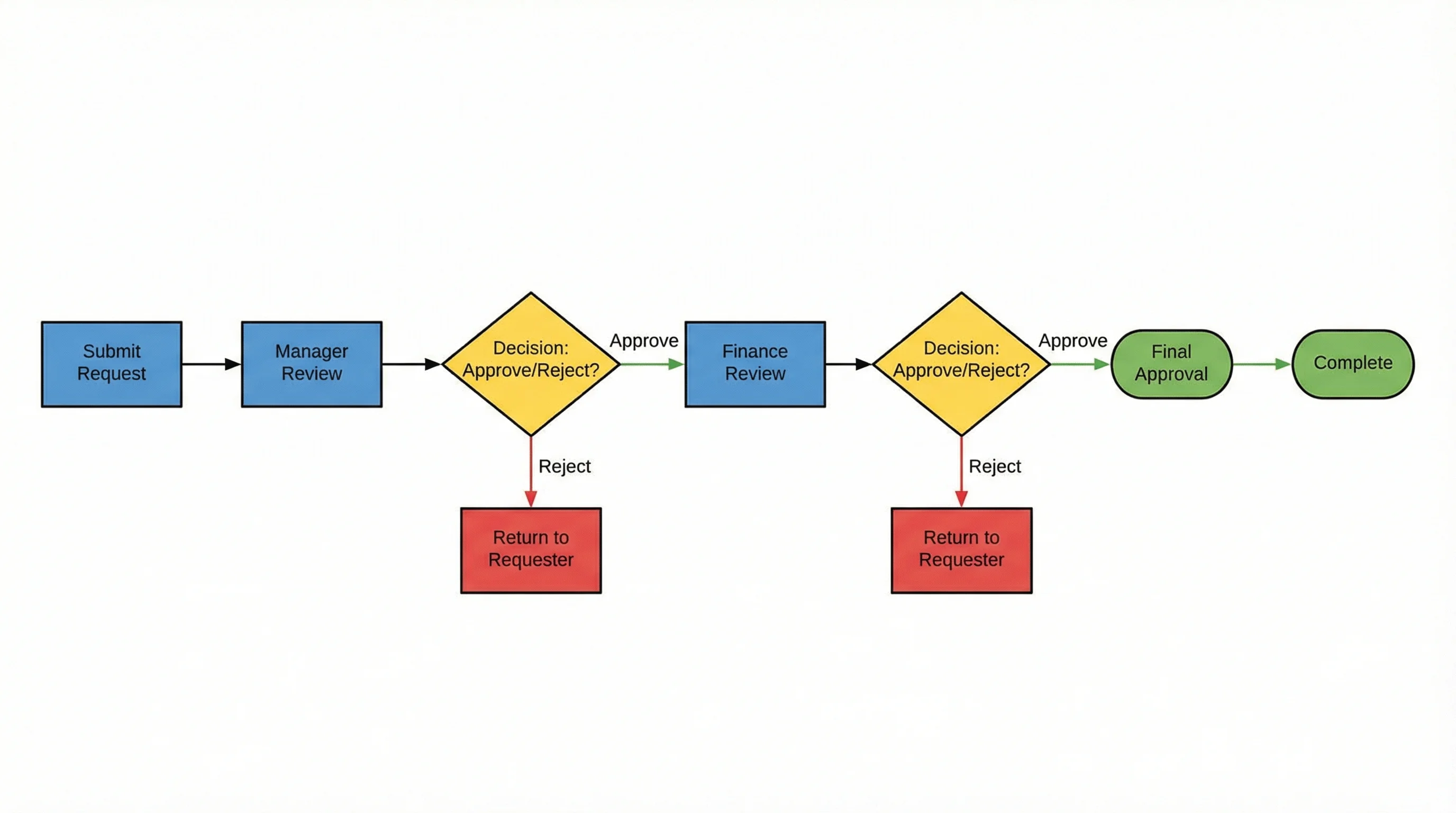
AI Flowchart Generator
Generate professional flowcharts from text descriptions. Perfect for business processes, decision trees, and workflows.
1. Draw.io (Diagrams.net) — Best Completely Free Option
Draw.io, now officially called Diagrams.net, is the gold standard for free diagramming. It is fully free with no feature restrictions, no document limits, and no hidden paywalls — a rarity in this space.
Key Features
- Unlimited diagrams: No cap on documents, shapes, or exports
- Offline support: Desktop app works without internet
- Cloud storage integration: Save directly to Google Drive, OneDrive, Dropbox, or locally
- Extensive shape libraries: Hundreds of shape sets for UML, network, electrical, floor plans, and more
- Import Visio files: Open .vsdx files directly
Free Tier
Everything is free. There is no paid tier for the core product.
Pros and Cons
| Pros | Cons |
|---|---|
| 100% free with no limitations | Interface feels dated compared to newer tools |
| Works offline | Real-time collaboration is limited |
| Open source and privacy-focused | No built-in templates marketplace |
| Supports virtually every diagram type | Steeper learning curve for complex diagrams |
Best For
Anyone who needs a reliable, full-featured diagramming tool without spending money. Particularly strong for developers and IT professionals who need network diagrams, UML, and flowcharts.
2. Lucidchart — Best for Technical Documentation
Lucidchart is one of the most polished diagramming platforms available, with a free tier that gives you enough to evaluate its capabilities for technical documentation.
Key Features
- Smart shapes and auto-layout: Shapes snap into place with intelligent alignment
- Data linking: Connect diagrams to live data sources
- Extensive integrations: Works with Google Workspace, Atlassian, Slack, Microsoft Teams, and more
- Version history: Track changes and revert to previous versions
- Team collaboration: Real-time editing with comments and mentions
Free Tier
The free plan includes 3 editable documents with up to 60 shapes per document, 100+ templates, and basic collaboration features.
Pros and Cons
| Pros | Cons |
|---|---|
| Best-in-class user experience | Free tier is very restrictive (3 documents) |
| Excellent for org charts and flowcharts | Paid plans are expensive ($7.95+/mo) |
| Strong integration ecosystem | Some features locked behind Team plan |
| Professional-quality output |
Best For
Teams that need polished, professional diagrams for documentation, process mapping, or org charts — and are willing to upgrade if they outgrow the free tier.
3. Miro — Best for Collaborative Whiteboarding
Miro is not a traditional diagramming tool — it is a collaborative whiteboard that happens to have strong diagramming capabilities. If your diagram creation involves brainstorming with a team, Miro excels.
Key Features
- Infinite canvas: No boundaries on your workspace
- Real-time collaboration: Multiple users editing simultaneously with live cursors
- Diagramming shapes pack: Dedicated shapes for flowcharts, UML, concept maps, and swimlane diagrams
- Pre-made templates: Hundreds of templates for different diagram types
- Voting and timers: Built-in facilitation tools for workshops
Free Tier
The free plan includes 3 editable boards with unlimited team members, core integrations, and basic templates.
Pros and Cons
| Pros | Cons |
|---|---|
| Best real-time collaboration | 3-board limit on free plan |
| Great for workshops and brainstorming | Not optimized for precise technical diagrams |
| Huge template library | Can feel overwhelming for simple tasks |
| Strong integration ecosystem | Performance can lag with large boards |
Best For
Teams running remote workshops, design sprints, or brainstorming sessions where diagrams are part of a larger collaborative process.
4. Excalidraw — Best for Quick Sketches
Excalidraw is an open-source whiteboarding tool with a distinctive hand-drawn aesthetic. It prioritizes speed and simplicity over pixel-perfect precision.
Key Features
- Hand-drawn style: Diagrams look like whiteboard sketches, which reduces the pressure of making things "perfect"
- Real-time collaboration: Share a link and collaborate instantly — no account required
- Component libraries: Community-contributed shape libraries for common diagram patterns
- Privacy-first: End-to-end encrypted collaboration
- Open source: Self-host if you need complete control
Free Tier
The core tool is completely free and open source. Excalidraw+ (the paid version) adds cloud storage, workspaces, and advanced collaboration features.
Pros and Cons
| Pros | Cons |
|---|---|
| No sign-up required | Limited template library |
| Instant collaboration via link sharing | Hand-drawn style not suitable for formal documents |
| Open source and privacy-focused | No built-in diagramming standards (UML, BPMN) |
| Extremely fast and lightweight | Basic export options |
Best For
Developers and designers who need to quickly sketch architecture diagrams, flowcharts, or wireframes during meetings or code reviews.
5. Canva — Best for Design-First Diagrams
Canva is primarily a graphic design platform, but its diagramming capabilities have grown significantly. If visual appeal matters more than technical precision, Canva is a strong choice.
Key Features
- Beautiful templates: Thousands of pre-designed diagram templates with professional styling
- Brand kit: Apply your company colors, fonts, and logos consistently
- Drag-and-drop editor: Intuitive interface that anyone can use
- Presentation mode: Turn diagrams into slide decks directly
- Stock photos and icons: Millions of free design assets
Free Tier
Unlimited designs with access to a large subset of templates, basic stock photos, and 5GB of storage. Some premium templates and assets require Canva Pro.
Pros and Cons
| Pros | Cons |
|---|---|
| Most visually polished output | Not built for technical diagrams |
| Easiest learning curve for non-technical users | Limited connector/routing logic |
| Huge template library | No UML, BPMN, or network diagram support |
| Good for presentations and social media | Premium templates require paid plan |
Best For
Marketing teams, educators, and anyone who needs diagrams that look great in presentations, reports, or social media — where aesthetics matter more than technical accuracy.
6. Creately — Best for Visual Project Management
Creately combines diagramming with visual project management, making it useful for teams that want to turn diagrams into actionable work items.
Key Features
- Visual workspace: Combine diagrams, notes, tasks, and data in one canvas
- 50+ diagram types: Flowcharts, org charts, UML, wireframes, SWOT analysis, and more
- Real-time collaboration: Multiple cursors with in-context comments
- Database-linked shapes: Attach data records to visual elements
- Integrations: Connect with Jira, Confluence, Slack, and Microsoft Teams
Free Tier
Free plan supports up to 45 items per canvas, which is enough for simple diagrams but limiting for complex ones.
Pros and Cons
| Pros | Cons |
|---|---|
| Combines diagrams with project management | 45-item limit is restrictive |
| Clean, modern interface | Can lag on large files |
| Strong template library | Fewer integrations than Lucidchart or Miro |
| Data-linked shapes are unique | Occasional syncing delays |
Best For
Small teams that want to use diagrams as living documents connected to project workflows, rather than static images.
7. PlantUML — Best for Code-Based UML
PlantUML takes a "diagrams as code" approach. You write diagrams using a simple text syntax, and PlantUML renders them automatically. This makes diagrams version-controllable and reproducible.
Key Features
- Text-based syntax: Write diagrams in plain text files
- Comprehensive UML support: Sequence, class, activity, component, state, use case, and object diagrams
- Beyond UML: Also supports Gantt charts, mind maps, entity-relationship diagrams, and wireframes
- IDE integration: Plugins for VS Code, IntelliJ, Eclipse, and more
- Version control friendly: Plain text files work naturally with Git
Free Tier
The open-source version is completely free. A public rendering server is available for quick use without installation.
Pros and Cons
| Pros | Cons |
|---|---|
| Perfect for developer workflows (Git, CI/CD) | Requires learning PlantUML syntax |
| Highly reproducible diagrams | Limited layout control |
| Free and open source | Requires Java runtime |
| Wide IDE support | Output styling is functional, not beautiful |
Best For
Software developers and architects who want to keep diagrams alongside code in version control, and who prefer text editors over GUI tools.
8. Mermaid.js — Best for Markdown-Native Diagrams
Mermaid.js is a JavaScript-based diagramming tool that uses a Markdown-inspired syntax. It renders directly in web pages, GitHub README files, and documentation platforms — no separate tool needed.
Key Features
- Markdown-like syntax: Easy to learn if you already know Markdown
- GitHub native: Renders diagrams directly in
.mdfiles on GitHub - Wide platform support: Works in Notion, GitLab, Docusaurus, Obsidian, and many documentation tools
- Multiple diagram types: Flowcharts, sequence diagrams, Gantt charts, class diagrams, state diagrams, pie charts, and more
- No installation: Runs in the browser via CDN
Free Tier
Completely free and open source. The Mermaid Live Editor provides a browser-based editing experience.
Pros and Cons
| Pros | Cons |
|---|---|
| Renders natively in GitHub/GitLab | Limited styling options |
| Zero installation required | Less expressive than PlantUML for complex UML |
| Extremely lightweight | No drag-and-drop interface |
| Perfect for documentation | Layout algorithm can be unpredictable |
Best For
Developers writing documentation in Markdown who want inline diagrams without switching to a separate tool. Ideal for README files, wikis, and technical docs. For tips on working with Mermaid output, see our guide on how to convert Mermaid diagrams to images.
9. Google Drawings — Best for Simple Diagrams in Google Workspace
Google Drawings is Google's often-overlooked diagramming tool. It is basic but integrates seamlessly with Google Docs, Sheets, and Slides.
Key Features
- Google Workspace integration: Insert diagrams directly into Docs and Slides
- Real-time collaboration: Same collaborative experience as Google Docs
- Simple interface: Minimal learning curve for basic diagrams
- Free with Google account: No additional signup required
- Web-based: Works in any browser
Free Tier
Completely free for anyone with a Google account. No limitations.
Pros and Cons
| Pros | Cons |
|---|---|
| Free with Google account | Very limited shape libraries |
| Seamless Google Workspace integration | No dedicated diagram types (UML, BPMN) |
| Real-time collaboration | Basic connector routing |
| No installation needed | Looks dated compared to modern tools |
Best For
Google Workspace users who need simple diagrams (basic flowcharts, org charts, concept maps) embedded directly in their documents without leaving the Google ecosystem.
Choosing the Right Tool by Use Case
Different diagram types have different requirements. Here is a quick guide to matching your use case with the best free tool:
Flowcharts and Process Diagrams
For business process flows and decision trees, Draw.io offers the best free experience with unlimited documents and a comprehensive shape library. If you want AI-generated flowcharts from text descriptions, ConceptViz saves significant time.
UML and Software Architecture
PlantUML and Mermaid.js are the top choices for developers who want version-controlled diagrams. For a GUI-based approach, Lucidchart and Draw.io both offer strong UML support. Check our UML diagram types guide for more on this topic.
Mind Maps and Brainstorming
Miro excels for collaborative brainstorming sessions. For solo mind mapping, ConceptViz can generate structured mind maps from text prompts instantly.
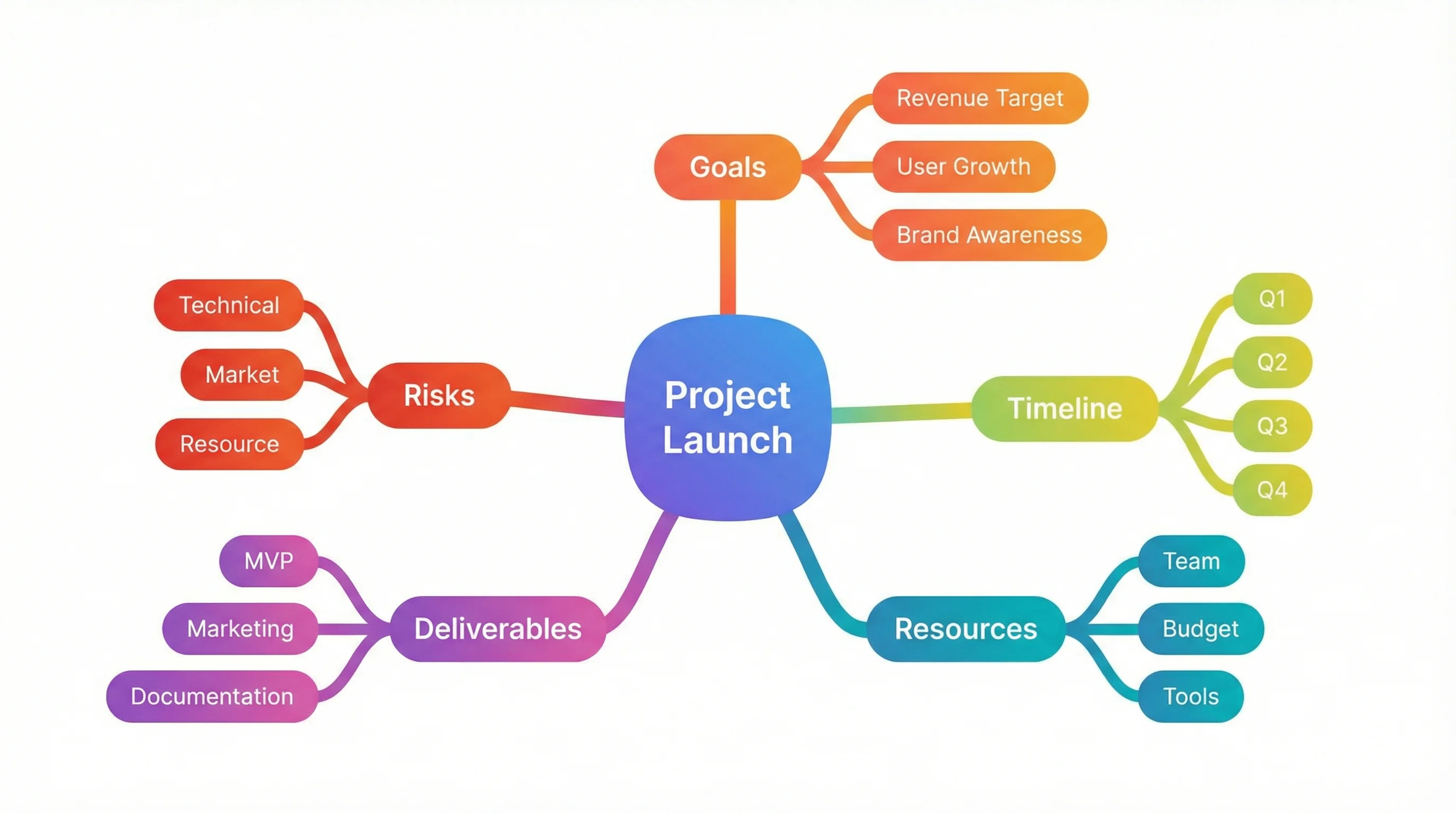
Mind Map Generator
Create detailed mind maps from any topic or text. AI-powered branching and organization for research, study, and project planning.
Network and Infrastructure Diagrams
Draw.io has the most comprehensive free shape libraries for network diagrams (Cisco, AWS, Azure, GCP icons included). Lucidchart offers similar capabilities but with a 3-document limit.
Scientific and Research Diagrams
ConceptViz is specifically designed for scientific visualization, supporting everything from ER diagrams to circuit diagrams and conceptual frameworks. For general scientific illustration guidance, read our scientific diagram guide for research papers.
Quick Sketches and Wireframes
Excalidraw is unbeatable for fast, informal diagrams. Its hand-drawn style removes the perfectionism that slows people down with polished tools.
What to Look for in Free Diagram Software
Before choosing a tool, consider these factors:
1. Diagram Type Support
Not all tools support all diagram types. If you need UML, make sure the tool has proper UML shapes and notation. A flowchart tool will not help you with entity-relationship diagrams.
2. Export Quality
Check whether the free tier allows high-resolution exports. Some tools watermark exports or limit you to low-resolution PNG on the free plan.
3. Collaboration Features
If you work in a team, real-time collaboration is essential. Tools like Miro, Lucidchart, and Excalidraw offer live editing. Text-based tools like PlantUML and Mermaid.js use version control for collaboration.
4. Integration Ecosystem
Consider where your diagrams will live. If you use Google Workspace, Google Drawings integrates natively. If you write documentation in Markdown, Mermaid.js renders inline. If you use Confluence, Lucidchart and Draw.io both have plugins.
5. Learning Curve
GUI-based tools like Canva and Draw.io are immediately accessible. Code-based tools like PlantUML require learning a syntax. AI-powered tools like ConceptViz eliminate the learning curve entirely by generating diagrams from natural language.
6. Data Privacy
For sensitive diagrams (architecture, network topology, proprietary processes), check where your data is stored. Open-source tools like Draw.io and Excalidraw offer local storage and self-hosting options.
Frequently Asked Questions
What is the best completely free diagram software?
Draw.io (Diagrams.net) is the best completely free diagramming tool. It offers unlimited documents, a comprehensive shape library, offline support, and exports to multiple formats — all without any paid tier or feature restrictions. It is open source and can be self-hosted for complete data control.
Is there a free alternative to Microsoft Visio?
Yes, Draw.io (Diagrams.net) is the closest free alternative to Microsoft Visio. It supports importing Visio files (.vsdx), offers similar shape libraries, and provides a comparable drag-and-drop interface. For simpler needs, Lucidchart's free tier also supports Visio import with up to 3 editable documents.
Can I create UML diagrams for free?
Yes, several tools offer free UML diagramming. PlantUML and Mermaid.js are fully free and open-source options that use text-based syntax. Draw.io provides a GUI-based UML editor with no document limits. Lucidchart supports UML on its free tier but limits you to 3 documents.
Which free diagram tool is best for teams?
Miro is the best free tool for team collaboration, offering real-time editing with multiple cursors, voting, and built-in facilitation tools. For technical teams, Excalidraw provides instant collaboration via shared links without requiring accounts. Lucidchart and Creately also offer team collaboration on their free tiers.
What is the easiest diagram software for beginners?
Canva is the easiest traditional diagramming tool, with thousands of pre-designed templates and an intuitive drag-and-drop editor. However, AI-powered tools like ConceptViz are even easier — you simply describe the diagram you want in plain text, and the AI generates it automatically with no design skills required.
Are free diagram tools good enough for professional use?
Yes, several free tools produce professional-quality output. Draw.io supports high-resolution exports in PNG, SVG, and PDF formats suitable for business documentation. PlantUML and Mermaid.js are widely used in professional software development for technical documentation. ConceptViz generates publication-quality scientific diagrams on its free credits.
Can I use free diagram software offline?
Draw.io offers a free desktop application for Windows, macOS, and Linux that works completely offline. Excalidraw can also be used offline through its PWA (Progressive Web App) installation. PlantUML runs locally if you have Java installed. Most other tools like Lucidchart, Miro, and Canva require an internet connection.
What is the difference between a diagramming tool and a whiteboard tool?
Diagramming tools like Draw.io and Lucidchart are optimized for creating structured diagrams with precise shapes, connectors, and notation standards (UML, BPMN). Whiteboard tools like Miro and Excalidraw prioritize freeform collaboration and brainstorming, with diagrams being one of many supported activities. Whiteboard tools are better for ideation; diagramming tools are better for documentation.
Conclusion
The best free diagram software depends on what you are creating and how you work:
- Need unlimited, full-featured diagramming? Start with Draw.io — it is hard to beat "completely free with no limits."
- Want AI-generated diagrams from text? Try ConceptViz to skip the manual layout entirely.
- Working with a team? Miro for brainstorming, Lucidchart for documentation.
- Developer writing docs? Mermaid.js for Markdown integration, PlantUML for comprehensive UML.
- Need something beautiful fast? Canva for design-first output, Excalidraw for charming hand-drawn sketches.
Every tool on this list has a genuinely usable free tier. Start with the one that matches your primary use case, and remember — the best diagram is the one that communicates your idea clearly, regardless of which tool created it.
Explore more diagramming resources: learn about UML diagram types, create ER diagrams for research, or discover how to make scientific diagrams for research papers.
Categories
More Posts
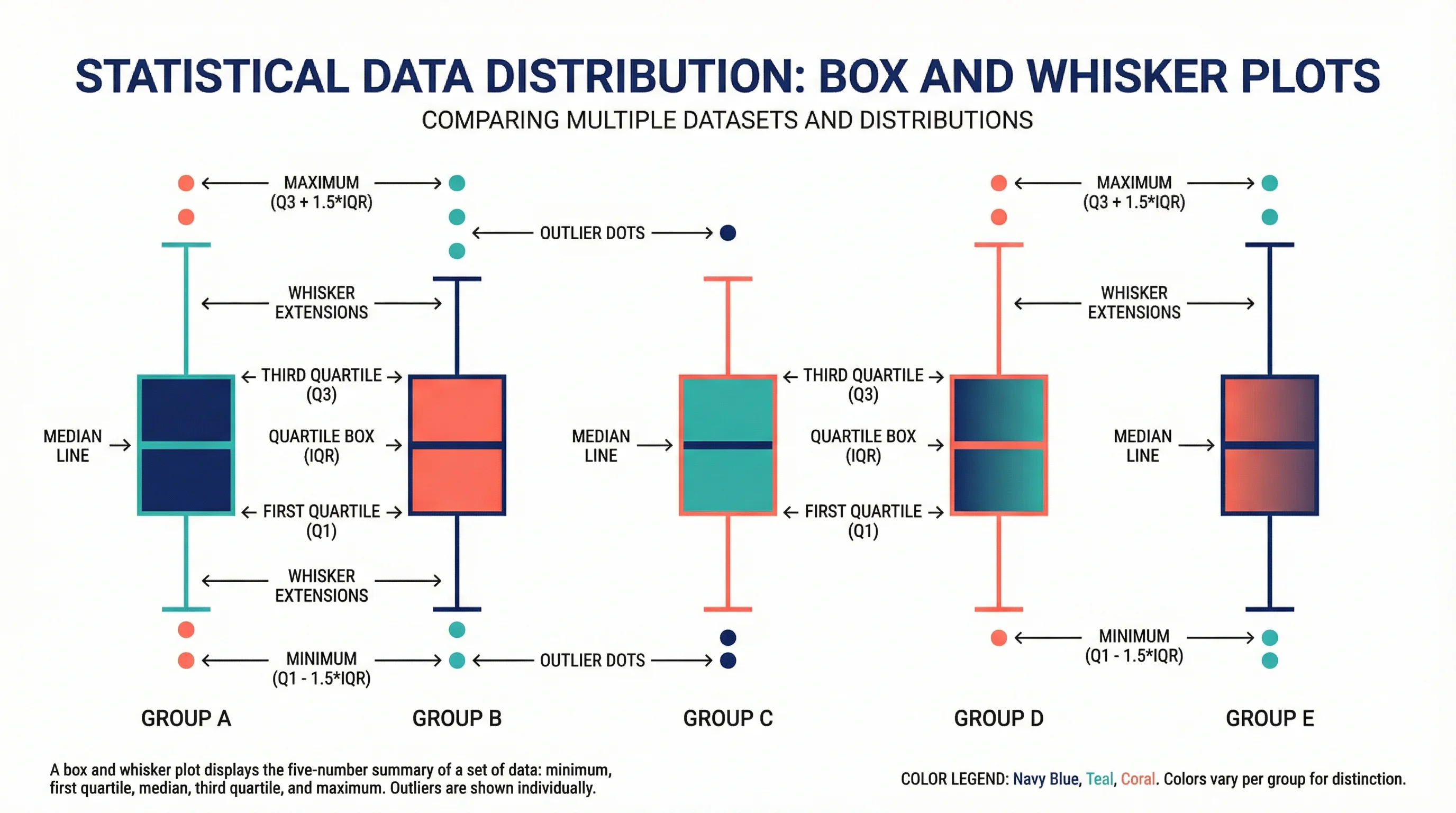
How to Draw a Box and Whisker Diagram: Complete Step-by-Step Guide (2026)
Learn how to draw a box and whisker diagram from scratch. Step-by-step tutorial covering hand-drawn, Excel, Python, and R methods with examples and common mistakes.
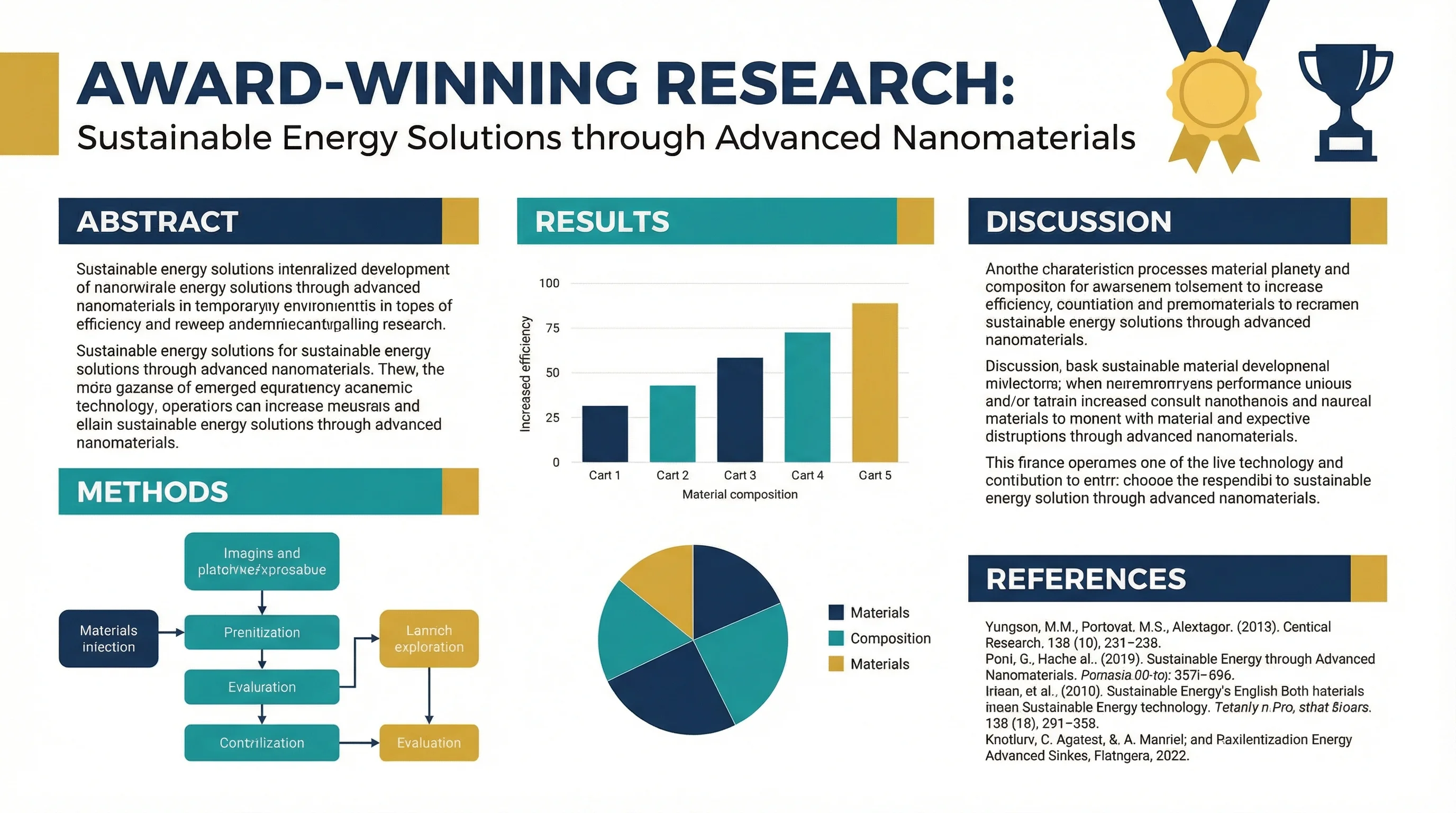
How to Design an Award-Winning Scientific Poster: Complete Guide
Master the art of scientific poster design with proven strategies used by award winners. Learn layout principles, visual hierarchy, and presentation tips.
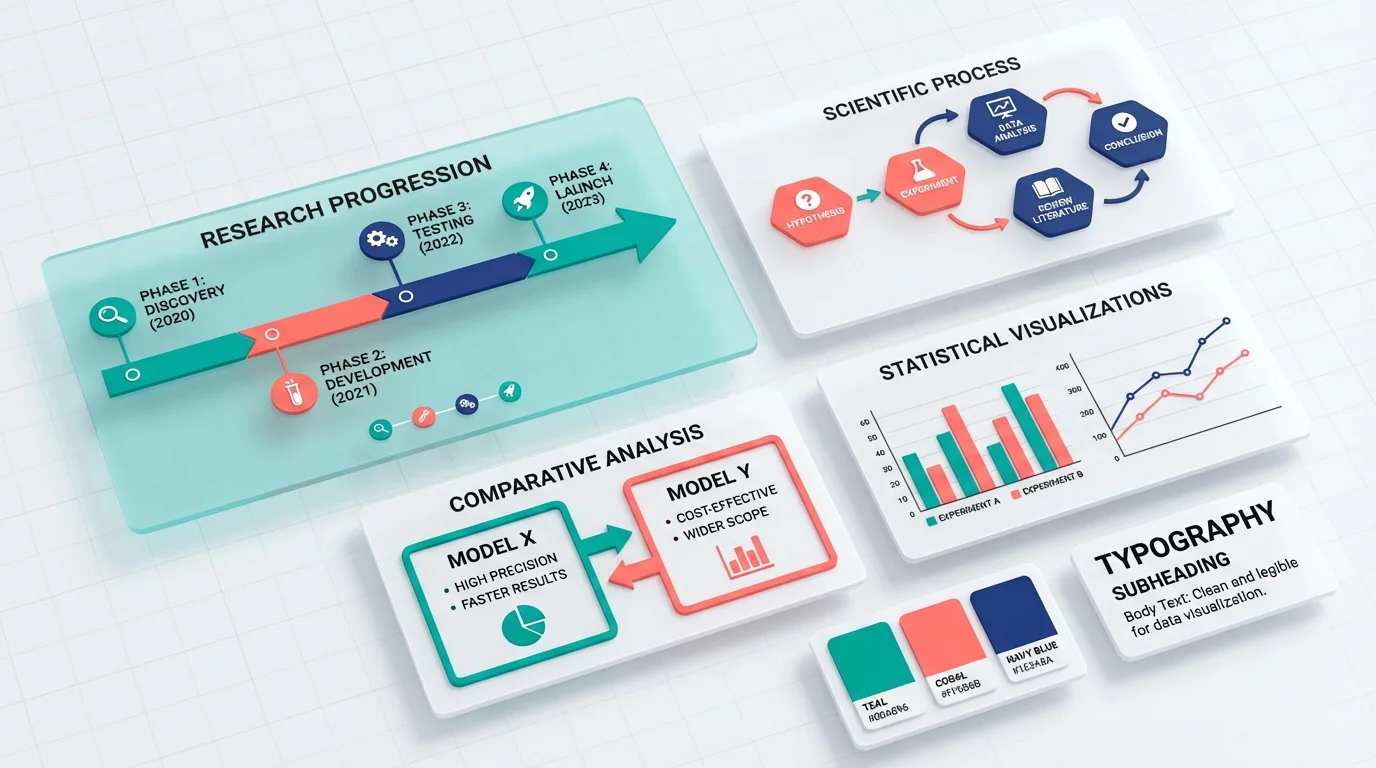
Scientific Infographic Design: A Complete Guide for Researchers & Educators
Learn how to create compelling scientific infographics for research communication, teaching, and social media. Covers layout types, data visualization, design principles, and tools.