
Nature Figure Size, Font Size & Guidelines (+ Science, Cell)
Nature figures are 89 or 183 mm wide, with 5 to 7 pt text and 8 pt bold panel labels. Nature, Science and Cell specs with official links, checked October 2026.
Nature figure size and guidelines: the short answer
A Nature figure is 89 mm wide (single column) or 183 mm wide (double column), with 120 to 136 mm for a column-and-a-half. All text inside it should be Arial or Helvetica between 5 pt and 7 pt, and every panel of a multi-panel figure gets an 8 pt bold lowercase label (a, b, c). Science prints figures at 5.7, 12.1 or 18.4 cm wide, uses uppercase 10 pt bold panel labels, and asks for at least 300 dpi. If you are building a Nature paper figure with several panels, or a complex chart figure that is turning into a dashboard, the numbers, a to-scale layout and the official source for every row are below, all checked in October 2026.
| What you need | Nature | Science | Cell Press |
|---|---|---|---|
| Printed width | 89 mm, 120 to 136 mm, 183 mm | 5.7 cm, 12.1 cm, 18.4 cm | 8.5 cm, 11.4 cm, 17.4 cm (two-column journals) |
| Text size in the figure | 5 to 7 pt, Arial or Helvetica | About 7 pt, not below 5 pt, Helvetica preferred | About 6 to 8 pt, Arial |
| Panel labels | 8 pt bold, lowercase a, b, c | 10 pt bold, uppercase A, B, C | Capital letters |
| Preferred file | Vector: .ai, .eps, .pdf | Vector: PDF, EPS, AI | TIFF or PDF |
| Colour mode | RGB recommended | Not stated | RGB |
The full tables below give the figures, the exceptions and a link to the official page for every row.
AI Scientific Image Generator
Draft schematics, pathways and concept figures from a text prompt, then refine them in vector software to match your journal's size and font rules.
Try it free →Why figure quality matters for top journals
Top journals turn away most of the manuscripts they receive, and editors decide quickly whether a paper looks worth reviewing. Figures are often the first thing they open. Elsevier's editor-written 8 reasons I rejected your article is a useful read on how editors judge a submission. A tidy figure that follows the journal's rules signals care with the data too.
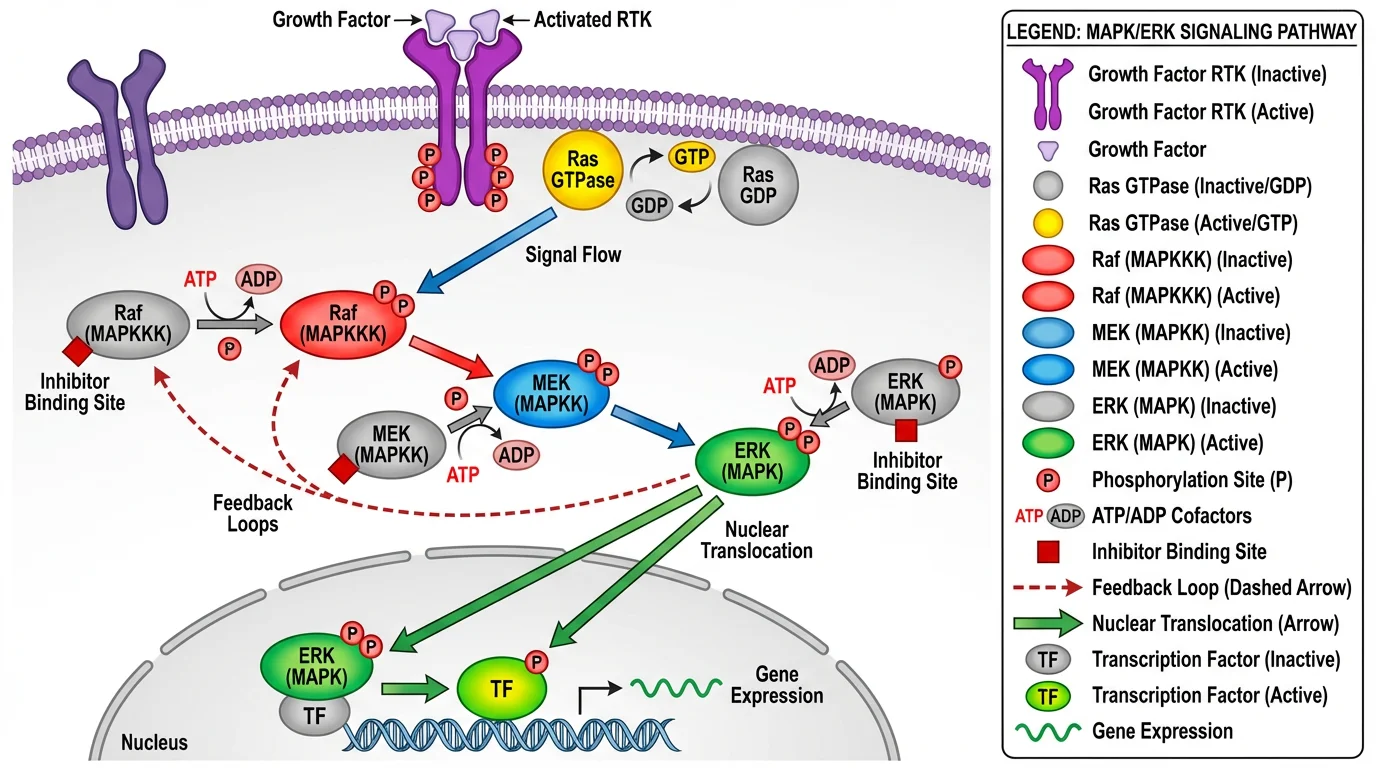 A signaling pathway diagram with clear labeling, balanced colors and a clean layout. Check every label against your own data before you submit.
What a strong figure communicates:
- The research is rigorous and well executed
- The authors know their field's visual conventions
- Readers' time is respected with clear, efficient communication
Nature figure size, fonts and format
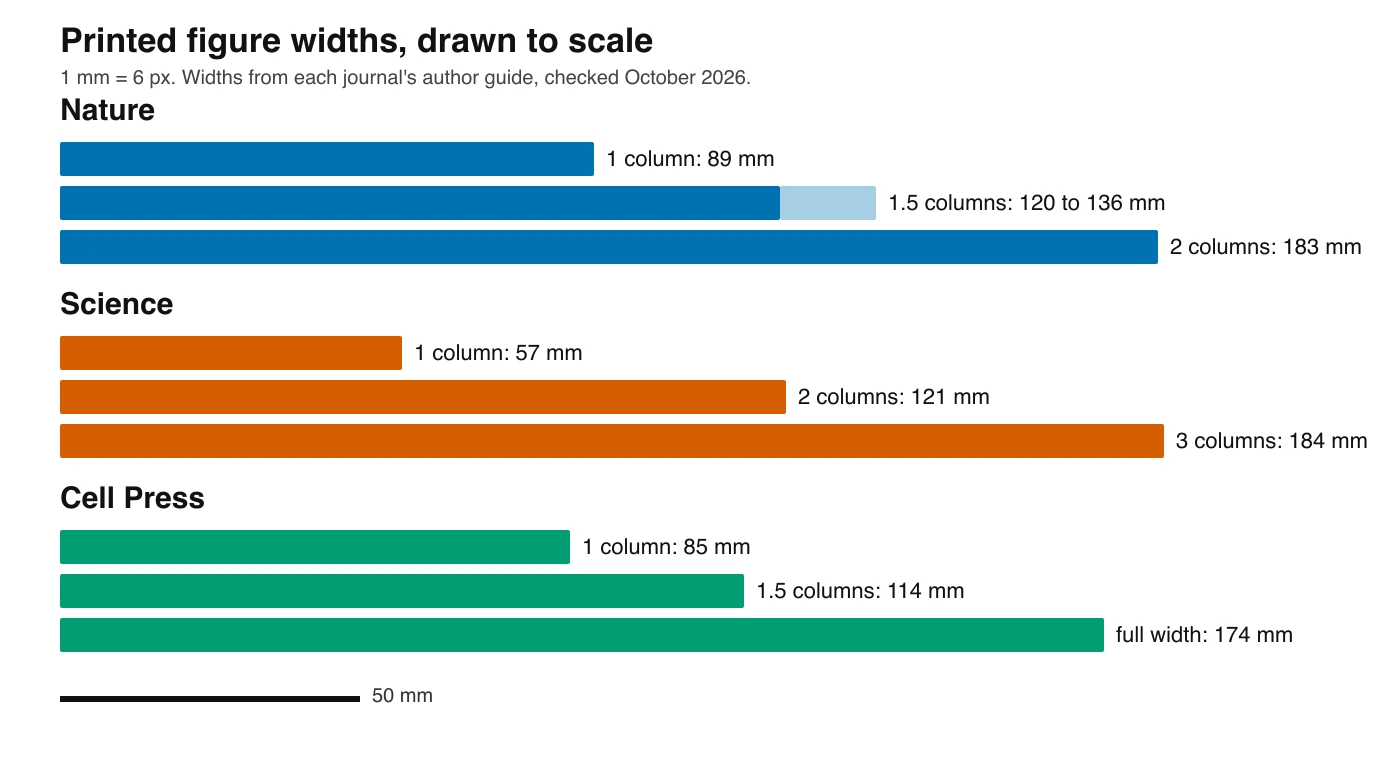 Printed widths for the three journals, drawn to scale from the official guides in the tables below. Nature's 1.5-column range is shown as a solid bar (120 mm) plus a lighter extension (up to 136 mm).
Nature publishes two official pages that matter for figures: the research figure guide and the final submission page. They agree on most points. Where they differ, the table uses the research figure guide and notes the other value.
| Requirement | What Nature says | Official source (checked October 2026) |
|---|---|---|
| Width | 89 mm (single column) and 183 mm (double column). A column-and-a-half, 120 to 136 mm, is possible where necessary | Building and exporting figure panels; 120 to 136 mm from Final submission |
| Maximum height | 170 mm, so the legend fits underneath. The final submission page gives the full page depth as 247 mm | Same two pages |
| Resolution | Photographic images at least 300 dpi. Supplying 450 dpi or more gives the best online result. Vector line art has no dpi figure. Artificially raising dpi does not help | Preparing figures: our specifications |
| Font | Sans-serif, preferably Arial or Helvetica, the same font in all figures. Embed fonts (TrueType 2 or 42). Do not outline text | Our specifications |
| Text size | 5 pt minimum, 7 pt maximum | Same page |
| Panel labels | 8 pt bold, upright, lowercase a, b, c | Same page; also Final submission |
| Line weight | 0.25 to 1 pt at final size | Final submission |
| File format (main figures) | Preferred: .ai, .eps, .pdf with editing capabilities kept. Acceptable: layered PSD, PowerPoint saved to PDF first, plain .svg, Excel, .ps. Not accepted: .jpeg, .tiff, .png | Building and exporting figure panels |
| Colour mode | RGB recommended; print is converted to CMYK automatically | Our specifications |
| File size | 50 MB where possible, with everything embedded, not linked | Building and exporting figure panels |
| Extended Data figures | .jpeg preferred (also .tiff or .eps), RGB, maximum 300 dpi, under 10 MB | Same page |
One mismatch to know about: the final submission page lists TIFF and layered Photoshop files as preferred for raster images and JPEG as an accepted fallback, while the research figure guide says main figures must not be JPEG, TIFF or PNG. Follow the research figure guide and what the editor's email says; the final submission page itself points to the guide for the detailed requirements.
Multi-panel figures in a Nature paper
Most Nature figures are several panels in one file. Nature asks for panels in alphabetical order, laid out in a neat, space-efficient way with minimal white space, and for each panel's size to follow its content, so a dense chart gets more room than a simple bar plot.
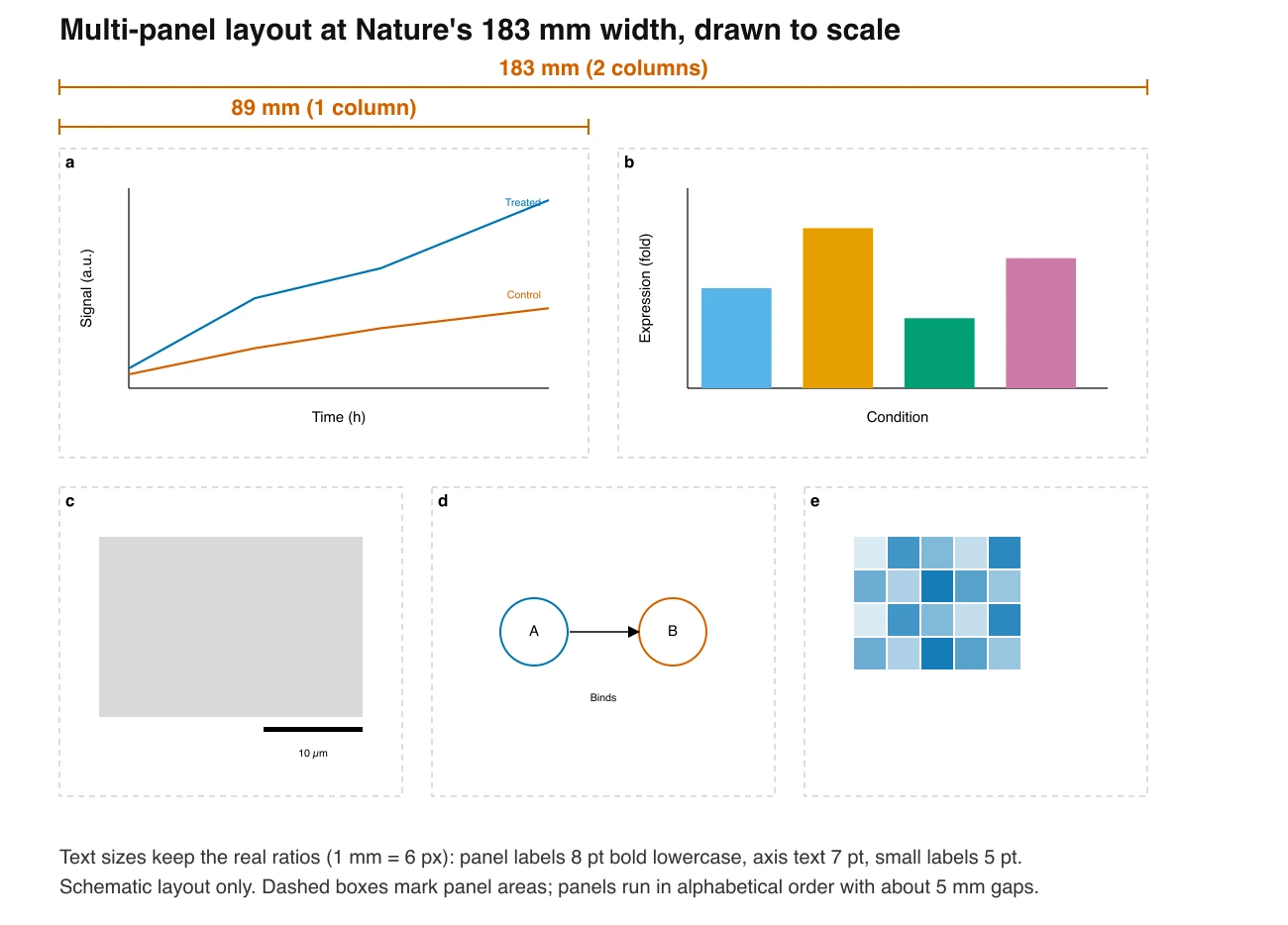 A schematic five-panel layout at Nature's 183 mm width. Panels run a to e in reading order, gaps are small, and text sizes keep the 5 to 7 pt and 8 pt ratios. It is a layout guide, not real data.
A checklist for a complex chart figure or dashboard-style layout:
- Build at final size. Make the artboard 89 mm or 183 mm wide before you place anything, so 7 pt text really is 7 pt.
- Split before you shrink. If panel text drops below 5 pt, move a panel to Extended Data or a second figure instead of scaling everything down.
- Remove decoration. Nature's guide asks for axis lines with tick marks and units in parentheses, and avoids background gridlines, drop shadows, patterns, decorative icons and coloured text.
- Keep one font and one style. Same font, line weights and palette in every panel.
- Label in order. a, b, c across and down, in the order the legend describes them.
Export settings that avoid rejections
Nature asks for editable vector files, so export like this:
PDF or EPS, RGB colour space
Fonts: Arial or Helvetica, embedded (TrueType 2 or 42)
Text: not outlined, all editing capabilities kept
Images inside the file: at least 450 dpi
If you plot with Python, matplotlib.rcParams['pdf.fonttype'] = 42 keeps text editable, as Nature's guide recommends. In Prism, untick the option that outlines text.
Science figure size, fonts and format
Science's figure rules are split between its instructions for an initial manuscript and for a revised manuscript. At first submission the figures are embedded in the .docx or PDF; separate high-resolution files come at revision.
| Requirement | What Science says | Official source (checked October 2026) |
|---|---|---|
| Width | Usually 5.7 cm (1 column), 12.1 cm (2 columns) or 18.4 cm (3 columns). Simple graphs and gels may be smaller | Revised manuscript, initial manuscript |
| Maximum height | Not stated | Not stated |
| Resolution | 300 dpi at initial submission. At revision: raster line art, grayscale and colour at least 300 dpi at final size, higher if possible. No upsampling | Initial, revised |
| Font | Sans-serif where possible, Helvetica preferred. Type atop a colour region in bold. Avoid coloured type. (The Times New Roman rule applies to the manuscript text, not to figures) | Initial manuscript |
| Text size | About 7 pt (2.5 mm high) after reduction, not smaller than 5 pt. Symbols 6 pt minimum. Lines 0.5 pt minimum | Same pages |
| Panel labels | Uppercase A, B, C, 10 pt and bold, upper left of each part | Initial manuscript |
| File format | Initial: embedded in .docx or PDF. Revision: vector PDF, EPS or AI preferred; TIFF for raster. Not accepted at revision: figures embedded in Word, PowerPoint files | Revised manuscript |
| Colour mode | Not stated. Avoid red with green and similar hues | Initial manuscript |
| File size | Not stated for single figures (the combined supplementary file is limited to 50 MB) | Initial manuscript |
Cell Press figure size, fonts and format
The Cell Press figure guidelines apply to Cell and its partner journals, and the Final File Requirements cover the graphical abstract.
| Requirement | What Cell Press says | Official source (checked October 2026) |
|---|---|---|
| Width | Two-column journals: 8.5 cm, 11.4 cm (1.5 columns), 17.4 cm (full page). Three-column formats: 5.5 cm, 11.4 cm, 17.4 cm. STAR Protocols: 13.4 cm and 17.2 cm | Figure guidelines |
| Maximum size | Recommended 16.5 x 20 cm (6.5 x 8 in) | Same page |
| Resolution | Colour or grayscale at least 300 dpi, black and white at least 500 dpi, line art at least 1,000 dpi at print size | Same page |
| Font | Arial only, embedded. About 6 to 8 pt at print size | Same page |
| Panel labels | Capital letters | Same page |
| File format | TIFF and PDF preferred. EPS, JPEG, PSD, PNG and CDX also accepted. Each file under 20 MB. AI source files only for Leading Edge figures in Cell | Same page |
| Colour mode | RGB; do not use red and green together | Same page |
| Graphical abstract | Exact square, 1200 x 1200 px at 300 dpi; TIFF, PDF or JPG. Not every Cell Press journal uses one | Final File Requirements (PDF) |
For other journals' graphical abstract and TOC graphic sizes, see our table of TOC graphic requirements by journal. Journals can change these pages at any time, so open the target journal's own guide before you export.
Accessibility rules that all three share:
- Avoid red-green combinations (colour-blind readers)
- Do not use rainbow or jet colour scales
- Keep text contrast above 4.5:1
- Use distinct hues that still work in grayscale
Nature's guide lists a colour-blind-safe palette (black, orange #e69f00, sky blue #56b4e9, bluish green #009e73, yellow #f0e442, blue #0072b2, vermillion #d55e00, reddish purple #cc79a7). For more, see our Scientific Color Palette Guide.
Figure types and recommended tools
Different figure types need different tools. Here is what to use for each.
1. Data visualizations (graphs, charts, plots)
Best tools: R (ggplot2), Python (matplotlib/seaborn), GraphPad Prism, Origin
These tools generate figures directly from your data, which keeps them accurate and reproducible.
Best practices:
- Export as vector (PDF, EPS) when possible
- Use consistent styling across all figures
- Include error bars and statistical annotations
- Match the journal's font and size rules
Example workflow:
# R example with ggplot2
library(ggplot2)
ggplot(data, aes(x, y)) +
  geom_point() +
  theme_classic() +
  theme(text = element_text(family = "Arial", size = 7))
ggsave("figure1.pdf", width = 89, height = 60, units = "mm")
2. Molecular structures and chemical diagrams
Best tools: ChemDraw, PyMOL, Chimera, UCSF ChimeraX
These specialized tools keep chemistry accurate and follow IUPAC conventions.
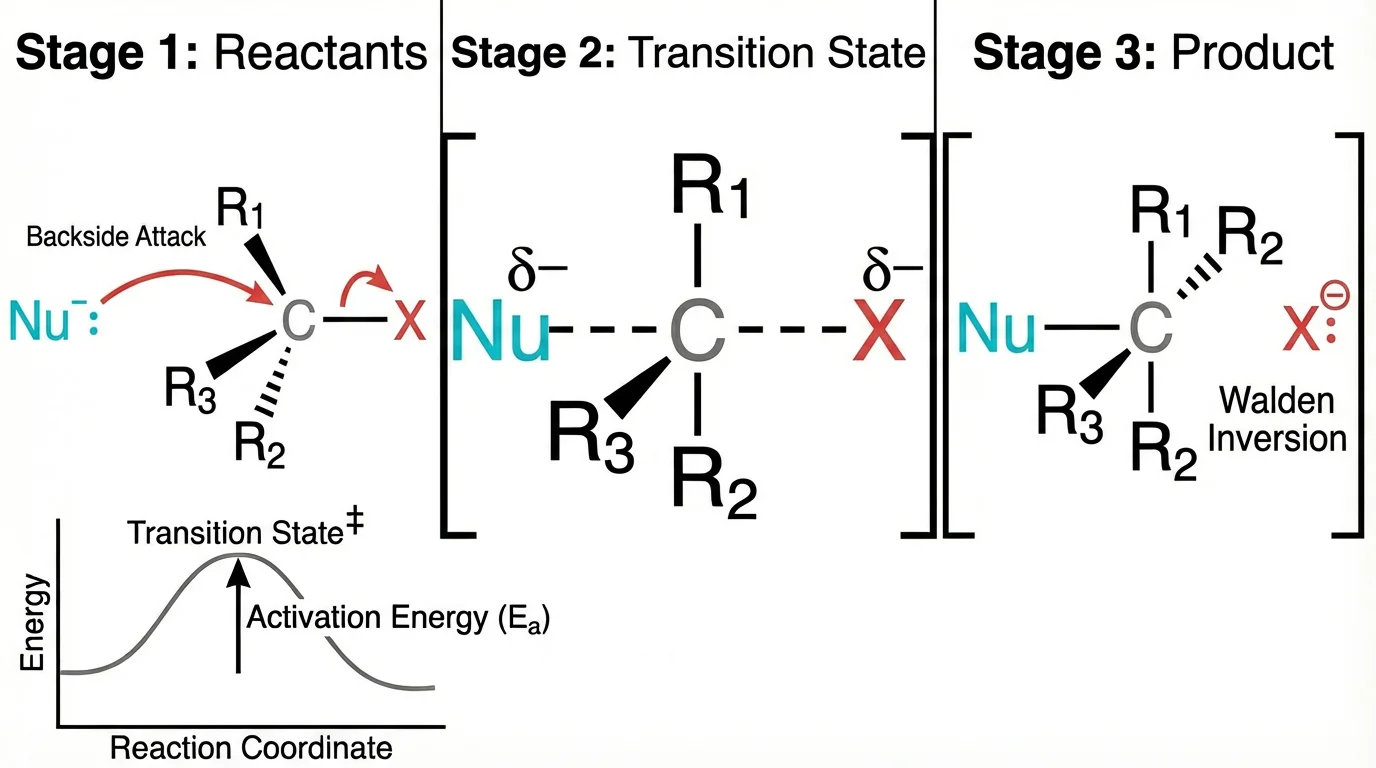 A chemistry reaction mechanism showing bond angles and electron movement. Chemistry must always be checked by the authors.
Best practices:
- Use standard bond lengths and angles
- Follow journal-specific chemistry style guides
- Export at high resolution (Cell Press asks for at least 1,000 dpi for line art)
- Include stereochemistry when relevant
3. Biological schematics and pathway diagrams
Best tools: Adobe Illustrator, BioRender, Inkscape, ConceptViz
For conceptual diagrams, signaling pathways and experimental workflows.
Best practices:
- Keep icon styles consistent
- Use color meaningfully, not decoratively
- Include clear directional arrows
- Keep text minimal but informative
Quick concept generation: To explore diagram ideas before final refinement, AI tools like ConceptViz can generate initial schematics in seconds. That helps during ideation or for internal lab discussions, before you invest time in final production.
4. Microscopy and imaging data
Best tools: ImageJ/FIJI, Adobe Photoshop, Imaris
For processing and presenting experimental images.
Best practices:
- Apply identical adjustments to all comparable images
- Include scale bars (required by most journals), kept on a separate editable layer where the journal asks for it
- Document all processing steps
- Never manipulate images to misrepresent data
- Use appropriate lookup tables (LUTs)
Cell Press states: "Before you submit, check the original data and make sure you know how the figures were prepared from them."
5. Composite figures and multi-panel layouts
Best tools: Adobe Illustrator, Inkscape, PowerPoint
For assembling individual panels into complete figures.
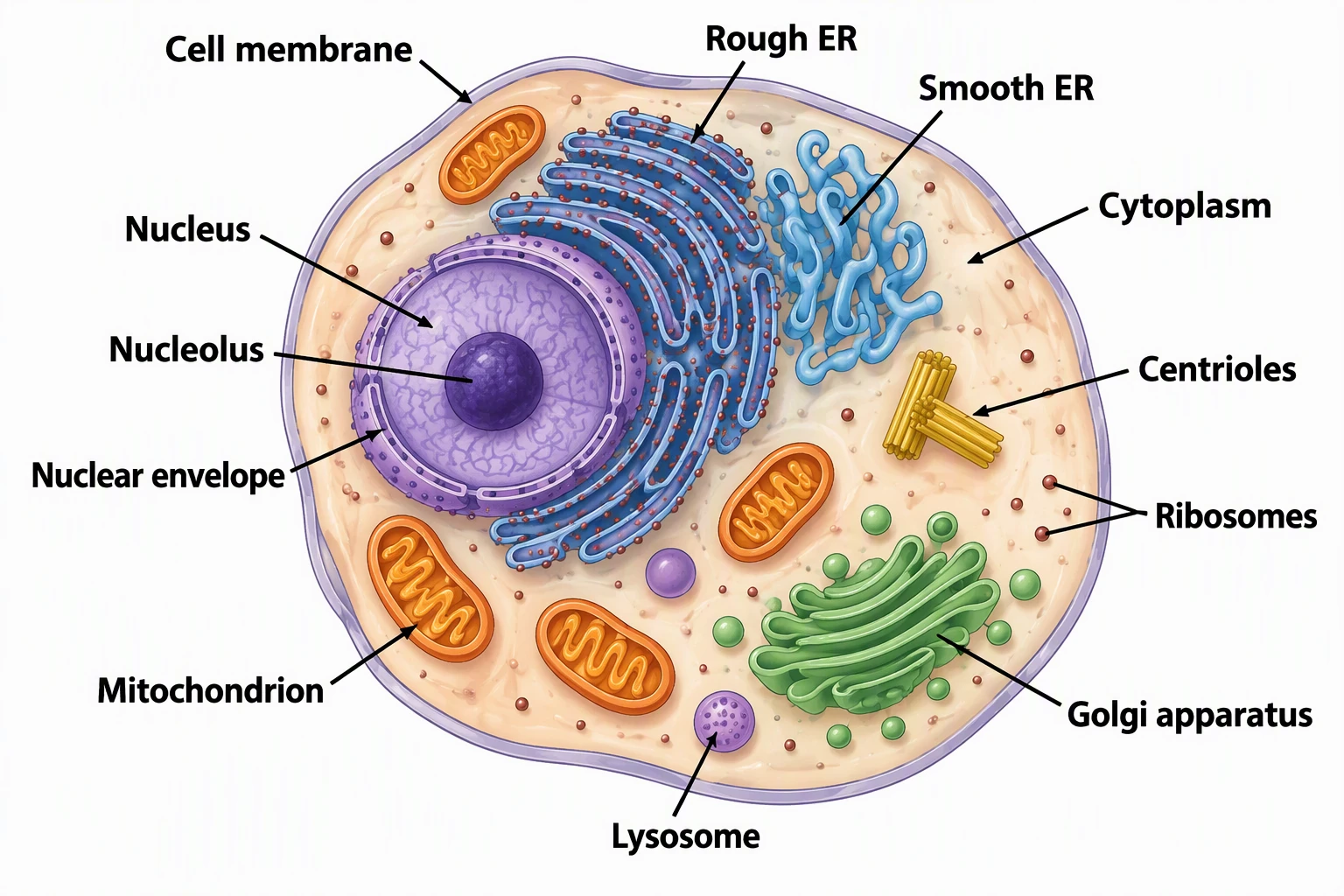 A well-organized diagram with consistent styling, clear labels and efficient use of space.
Best practices:
- Align panels precisely using guides or a grid
- Keep spacing between panels consistent
- Label panels in reading order (a, b, c for Nature; A, B, C for Science and Cell)
- Make all text the same size per level (labels, axis text)
- Minimize white space without overcrowding
Step-by-step figure creation workflow
A workflow that works for most manuscripts:
Step 1: Plan before you create
Before opening any software:
- Check journal requirements. Open the target journal's own guide and note width, text size and file type.
- Sketch your figure. Plan layout, what each panel shows and the narrative flow.
- Identify the figure type. Data plot, schematic or image? This decides your tools.
- Gather all elements. Raw data, images and icons you need.
Step 2: Create individual elements
Generate each component with the right tool:
| Element type | Tool | Output format |
|---|---|---|
| Statistical graphs | R/Python/Prism | PDF or SVG |
| Chemical structures | ChemDraw | PDF or EPS |
| Protein structures | PyMOL | PNG (high-res) or PDF |
| Schematics/concepts | Illustrator/ConceptViz | SVG or PDF |
| Microscopy | ImageJ | TIFF |
Pro tip: For schematic diagrams and conceptual figures, use ConceptViz's AI diagram tools to generate initial concepts, then refine them in vector software for the final submission.
Step 3: Assemble in vector software
Import all elements into Adobe Illustrator or Inkscape:
- Set up your artboard at the journal width (for example 89 mm for a Nature single column).
- Import elements. Place PDFs or SVGs as embedded objects (Nature wants everything embedded, not linked).
- Arrange panels with alignment tools.
- Add labels. Panel letters, annotations and scale bars.
- Apply consistent styling. Same fonts, line weights and colors throughout.
Step 4: Check against requirements
Before export, verify:
- Width matches the journal specification
- All text is within the journal's range (5 to 7 pt for Nature; not below 5 pt for Science)
- Fonts are standard (Arial or Helvetica) and embedded; for Nature, text is not outlined
- Colors are colorblind-friendly, with no red-green pairs
- Panel labels match the journal style (lowercase for Nature, uppercase for Science and Cell)
- Scale bars are included where needed
- Resolution meets the journal's minimum for any raster image
Step 5: Export correctly
For Nature:
File → Save As / Export → PDF (or EPS)
- Preserve Illustrator Editing Capabilities: ON
- Fonts: embedded, text not outlined
- Colour space: RGB
For Cell Press:
File → Export → Export As → TIFF
- Color Mode: RGB
- Resolution: 300 dpi minimum (more for black and white and line art)
- LZW Compression: ON
Step 6: Final quality check
Open your exported file and check:
- Text is readable at 100% zoom
- No pixelation or artifacts
- Colors appear as intended
- File size is within the journal's limit (50 MB for Nature main figures, 20 MB for Cell Press)
Common mistakes that get figures rejected
The most common figure problems, based on the journal guidelines above:
1. Wrong resolution or dimensions
Problem: Figures look blurry when printed or do not fit the journal layout.
Solution: Set the artboard to the journal's width before you start and keep raster images at the minimum dpi for that journal.
2. Rasterized text or line art
Problem: Text looks fuzzy because it was saved as a bitmap instead of vector.
Solution: Keep text and line art as vector elements. Nature asks that line art and text are not rasterized and that text is not outlined.
3. Unreadable text at print size
Problem: Text that looks fine on screen becomes illegible when printed at journal size.
Solution: Preview the figure at actual print size. If you cannot read it, neither can reviewers.
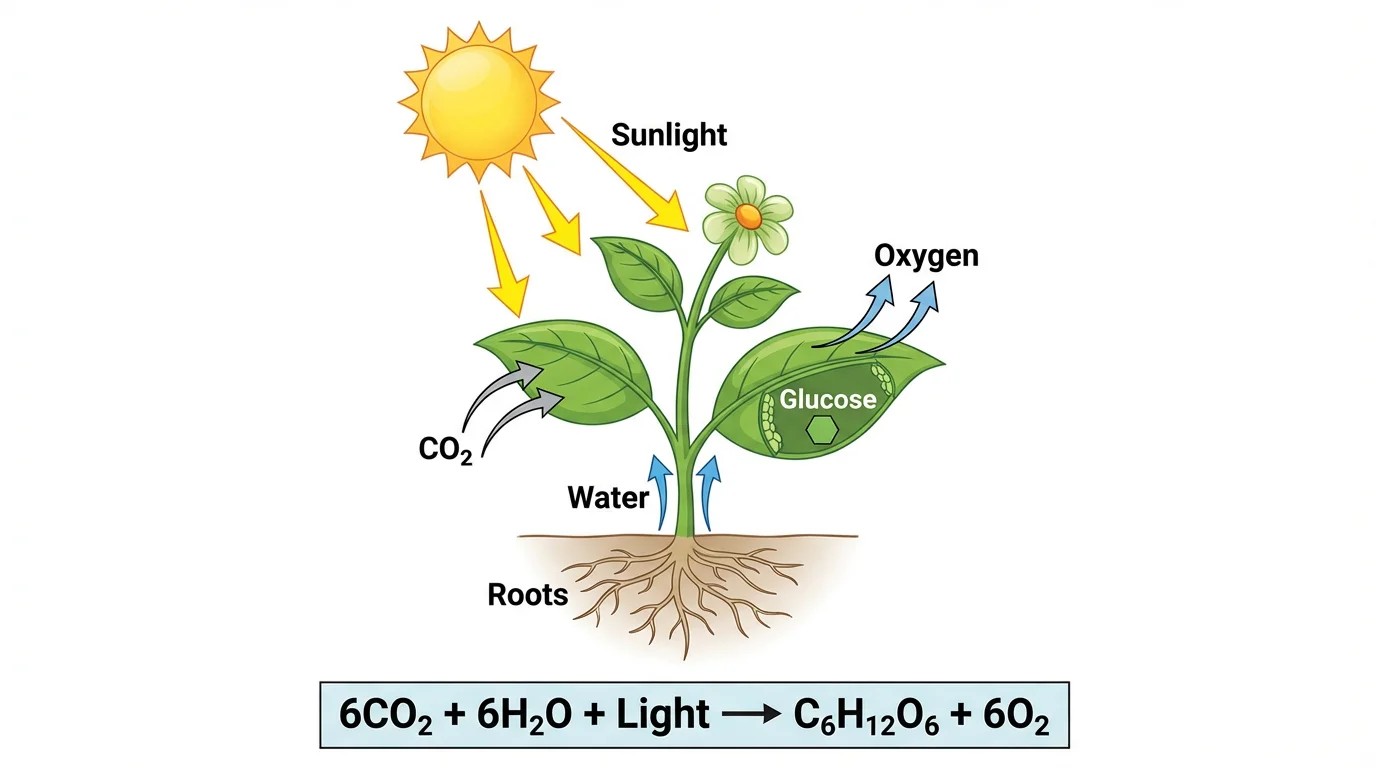 Labels sized to stay readable at publication dimensions.
4. Red-green color combinations
Problem: About 8% of men cannot distinguish red from green.
Solution: Use blue-orange, blue-yellow or purple-green instead. Test with a colorblind simulator.
5. Inconsistent styling across figures
Problem: Figure 1 uses Arial, Figure 2 uses another font, and Figure 3 has different line weights.
Solution: Create a style guide before you start. Use the same fonts, colors, line weights and labeling conventions throughout your paper.
6. Missing scale bars
Problem: Microscopy images without scale bars are meaningless.
Solution: Add scale bars to all images, in a consistent location (usually bottom right).
7. Overcrowded panels
Problem: Too much information in one figure makes it unreadable.
Solution: If a figure needs extensive explanation, split it. White space aids comprehension.
8. JPEG compression artifacts
Problem: Saving graphs or schematics as JPEG introduces visible artifacts, and Nature does not accept JPEG for main figures.
Solution: Use PDF, EPS or SVG for vector graphics. Use TIFF where the journal allows raster files.
Tools comparison for publication figures
Here is a practical comparison of tools for different needs. For current prices, free-plan limits, and publication terms by workflow stage, see our scientific illustration software comparison.
| Tool | Best for | Skill level | Cost | Output quality |
|---|---|---|---|---|
| Adobe Illustrator | Final assembly, schematics | Advanced | Paid subscription | Excellent |
| Inkscape | Final assembly, schematics | Intermediate | Free | Excellent |
| R (ggplot2) | Statistical plots | Intermediate | Free | Excellent |
| Python (matplotlib) | Statistical plots | Intermediate | Free | Excellent |
| GraphPad Prism | Statistical plots | Beginner | Paid | Excellent |
| BioRender | Biological schematics | Beginner | Free and paid plans | Very good |
| ChemDraw | Chemical structures | Beginner | Paid | Excellent |
| ImageJ | Image processing | Intermediate | Free | Excellent |
| ConceptViz | Quick concept diagrams | Beginner | Free to try | Good to very good |
Recommended workflows by budget
Free workflow:
- R/Python for data plots
- ImageJ for image processing
- Inkscape for assembly
- ConceptViz for initial schematic concepts
Professional workflow:
- GraphPad Prism or R for data plots
- ChemDraw for structures
- BioRender or Illustrator for schematics
- Adobe Illustrator for final assembly
Journal-specific tips
Nature
- Use the Research Figure Guide, which is comprehensive
- Main figures: vector .ai, .eps or .pdf; no JPEG, TIFF or PNG
- Extended Data figures can be JPEG (preferred), TIFF or EPS
- 8 pt bold lowercase for panel labels (a, b, c)
Science
- Initial submission: figures embedded in the .docx or PDF at 300 dpi
- Revision: separate vector files (PDF, EPS, AI) or TIFF
- Helvetica preferred; Times New Roman is for the manuscript text
- Uppercase panel labels (A, B, C), 10 pt bold, upper left of each part
Cell Press
- Graphical abstract: 1200 x 1200 px at 300 dpi where the journal uses one
- Arial only, embedded
- Line art needs at least 1,000 dpi at print size
- Consider Figure360 videos for complex figures where the journal offers them
Applying these principles
Creating figures for top-tier journals takes attention to detail, but the principles are straightforward:
- Know your journal's requirements before you start
- Use the right tool for each figure type
- Maintain consistency across all figures
- Check accessibility (colorblind-friendly, readable text)
- Export correctly in the required format
For educational materials, quick concept diagrams or internal presentations, tools like ConceptViz can speed up the initial creation. For final publication in Nature, Science or Cell, refine those concepts in professional vector software to meet the exact specifications, and check every scientific detail yourself.
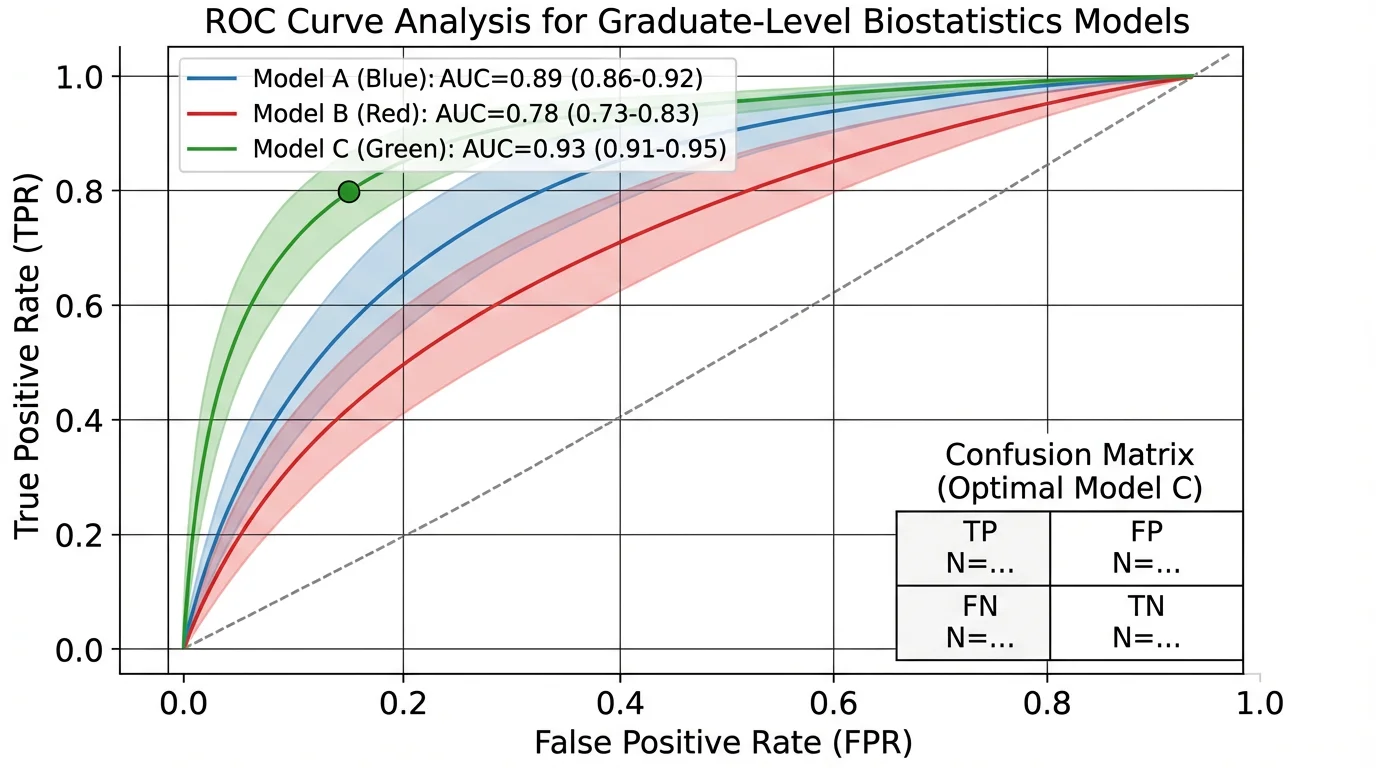 A clean data visualization that communicates results clearly.
Related resources
- Scientific Color Palette Guide
- How to Make Scientific Diagrams for Research Papers
- TOC Graphic Requirements by Journal
- Scientific Illustration Software Comparison
- Best Free BioRender Alternatives
- Best Free Adobe Illustrator Alternatives
- Science Diagram Tools
FAQ
Q: What size should a figure be for Nature? A: Nature's printed widths are 89 mm (single column) and 183 mm (double column), with 120 to 136 mm for a column-and-a-half. The research figure guide gives a maximum height of 170 mm so the legend fits underneath, and the final submission page gives the full page depth as 247 mm. Nature may reduce figures to save space, so keep all text between 5 pt and 7 pt at the size you submit.
Q: What font and font size does Nature require in figures? A: A sans-serif font, preferably Arial or Helvetica, used throughout. Text must be between 5 pt and 7 pt, except panel labels, which are 8 pt bold lowercase letters. Embed the fonts (TrueType 2 or 42) and do not outline the text.
Q: What resolution should figures be for Nature? A: Vector figures (PDF, EPS, AI) do not have a dpi value. Photographic images inside them should be at least 300 dpi, and Nature says 450 dpi or more gives the best online result. The "maximum 300 dpi, under 10 MB" rule applies only to online-only Extended Data figures. Main figures can be up to 50 MB where possible.
Q: How do I lay out a multi-panel figure for a Nature paper? A: Build the figure at 89 mm or 183 mm wide, put panels in alphabetical order with minimal white space, and give each panel the size its content needs. Label panels with 8 pt bold lowercase letters, keep other text between 5 pt and 7 pt, and avoid gridlines, patterns, drop shadows and decorative icons.
Q: What are Science's figure size and font requirements? A: Science prints figures usually at 5.7 cm (1 column), 12.1 cm (2 columns) or 18.4 cm (3 columns). Use a sans-serif font (Helvetica preferred), about 7 pt after reduction and never below 5 pt, with uppercase 10 pt bold panel labels. Initial submissions embed figures in the .docx or PDF at 300 dpi; revisions need separate vector or TIFF files.
Q: Can I use PowerPoint to make figures for Science or Nature? A: For Nature, PowerPoint is an acceptable format if you save it to PDF first, but vector software gives you better control. Science accepts figures embedded in a Word or PDF file at first submission but does not accept PowerPoint or Word-embedded figures at the revision stage.
Q: What is the difference between RGB and CMYK, and which should I use? A: RGB is for screens and has a wider colour range; CMYK is for print. Nature and Cell Press recommend RGB, and Nature converts to CMYK for print automatically. Science does not state a colour mode in its figure instructions. If you want to preview print colours, convert a copy to CMYK.
Q: How do I make figures colorblind-friendly? A: Avoid red-green combinations (affects about 8% of men) and rainbow scales. Use blue-orange, blue-yellow or purple-green, or the palette in Nature's figure guide. Test with a simulator such as Coblis or Color Oracle. See our Scientific Color Palette Guide.
Q: Should I include a graphical abstract? A: It depends on the journal. Cell Press asks for a 1200 x 1200 px graphical abstract at 300 dpi where the journal uses one, and some Nature journals, such as Nature Chemistry, ask for a small graphical abstract too. See our table of TOC graphic and graphical abstract sizes and check your target journal.
Q: Can I use AI tools to generate figures for journal submission? A: AI tools are useful for early concepts, schematics and educational diagrams. Journal policies differ and change. Nature Portfolio's AI policy requires human accountability and disclosure, and lists photorealistic AI images as not permitted. Verify every detail, refine the figure in professional software to meet the exact specifications, and follow your journal's policy before using an AI-generated image in a main figure.
Q: What file format is best for figures with both photos and text? A: Use a layered or vector format while editing (AI, or layered PSD for Nature). For submission, export a PDF that keeps the text and line art as vector and the photo embedded at the required dpi, or TIFF where the journal asks for it. Check the journal's own page.
Q: My figure has too much information. What should I do? A: Split it into several figures or move less critical panels to Extended Data or supplementary figures. Remove elements that do not support your main message. Crowded figures are harder to read and, at 5 to 7 pt, hard to keep legible.
カテゴリー
もっと読む
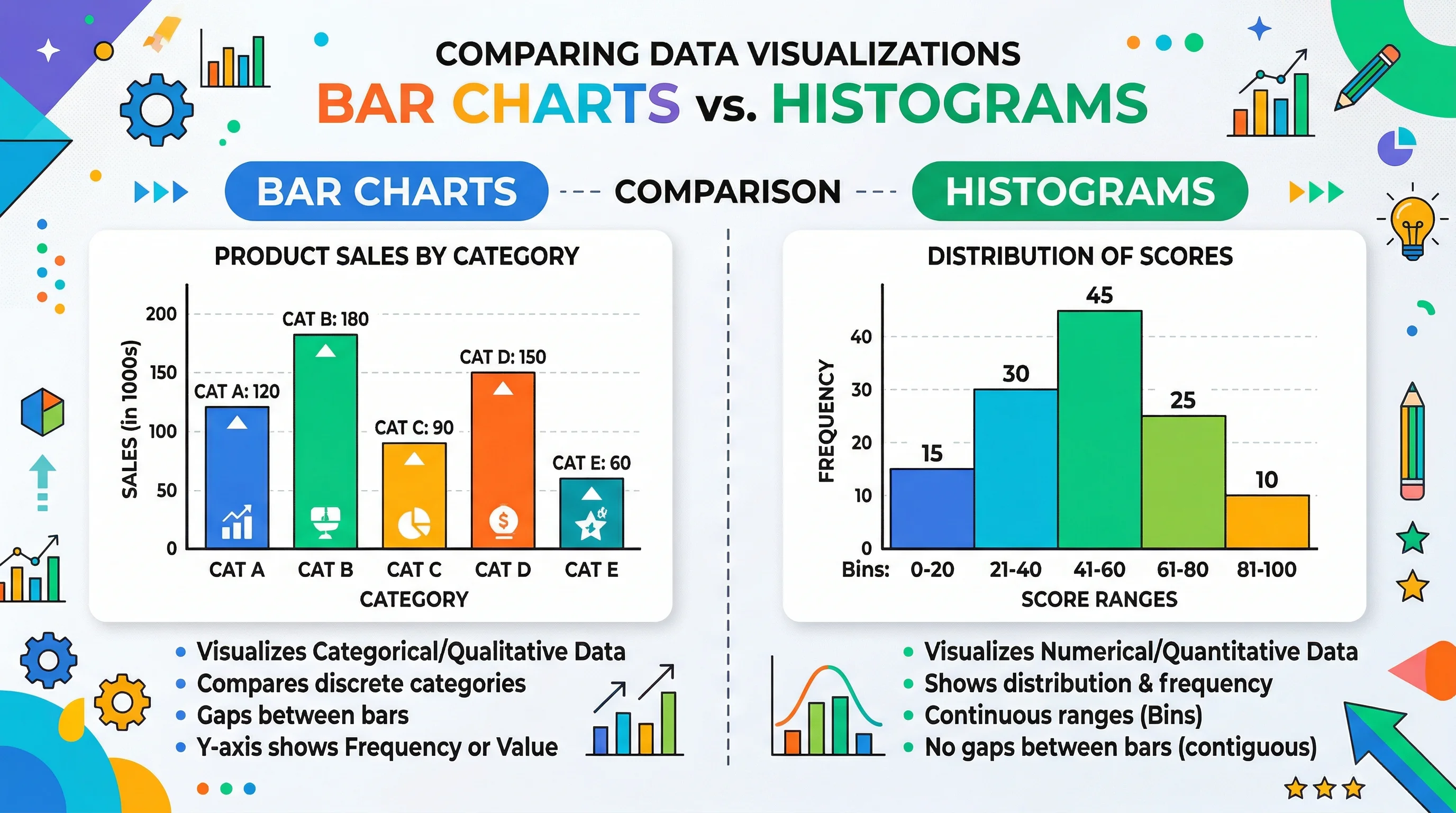
Bar Chart vs Histogram: Key Differences Explained
Learn the real difference between bar charts and histograms with clear examples. Covers when to use each, common mistakes, and how to create both quickly.
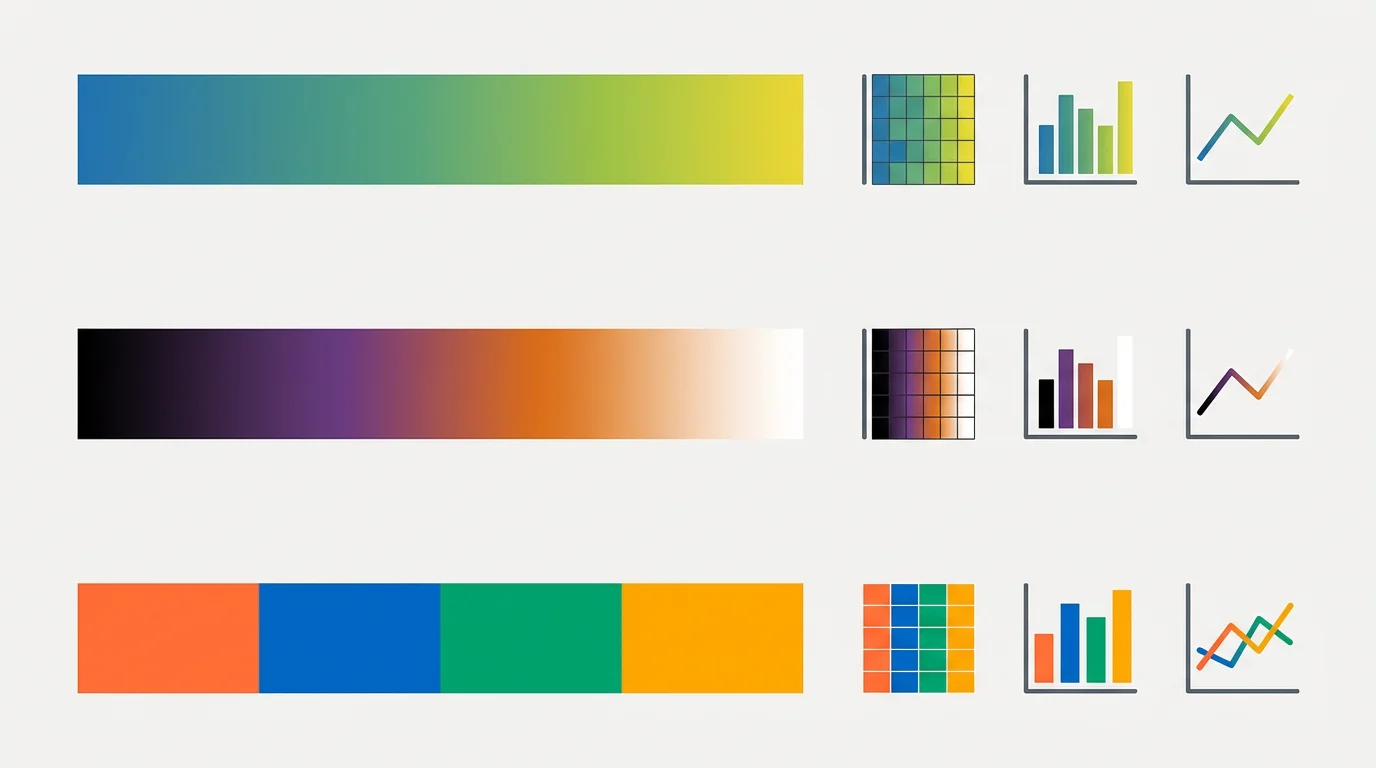
Best Scientific Color Palettes: Hex Codes & Examples
Compare Okabe-Ito, Viridis, Paul Tol and other scientific color palettes for research figures. Includes colorblind-safe hex codes, use cases and code snippets.
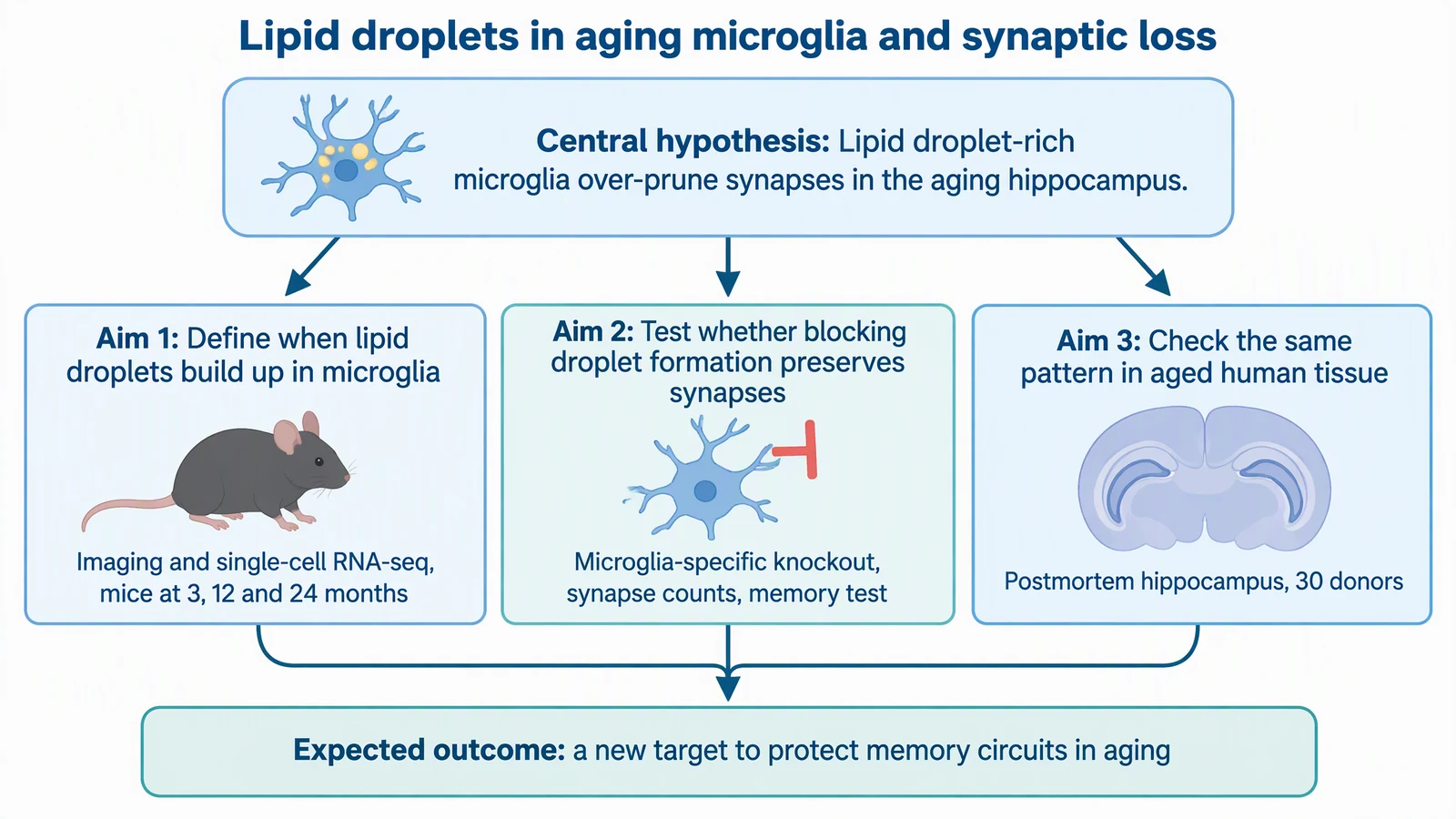
How to Make Figures for an NIH Grant Application
Figures belong in the Research Strategy, not Specific Aims. NIH rules with sources, three fictional overview-figure examples with prompts, and a checklist.