7 Best Free Prezi Alternatives in 2026 (Ranked)
Looking for a free Prezi alternative? Compare 7 best options with zoom effects & animations—Google Slides, Canva, Genially & more. No $59/month needed.

Create professional infographics and data visualizations in seconds. Perfect for data-driven slides.
Start with this diagram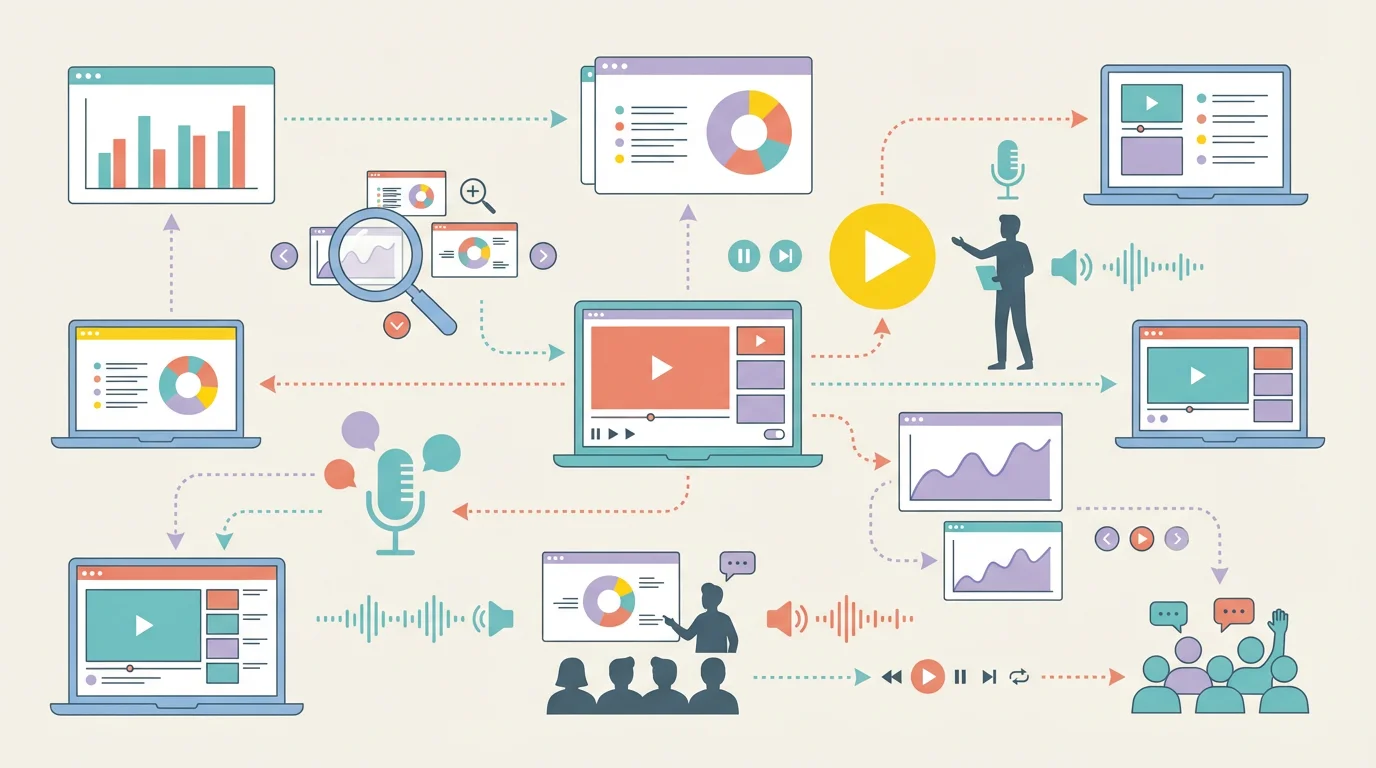
7 Best Free Prezi Alternatives in 2026 (With Zoom Effects)
Prezi made zooming presentations famous—but $5-59/month is expensive when you just need engaging slides. And Prezi's free plan makes all your presentations public.
The good news? In 2026, there are excellent free alternatives with similar zoom effects and interactive features—without the price tag.
Why You Need a Prezi Alternative
| Issue | Details |
|---|---|
| Expensive | $5-59/month for basic features |
| Free = Public | Free presentations are visible to everyone |
| Motion Sickness | Zooming effects can cause dizziness |
| Steep Learning Curve | Non-linear canvas confuses many users |
| Offline Access | Desktop app requires paid plan |
Tip: PowerPoint's Morph transition and Zoom feature now offer similar effects to Prezi—for free with Microsoft 365 Education.
Quick Comparison: Top 7 Prezi Alternatives
| Tool | Price | Best For | Zoom Effects? | Collaboration |
|---|---|---|---|---|
| Google Slides | 100% Free | Simple, collaborative | No | Excellent |
| Canva | Free / Pro $12.99/mo | Beautiful templates | Limited | Good |
| Genially | Freemium | Interactive content | Yes | Good |
| PowerPoint | Free (M365 Edu) | Feature-rich | Yes (Morph) | Good |
| Slides.com | Free (5 decks) | Clean design | Limited | Basic |
| Powtoon | Freemium | Animated videos | Animations | Basic |
| ConceptViz | Free tier | AI diagrams for slides | N/A | N/A |
1. Google Slides — Best Free All-Around Option
Price: 100% Free Platform: Web, iOS, Android, Chrome extension Website: slides.google.com
Google Slides is the most popular free Prezi alternative, and for good reason. It's completely free, works everywhere, and offers the best real-time collaboration of any presentation tool.
Why It's Great for Teachers:
- 100% free — No premium tiers, no paywalls, no limits
- Real-time collaboration — Multiple students can work on the same presentation simultaneously
- Google Classroom integration — Seamlessly assign and collect presentation assignments
- Works offline — Chrome extension enables offline editing
- Simple interface — Familiar to anyone who's used Google Docs
Key Features:
- Q&A feature — Enable audience questions during live presentations
- Version history — Track all changes and restore previous versions
- Add-ons — Extend functionality with third-party tools like Pear Deck
- Voice typing — Dictate speaker notes hands-free
- Live captions — Automatic captions during presentations
- Export options — Download as PowerPoint, PDF, or images
Google Slides vs. Prezi:
| Feature | Google Slides | Prezi |
|---|---|---|
| Price | Free | $5-59/mo |
| Real-time collaboration | Excellent | Limited |
| Learning curve | Very easy | Steep |
| Offline access | Yes (free) | Paid only |
| LMS integration | Native | Limited |
| Animation effects | Basic | Advanced zooming |
Best For:
- Teachers who need simple, reliable presentations
- Collaborative student projects
- Schools using Google Workspace
- Quick lesson materials
Limitations:
- No zooming/non-linear navigation like Prezi
- Animation options are more basic
- Templates are less visually striking
Verdict: The safest choice for any teacher. It's free, reliable, and your students probably already know how to use it.
2. Canva — Best for Beautiful Presentations
Price: 100% Free for verified educators (Canva for Education) Platform: Web, iOS, Android, Desktop Website: canva.com/education
Canva has become the go-to design tool for teachers, and its presentation features rival dedicated tools like Prezi. With Canva for Education, you get full premium access completely free.
Why It's Great for Teachers:
- Free premium access — All Pro features free for K-12 educators
- Thousands of templates — Professional designs for every subject
- AI-powered tools — Magic Write, Magic Resize, background remover
- Interactive elements — Polls, quizzes, and data visualizations
- LMS integration — Works with Google Classroom, Canvas, Schoology, and more
Key Features:
- Magic Activities — AI generates ready-to-use classroom activities from a single prompt
- Quiz Generator — Transform slides into interactive quizzes instantly
- Brand Kit — Maintain consistent school/class branding
- Real-time collaboration — Work with students simultaneously
- Record presentations — Add voiceover to create video lessons
- Presenter view — See notes while presenting
New Features (2025-2026):
- Canva Code — Create custom games and interactive elements without coding
- AI presentation generator — Generate entire presentations from a prompt
- Bulk create — Generate multiple variations for different classes
Best For:
- Teachers who want visually stunning presentations
- Creating worksheets, posters, and presentations in one tool
- Elementary and middle school classrooms
- Social media and parent communications
Limitations:
- No zooming canvas like Prezi
- Can feel overwhelming with so many options
- Some advanced features require learning
Verdict: The best choice if you want beautiful, professional-looking presentations with minimal effort. The free education plan is unbeatable.
3. Genially — Best for Interactive Content
Price: Free (with premium options) Platform: Web Website: genially.com
Genially is specifically designed for interactive presentations—making it the closest alternative to Prezi's engaging, non-linear style. If you want students to click, explore, and interact with your content, Genially is your tool.
Why It's Great for Teachers:
- Free interactive templates — Hundreds of education-specific designs
- Gamification built-in — Escape rooms, quizzes, and games
- No coding required — Add interactivity with clicks, not code
- LMS compatible — Export to SCORM for Moodle, Canvas, etc.
- Import PowerPoints — Convert existing slides to interactive Genially
Key Features:
- Hotspots — Add clickable areas that reveal content, videos, or links
- Popup windows — Show additional information without leaving the slide
- Embedded multimedia — Videos, audio, GIFs, and more
- Animation effects — Entrance, exit, and attention animations
- Branching paths — Create choose-your-own-adventure style presentations
- Analytics — Track how students interact with your content (premium)
Free Plan Includes:
- Unlimited creations
- Access to free templates
- All interaction and animation settings
- Basic sharing and embedding
Best For:
- Creating interactive lessons and escape rooms
- Gamified learning experiences
- Student-centered, exploratory content
- Teachers who want Prezi-like engagement without the cost
Limitations:
- Some templates require premium
- Activity tracking requires paid plan
- Can be slower to create than simple slides
Verdict: The best Prezi alternative for teachers who want truly interactive, engaging content. The free plan is surprisingly generous.
4. Microsoft PowerPoint — Best for Feature-Rich Presentations
Price: Free with Microsoft 365 Education / Web version free Platform: Windows, Mac, Web, iOS, Android Website: microsoft.com/powerpoint
PowerPoint remains the industry standard for presentations, and it's free for educators through Microsoft 365 Education. While it may seem old-school compared to Prezi, modern PowerPoint has features that rival any competitor.
Why It's Great for Teachers:
- Free for education — Full desktop app free for verified educators
- Morph transitions — Smooth, Prezi-like animations between slides
- Designer AI — Automatic design suggestions as you build
- Presenter Coach — AI feedback on your presentation skills
- Teams integration — Present directly in Microsoft Teams
- Offline access — Full functionality without internet
Key Features:
- Morph transition — Creates smooth zooming and movement effects similar to Prezi
- 3D models — Insert and animate 3D objects
- Zoom feature — Non-linear navigation within presentations
- Cameo — Embed live camera feed in your slides
- Speaker Coach — Practice mode with AI feedback
- Co-authoring — Real-time collaboration
PowerPoint Zoom Feature:
PowerPoint's Zoom feature lets you create non-linear presentations similar to Prezi:
- Summary Zoom — Overview slide that links to sections
- Section Zoom — Jump between different parts of your presentation
- Slide Zoom — Link any slide to any other slide
Best For:
- Schools using Microsoft 365
- Teachers who need advanced animation
- Offline presentations
- Professional, business-style presentations
Limitations:
- Desktop app requires Microsoft 365 (free for education, but requires verification)
- Web version has fewer features
- File management less intuitive than cloud-native tools
Verdict: The most powerful option if your school uses Microsoft 365. The Zoom and Morph features give you Prezi-like effects without the subscription cost.
5. Slides.com — Best for Clean, Professional Presentations
Price: Free (5 presentations) / Paid from $5/month Platform: Web Website: slides.com
Slides.com is a presentation tool focused on clean design and developer-friendly features. Your presentations are built on HTML, CSS, and JavaScript, making them highly customizable.
Why It's Great for Teachers:
- Beautiful default styling — Presentations look professional with minimal effort
- Presenter view — Robust features for live presentations
- Embed anywhere — Easily embed in websites, LMS, or blogs
- Open format — Export as HTML for full control
- No software needed — Fully web-based
Key Features:
- Slide transitions — Smooth, professional animations
- Custom CSS — Advanced users can customize everything
- Live presentations — Share a URL for real-time viewing
- Revision history — Track and restore changes
- Export options — PDF, HTML, or shareable links
Free Plan Includes:
- Up to 5 presentations
- 250MB storage
- Public presentations only
Best For:
- Teachers who want clean, minimalist designs
- Tech-savvy educators comfortable with web tools
- Conference presentations and workshops
- Portfolio-style student projects
Limitations:
- Only 5 free presentations
- Free presentations are public
- Fewer templates than Canva or Genially
Verdict: Great for teachers who value clean design and don't need many presentations. The robust presenter view is excellent for live teaching.
6. Powtoon — Best for Animated Video Presentations
Price: Free (limited) / Classroom plans from $2.99/student/month Platform: Web Website: powtoon.com/edu-home
Powtoon creates animated video presentations that combine the engagement of video with the structure of slides. It's perfect for flipped classrooms and asynchronous learning.
Why It's Great for Teachers:
- Animated characters — Bring presentations to life with cartoon characters
- Video output — Export as MP4 for YouTube, LMS, or social media
- Flipped classroom — Create engaging video lessons students watch at home
- Student-friendly — Even elementary students can create Powtoons
- Template variety — Themes for education, explainers, marketing, and more
Key Features:
- Drag-and-drop — Easy animation without technical skills
- Character library — Animated characters, props, and scenes
- Voiceover — Record narration directly in the tool
- Music library — Background music and sound effects
- Screen recording — Capture your screen for tutorials
- Export options — Video, GIF, or PowerPoint
Pricing for Education:
- Free plan with limited features and Powtoon branding
- Classroom plans: $2.99/student/month to $16/month for teacher + 90 students
- District pricing available
Best For:
- Creating video lessons for flipped classrooms
- Student animation projects
- Explainer videos for complex topics
- Engaging younger students
Limitations:
- Free version has Powtoon branding
- Can be slow to load
- More video tool than presentation tool
- Business-focused feel despite education plans
Verdict: Excellent for creating animated video content, but it's more of a video tool than a traditional presentation tool. Best for flipped classroom models.
7. ConceptViz — Best for AI-Generated Presentation Visuals
Price: Free credits on signup, then pay-as-you-go credit packs from $5 — no subscription Website: conceptviz.app
ConceptViz complements any presentation tool by generating professional visuals with AI. Describe what you need, and AI creates it—perfect for adding diagrams, infographics, and charts to your slides.
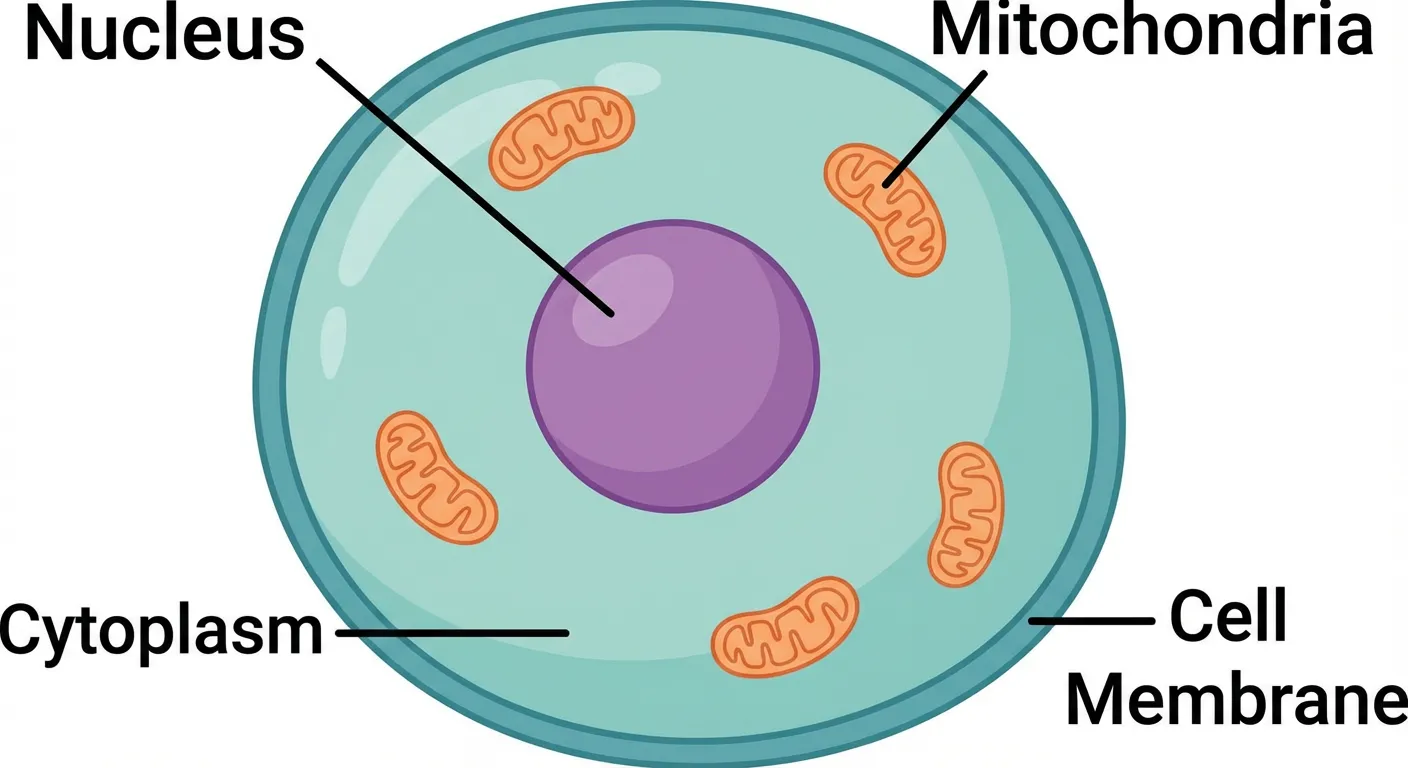
Popular Tools for Presentations:
- AI Infographic Generator — Data visualizations for slides
- Text to Diagram Generator — Convert concepts to visuals
- Scientific Poster Generator — Research presentations
- AI Chart Generator — Data charts and graphs
Science-Specific Diagrams:
Best For:
- Adding professional visuals to Google Slides, Canva, or PowerPoint
- Creating infographics without design skills
- Data-driven presentations
Verdict: The perfect complement to any presentation tool. Use ConceptViz to generate diagrams, then add them to your slides.
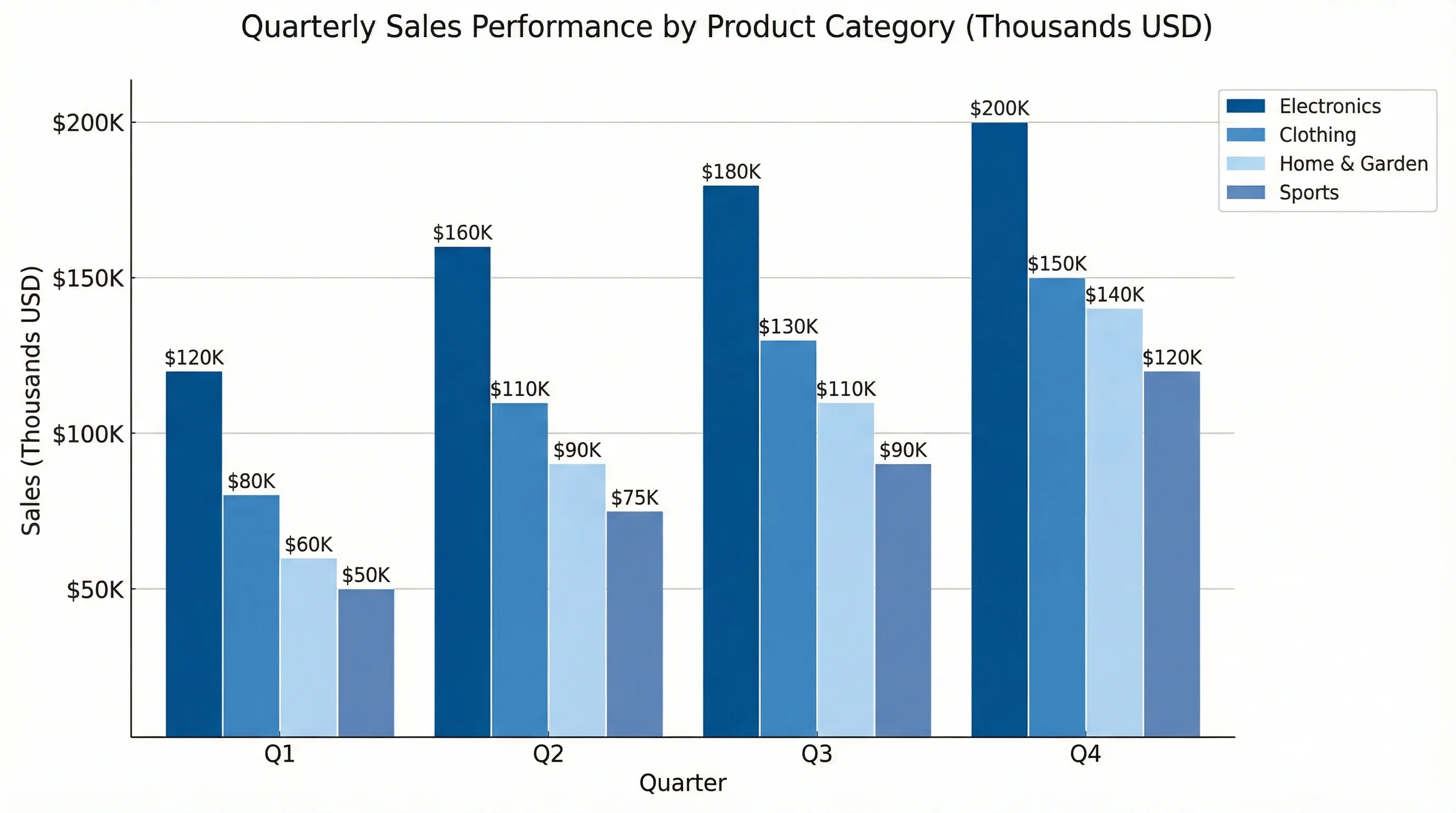
AI Chart Generator
Generate professional charts from text
Other Notable Alternatives
Keynote (Apple)
- Website: apple.com/keynote
- Free for Mac, iPad, iPhone users
- Beautiful animations and transitions
- Magic Move feature similar to Prezi zooming
- Best for Apple-ecosystem schools
Pitch
- Website: pitch.com
- Modern, team-focused presentation tool
- Strong collaboration features
- Free plan available
- Best for high school and college
Mentimeter
- Website: mentimeter.com
- Interactive polling and Q&A
- Real-time audience engagement
- Free plan with 2 questions per presentation
- Best for live audience interaction
Sozi (Open Source)
- Website: sozi.baierouge.fr
- Free, open-source Prezi alternative
- Creates zooming presentations from SVG files
- Best for tech-savvy teachers who want full control
Which Tool Should You Choose?
Here's a decision guide based on your needs:
Choose Google Slides if:
- You want completely free with no limits
- Real-time collaboration is essential
- Your school uses Google Workspace
- You need simple, reliable presentations
Choose Canva if:
- You want beautiful, professional designs
- You're already using Canva for other materials
- You need interactive elements like polls and quizzes
- You teach younger students
Choose Genially if:
- You want Prezi-like interactivity
- You're creating gamified lessons or escape rooms
- Student exploration and engagement are priorities
- You want to import existing PowerPoints
Choose PowerPoint if:
- Your school uses Microsoft 365
- You need advanced animations (Morph, Zoom)
- Offline access is important
- You want the most feature-rich option
Choose Powtoon if:
- You're creating video lessons
- Animation appeals to your students
- You use a flipped classroom model
Choose ConceptViz if:
- You teach science and need accurate diagrams
- You want AI to create visuals for you
- You're adding diagrams to other presentation tools
Related Guides
Looking for alternatives to other tools? Check out our guides:
- Best Free Miro Alternatives — Collaborative whiteboards
- Best Free Visme Alternatives — Infographics
- Best Free Lucidchart Alternatives — Flowcharts
Conclusion
You don't need to pay $5-59/month for Prezi-style presentations. Here are the best free alternatives in 2026:
| Your Need | Best Choice |
|---|---|
| Simple & collaborative | Google Slides (free) |
| Beautiful designs | Canva (free tier) |
| Prezi-like zoom effects | Genially or PowerPoint Morph |
| Video presentations | Powtoon |
| AI-generated visuals | ConceptViz |
Top picks:
- Best 100% free: Google Slides — No limits, excellent collaboration
- Best for zoom effects: Genially — Interactive, Prezi-like experience
- Best for design: Canva — Beautiful templates
- Best for animations: PowerPoint with Morph — Free with Microsoft 365
- Best for diagrams: ConceptViz — AI-generated visuals
Ready to get started?
- For instant access: Google Slides
- For Prezi-like effects: Genially
- For professional visuals: ConceptViz Infographic Generator
FAQ
Q: Is Prezi still worth paying for in 2026? A: For most teachers, no. Free alternatives like Google Slides, Canva, and Genially offer similar or better features without the cost. Prezi's zooming interface, while unique, can actually cause motion sickness for some viewers and has a steep learning curve.
Q: Which tool is closest to Prezi's zooming style? A: Genially offers the most Prezi-like interactivity with its non-linear navigation and clickable hotspots. PowerPoint's Zoom feature also allows non-linear navigation between slides.
Q: Can I convert my Prezi presentations to another tool? A: You can export Prezi presentations as PDF and use the images in other tools. Genially also allows importing PowerPoint files. There's no direct Prezi-to-other-tool converter, so you may need to recreate complex presentations.
Q: Which presentation tool works best on Chromebooks? A: Google Slides is the best choice for Chromebooks since it's fully web-based and integrates with Chrome OS. Canva, Genially, and Slides.com also work well in Chrome browsers.
Q: What's the best free option for student presentations? A: Google Slides is ideal for student work due to its simplicity, free access, and excellent collaboration features. Canva is great for students who want more creative control.
Q: Do any free tools offer Prezi-like animations? A: PowerPoint's Morph transition creates smooth, Prezi-like movements between slides. Genially's animation and transition effects also provide engaging visual effects similar to Prezi.
Categorías
Más Publicaciones
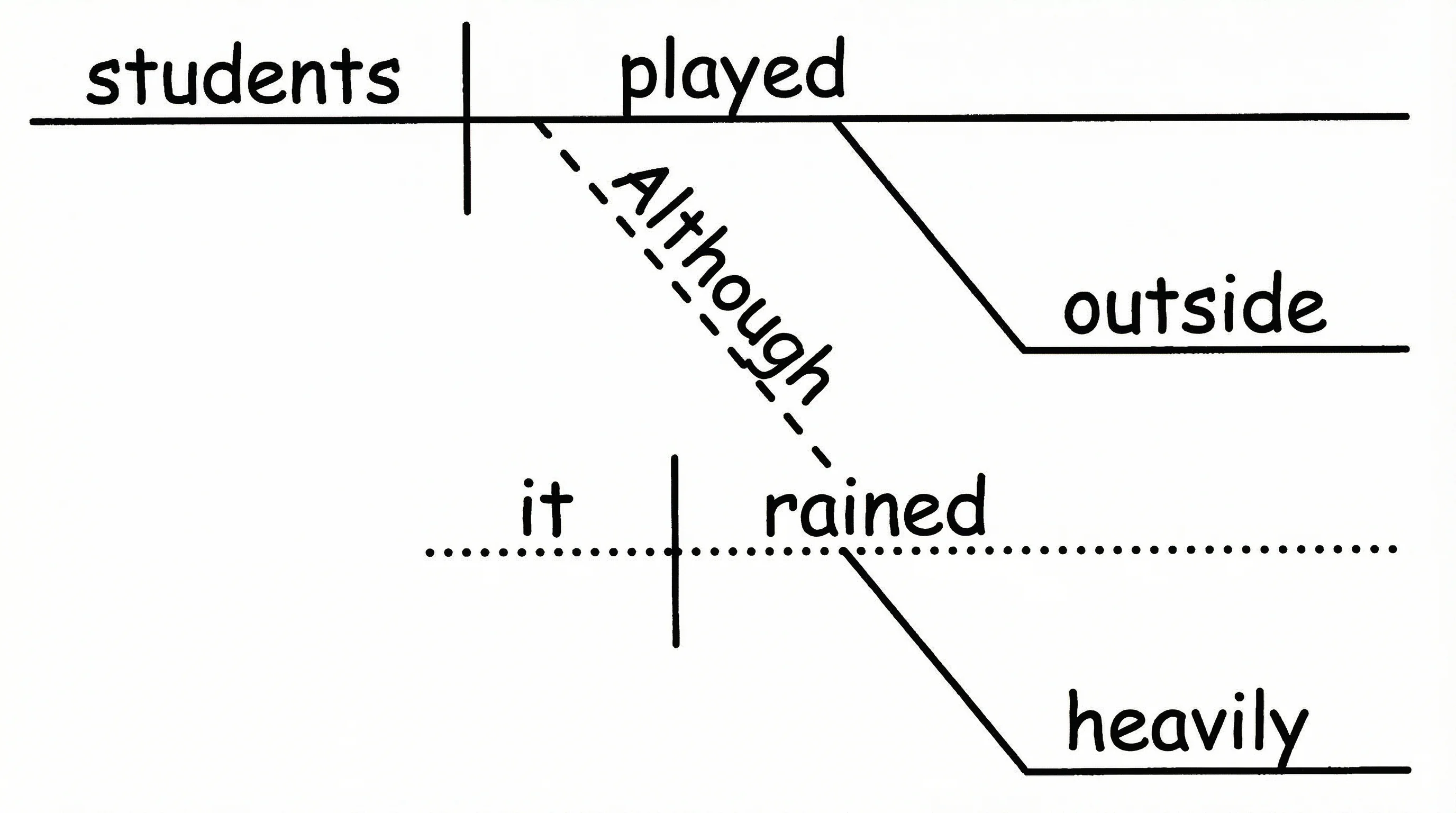
How to Diagram a Sentence: Complete Guide with Examples & Free Generator (2026)
Master sentence diagramming with our step-by-step Reed-Kellogg guide. See 15+ examples from simple to complex — or use our free AI sentence diagram generator.
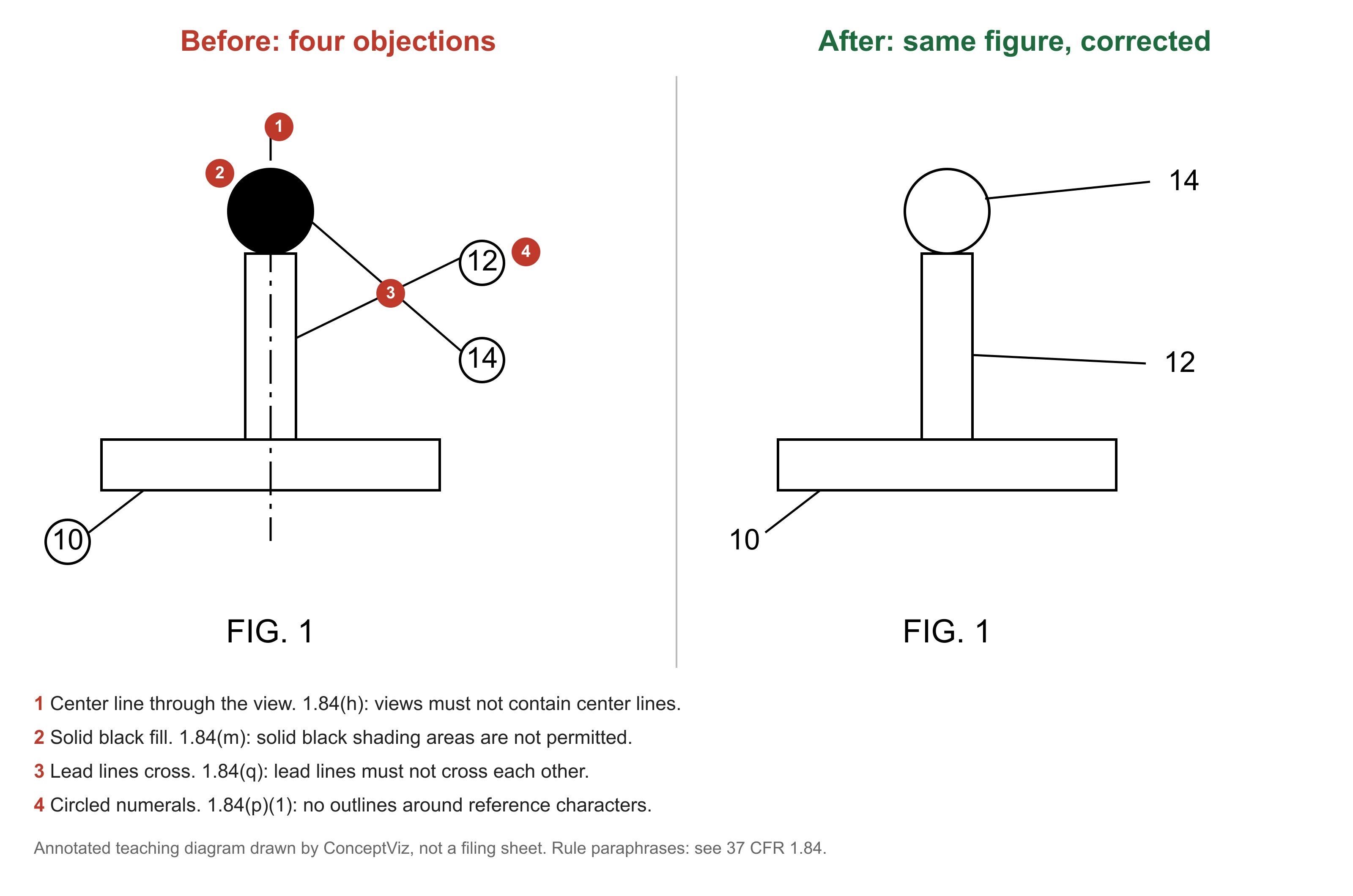
Patent Drawing Examples: 8 Figure Types and Objections
Patent drawing examples for every figure type, with a software patent flowchart and block diagram example, the USPTO rules behind each, and common objections.
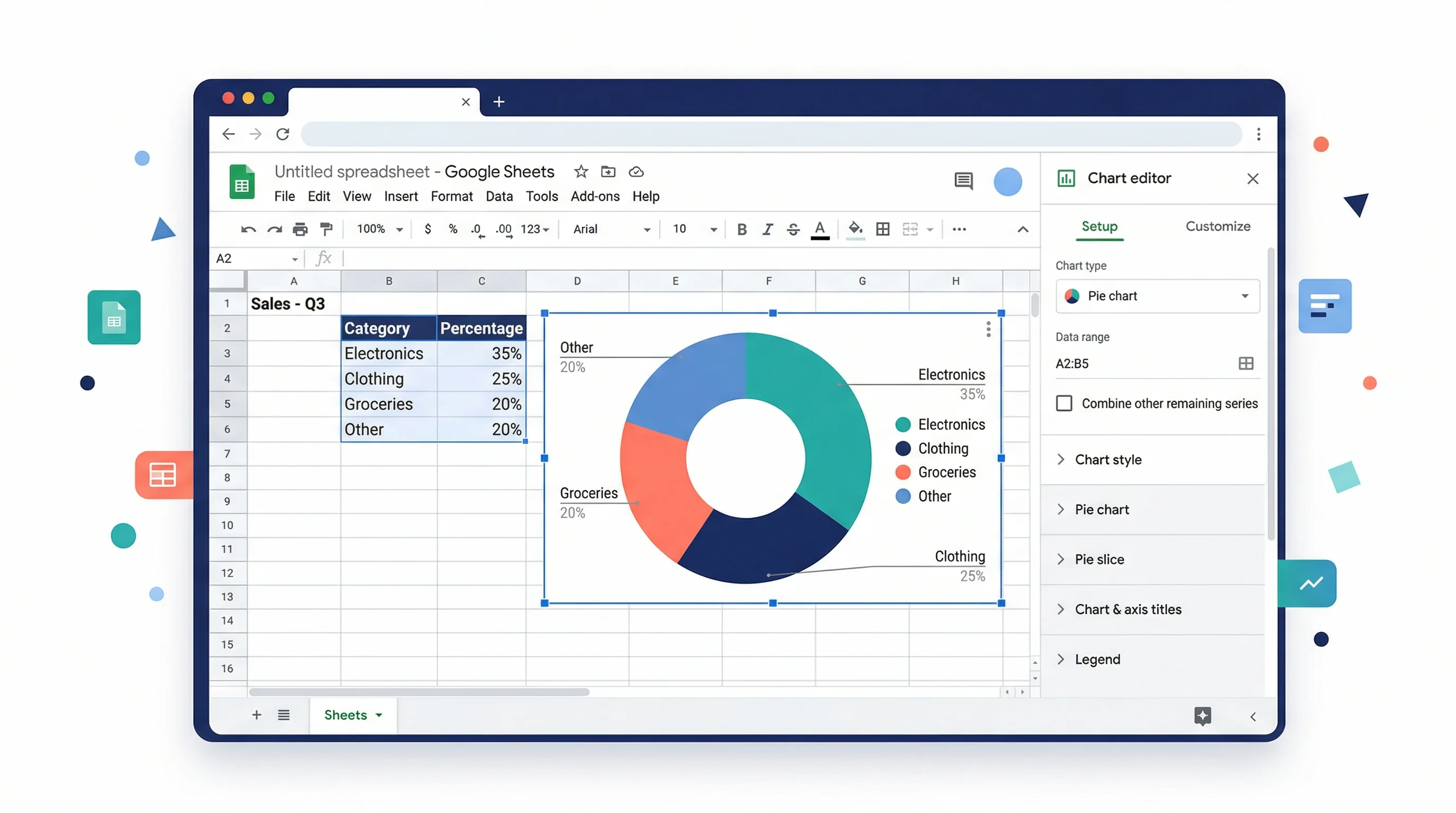
How to Make a Pie Chart in Google Sheets: Step-by-Step Guide (2026)
Learn how to create a pie chart in Google Sheets, summarize messy data, format labels, customize slices, and avoid misleading charts, with official help links.