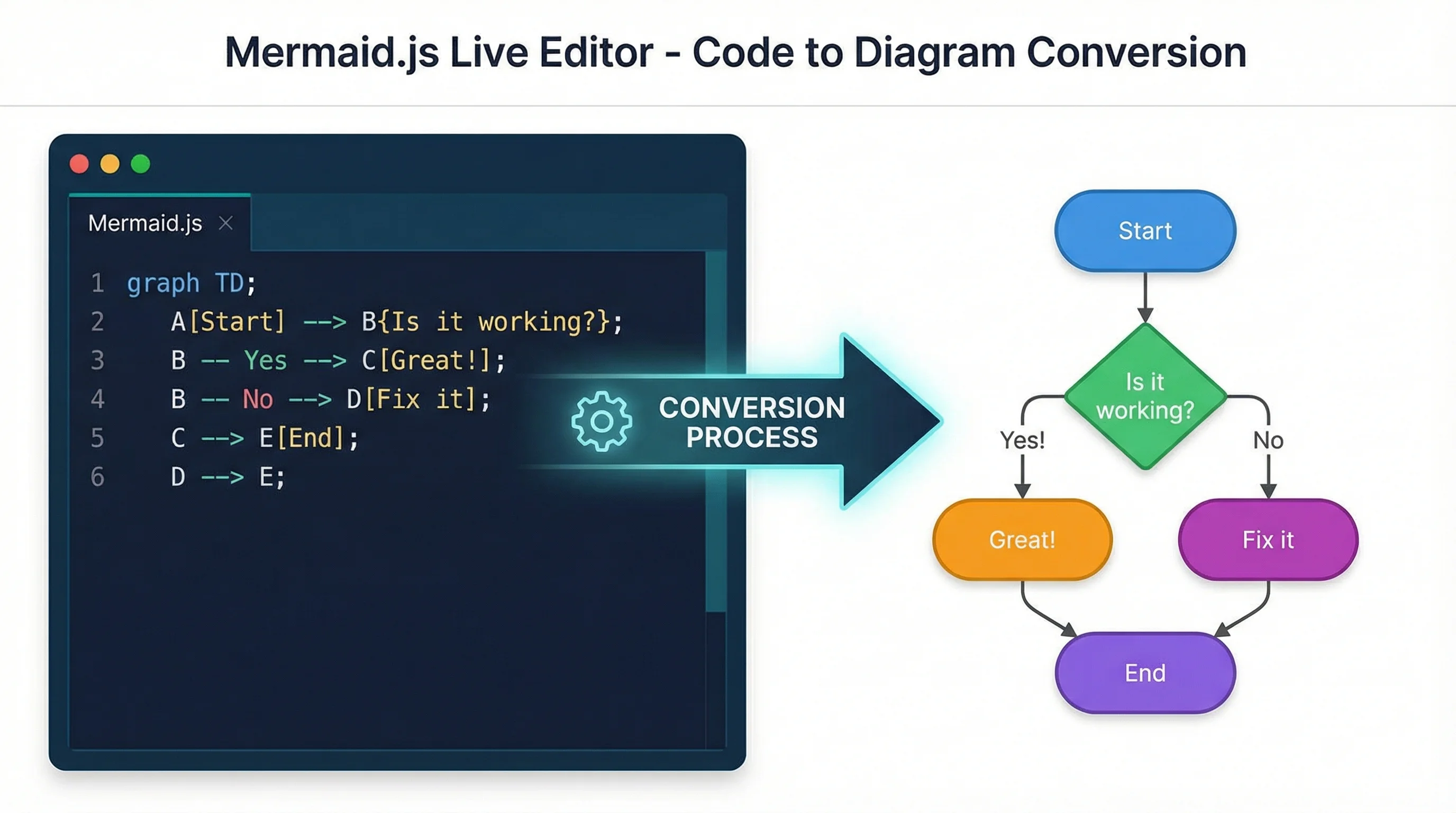
Mermaid to PNG: Export Mermaid Diagrams as PNG, SVG & PDF
Convert Mermaid diagrams to PNG, SVG or PDF with Mermaid Live Editor, mmdc CLI, VS Code and free online tools. Includes quick export steps and best formats.
Need to convert a Mermaid diagram to PNG? The fastest option is usually Mermaid Live Editor for one-off exports or Mermaid CLI (mmdc) for repeatable PNG, SVG, and PDF exports.
This guide compares every reliable Mermaid export method in 2026, from browser-based tools and the official CLI to VS Code extensions, documentation platforms, and AI-powered alternatives.
Quick Answer: Best Mermaid Export Method
| Goal | Best Method | Output |
|---|---|---|
| Export one diagram quickly | Mermaid Live Editor | PNG, SVG |
| Batch convert Mermaid files | Mermaid CLI (mmdc) | PNG, SVG, PDF |
| Export while writing docs | VS Code extension | PNG, SVG |
| Keep diagrams editable in Markdown | Native Mermaid rendering | HTML/PDF via docs platform |
| Redraw a Mermaid idea as a polished visual | AI diagram generator | PNG, SVG |
What Is Mermaid.js and Why Convert Diagrams to Images?
Mermaid.js is an open-source JavaScript library that generates diagrams and charts from text-based definitions. Instead of dragging shapes around a canvas, you write a simple markup language and Mermaid renders the visual output.
Here is a basic example:
graph TD
    A[Start] --> B{Decision}
    B -->|Yes| C[Action 1]
    B -->|No| D[Action 2]
    C --> E[End]
    D --> E
This code produces a clean flowchart without any manual drawing. Mermaid supports flowcharts, sequence diagrams, Gantt charts, class diagrams, state diagrams, ER diagrams, pie charts, and more.
Supported Diagram Types
| Diagram Type | Use Case | Mermaid Syntax |
|---|---|---|
| Flowchart | Process flows, decision trees | graph TD or graph LR |
| Sequence diagram | API calls, system interactions | sequenceDiagram |
| Gantt chart | Project timelines | gantt |
| Class diagram | OOP design, data models | classDiagram |
| State diagram | State machines, workflows | stateDiagram-v2 |
| ER diagram | Database schema | erDiagram |
| Pie chart | Data distribution | pie |
| Git graph | Branch/merge visualization | gitGraph |
Why You Need Image Exports
While Mermaid renders beautifully in Markdown-compatible platforms, many situations require static image files:
- Research papers and theses -- journals and LaTeX documents need PNG or SVG figures
- Presentations -- PowerPoint and Google Slides cannot render Mermaid natively
- Documentation PDFs -- exported docs lose Mermaid rendering
- Email and messaging -- diagrams shared via email need to be images
- Print materials -- posters, handouts, and reports require image formats
- Archival purposes -- images remain readable regardless of Mermaid version changes
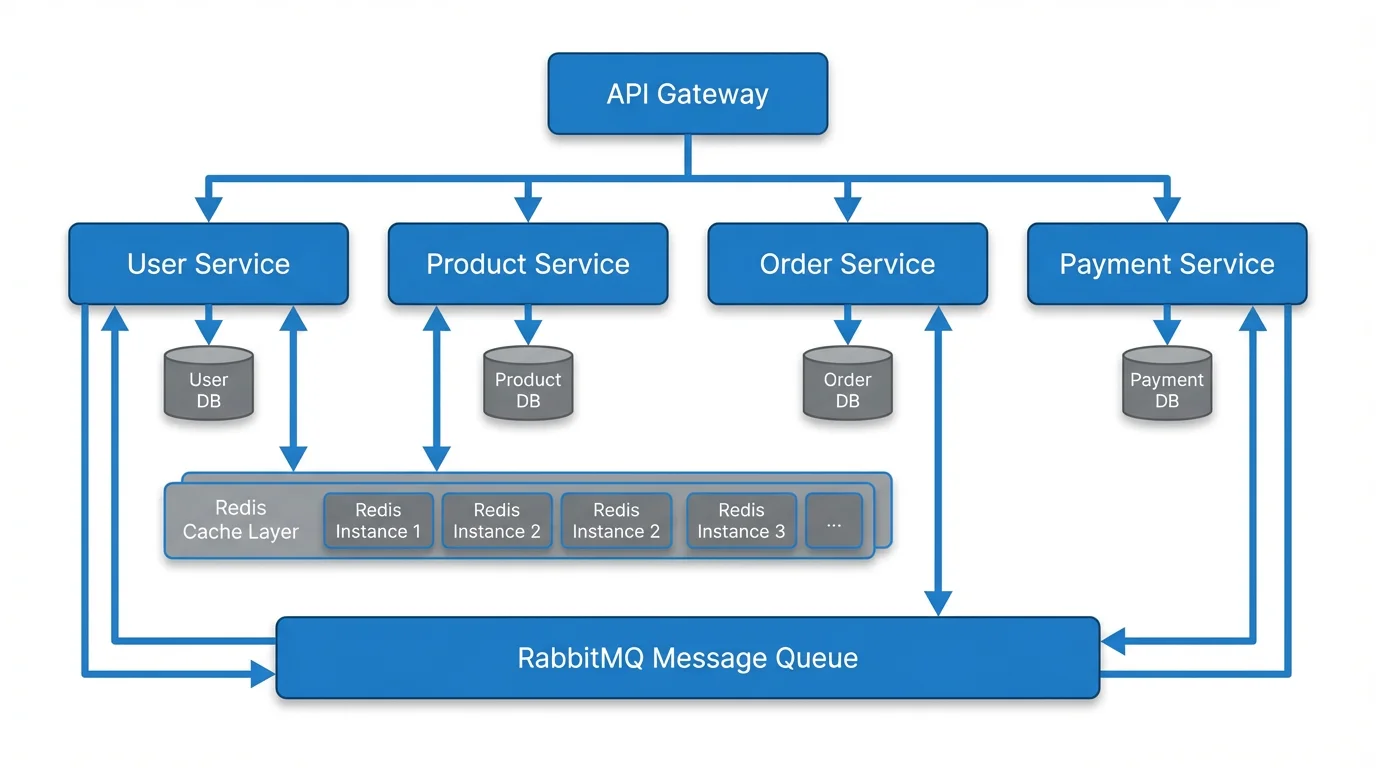
Mermaid excels at creating diagrams like software architecture charts from simple text definitions--but sharing them often requires image export
Method 1: Mermaid Live Editor (mermaid.live)
The Mermaid Live Editor is the official web-based tool for writing, previewing, and exporting Mermaid diagrams. It is the fastest way to get started.
Step-by-Step Instructions
- Open mermaid.live in your browser
- Write or paste your Mermaid code in the left panel
- Preview the rendered diagram in the right panel in real time
- Click the Actions menu (or the download icon) in the toolbar
- Select your export format:
- PNG -- raster image, best for presentations and documents
- SVG -- vector image, best for publications and scaling
- Download the file to your computer
Configuration Options
The Live Editor allows you to customize the output before exporting:
| Option | Description | Recommended Setting |
|---|---|---|
| Theme | Visual style of the diagram | default for professional use |
| Background | Transparent or colored background | Transparent for flexibility |
| Font family | Typography used in labels | System default or sans-serif |
| Direction | Top-down (TD) or left-right (LR) | Depends on diagram type |
Pros and Cons
| Pros | Cons |
|---|---|
| No installation required | Requires internet connection |
| Real-time preview | Manual process for each diagram |
| Free to use | No batch processing |
| Supports all diagram types | Limited resolution control |
Best for: Quick, one-off exports when you need a single diagram converted to an image.
Method 2: Mermaid CLI (mmdc)
The Mermaid CLI (@mermaid-js/mermaid-cli) is the official command-line tool for converting Mermaid files to images. It is the best option for automation, batch processing, and CI/CD pipelines.
Installation
Install the CLI globally using npm:
npm install -g @mermaid-js/mermaid-cliOr use it without installing via npx:
npx @mermaid-js/mermaid-cli -i input.mmd -o output.svgYou can also run it via Docker:
docker run --rm -v "$PWD:/data" minlag/mermaid-cli -i /data/input.mmd -o /data/output.svgBasic Usage
Create a Mermaid definition file (e.g., diagram.mmd):
graph TD
    A[Research Question] --> B[Literature Review]
    B --> C[Methodology Design]
    C --> D[Data Collection]
    D --> E[Analysis]
    E --> F[Publication]
Convert to different formats:
# Convert to SVG
mmdc -i diagram.mmd -o diagram.svg

# Convert to PNG
mmdc -i diagram.mmd -o diagram.png

# Convert to PDF
mmdc -i diagram.mmd -o diagram.pdf

# Convert with a specific theme
mmdc -i diagram.mmd -o diagram.svg -t dark

# Convert with transparent background
mmdc -i diagram.mmd -o diagram.png -b transparent

# Convert with custom dimensions
mmdc -i diagram.mmd -o diagram.png -w 1920 -H 1080
Advanced Options
| Flag | Description | Example |
|---|---|---|
-i | Input file path | -i diagram.mmd |
-o | Output file path | -o output.png |
-t | Theme (default, dark, forest, neutral) | -t dark |
-b | Background color | -b transparent |
-w | Width in pixels | -w 1920 |
-H | Height in pixels | -H 1080 |
-c | Config file path | -c config.json |
--cssFile | Custom CSS file | --cssFile style.css |
-s | Scale factor | -s 2 |
Batch Processing
Convert all .mmd files in a directory:
for file in *.mmd; do
    mmdc -i "$file" -o "${file%.mmd}.svg"
done
Pros and Cons
| Pros | Cons |
|---|---|
| Automatable and scriptable | Requires Node.js installed |
| Batch processing support | Uses Puppeteer (headless browser) |
| CI/CD integration | Larger install footprint |
| Full format support (SVG, PNG, PDF) | Initial setup required |
| Customizable themes and styling |
Best for: Developers who need automated, repeatable exports in build pipelines or documentation workflows.
Method 3: VS Code Extensions
If VS Code is your primary editor, several extensions provide Mermaid preview and export functionality without leaving the IDE.
Markdown Preview Mermaid Support
This extension adds Mermaid diagram rendering to the built-in Markdown preview in VS Code.
Installation:
- Open VS Code Extensions (Ctrl+Shift+X / Cmd+Shift+X)
- Search for "Markdown Preview Mermaid Support"
- Install the extension by Matt Bierner
Usage:
- Write Mermaid code inside a fenced code block in any Markdown file
- Open the Markdown preview (Ctrl+Shift+V / Cmd+Shift+V)
- The Mermaid diagram renders inline
- Right-click the preview to save or copy the rendered output
Mermaid Graphical Editor
For a more visual approach, the Mermaid Graphical Editor extension provides:
- Side-by-side code and visual preview
- Direct export to PNG and SVG
- Syntax highlighting for Mermaid code
- Real-time rendering as you type
Mermaid Export
The Mermaid Export extension is specifically designed for converting Mermaid diagrams embedded in Markdown files to image files.
How to use:
- Write your Mermaid diagram in a
.mdor.mmdfile - Open the command palette (Ctrl+Shift+P / Cmd+Shift+P)
- Search for "Mermaid: Export"
- Select your output format (SVG, PNG, PDF)
- Choose the destination folder
Comparison of VS Code Extensions
| Extension | Preview | Export | Formats | Best For |
|---|---|---|---|---|
| Markdown Preview Mermaid | Yes | Limited | Via preview | Inline preview while writing |
| Mermaid Graphical Editor | Yes | Yes | PNG, SVG | Visual editing workflow |
| Mermaid Export | No | Yes | PNG, SVG, PDF | Dedicated export workflow |
Best for: Developers and technical writers who work primarily in VS Code and want integrated diagram workflows.
Method 4: GitHub and GitLab Native Rendering
Both GitHub and GitLab render Mermaid diagrams natively in Markdown files, issues, pull requests, and wikis. This means your diagrams appear as rendered visuals without any extra tools.
GitHub
GitHub has supported Mermaid rendering since February 2022. To use it:
- In any Markdown file, issue, or PR comment, create a fenced code block with the
mermaidlanguage identifier:
```mermaid
graph TD
    A[Start] --> B[Process]
    B --> C[End]
```- GitHub automatically renders the diagram in the preview and published view.
Exporting from GitHub:
- Right-click the rendered diagram and select "Save image as..." to download as PNG
- For SVG, inspect the element and copy the SVG markup
- Use the GitHub API to programmatically access rendered diagrams
GitLab
GitLab also supports native Mermaid rendering using the same fenced code block syntax. GitLab renders Mermaid in:
- README files and wikis
- Issue and merge request descriptions
- Comments and notes
Limitations of Native Rendering
| Limitation | Impact |
|---|---|
| Resolution depends on browser | Not ideal for print publications |
| Limited theme customization | Cannot match brand guidelines easily |
| No batch export | Manual right-click for each diagram |
| Platform-dependent | Only works on GitHub/GitLab |
Best for: Teams already using GitHub or GitLab who need diagrams in their documentation and README files.
Method 5: AI-Powered Alternatives
If you want to create diagrams without learning Mermaid syntax at all, AI-powered tools let you describe what you need in plain language and generate professional diagrams automatically.
ConceptViz Text to Diagram Generator
ConceptViz transforms natural language descriptions into professional diagrams. Instead of writing Mermaid code, you describe your diagram in plain English:
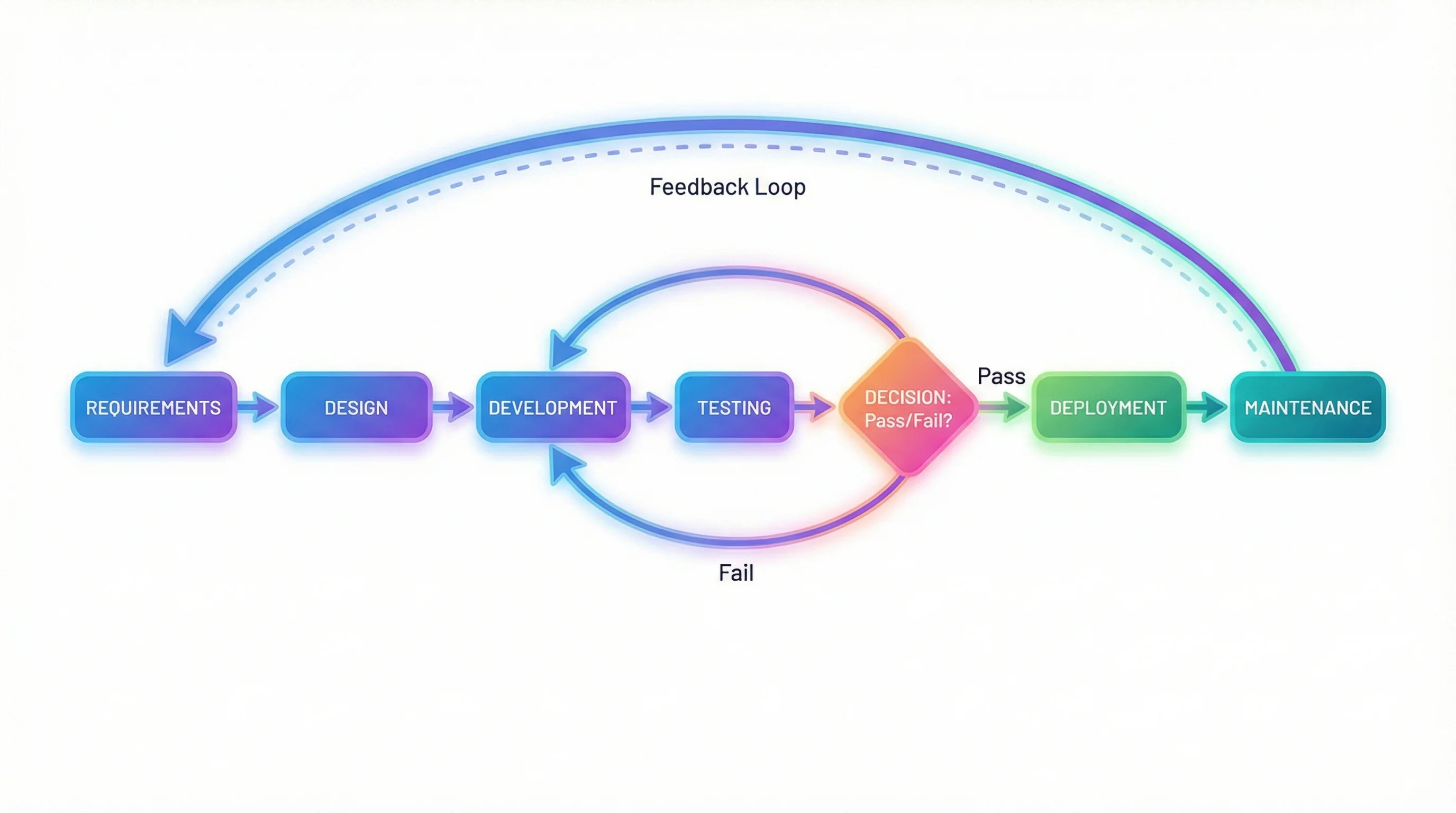
"Create a flowchart showing the software development lifecycle: requirements gathering leads to design, then implementation, testing, deployment, and maintenance. Testing can loop back to implementation."
The AI generates a polished diagram that you can download in high-resolution PNG or SVG format.
Text to Diagram Generator
Transform text descriptions into professional diagrams instantly. No Mermaid syntax required--just describe what you need in plain language.
Try it free →ConceptViz AI Flowchart Generator
For flowcharts specifically, the AI Flowchart Generator provides:
- Natural language input
- Multiple layout options (top-down, left-right)
- Professional styling with customizable themes
- One-click export to PNG and SVG
AI Flowchart Generator
Generate professional flowcharts from text descriptions. Ideal for research workflows, process documentation, and decision trees.
Try it free →When to Choose AI Over Mermaid
| Scenario | Use Mermaid | Use AI Tool |
|---|---|---|
| You know the exact diagram structure | Yes | Either |
| You want version-controlled diagrams | Yes | No |
| You need quick, professional results | Either | Yes |
| You do not know diagram syntax | No | Yes |
| You need batch processing in CI/CD | Yes | No |
| You want to iterate on design quickly | Either | Yes |
Best for: Researchers, students, and non-developers who need professional diagrams without learning Mermaid syntax.
Method 6: Mermaid Ink API
Mermaid Ink provides a simple HTTP API for rendering Mermaid diagrams as images. You encode your Mermaid code in a URL and receive a rendered image.
How It Works
- Base64-encode your Mermaid diagram code
- Construct a URL in the format:
https://mermaid.ink/img/{base64code} - Use the URL directly in any context that supports image URLs
Example
For a simple diagram:
graph TD
    A --> B
Encode it to base64 and use:
https://mermaid.ink/img/{base64-encoded-diagram}API Endpoints
| Endpoint | Output Format |
|---|---|
/img/{code} | PNG image |
/svg/{code} | SVG image |
/pdf/{code} | PDF document |
Use Cases
- Embedding in emails -- use the image URL directly
- README badges -- dynamic diagrams that update when code changes
- Wiki pages -- platforms that support image URLs but not Mermaid
- Documentation sites -- embed via standard image tags
Best for: Embedding rendered Mermaid diagrams in contexts where you can use image URLs but cannot run JavaScript.
Comparison of All Methods
Here is a side-by-side comparison of every Mermaid-to-image conversion method covered in this guide:
| Method | Setup Required | Batch Processing | Formats | Offline | Best For |
|---|---|---|---|---|---|
| Mermaid Live Editor | None | No | PNG, SVG | No | Quick one-off exports |
| Mermaid CLI (mmdc) | Node.js + npm | Yes | PNG, SVG, PDF | Yes | Automation and CI/CD |
| VS Code Extensions | Extension install | Limited | PNG, SVG, PDF | Yes | IDE-integrated workflow |
| GitHub/GitLab | None | No | PNG (via right-click) | No | Repo documentation |
| AI-Powered Tools | None | No | PNG, SVG | No | Non-technical users |
| Mermaid Ink API | None | Via scripting | PNG, SVG, PDF | No | URL-based embedding |
Best Practices for Mermaid Diagram Design
Regardless of which conversion method you choose, following these design practices will produce better-looking diagrams.
1. Keep Diagrams Focused
Limit each diagram to a single concept or process. If your diagram has more than 15-20 nodes, split it into multiple diagrams. Complex diagrams with too many elements become unreadable at standard image resolutions.
2. Choose the Right Direction
- Top-down (
TD) works best for hierarchical processes and workflows - Left-right (
LR) works best for sequential processes and timelines - Match the direction to how readers naturally scan the content
3. Use Meaningful Labels
# Bad
graph TD
    A --> B --> C

# Good
graph TD
    A[Collect Data] --> B[Analyze Results]
    B --> C[Publish Findings]
4. Apply Consistent Styling
Use Mermaid's theming system or custom CSS to maintain visual consistency across all your diagrams. The four built-in themes are:
| Theme | Style | Best For |
|---|---|---|
default | Clean, professional | General use |
dark | Dark background | Dark-mode documents |
forest | Green tones | Nature/science topics |
neutral | Grayscale | Print-friendly output |
5. Optimize for Export Resolution
- For presentations: export at 1920x1080 or higher
- For publications: use SVG when possible, or PNG at 300+ DPI
- For web: SVG for scalability, or PNG at 2x resolution for retina displays
- For print: PDF or SVG for lossless scaling
6. Test Across Platforms
A diagram that looks perfect in the Live Editor may render differently in GitHub or VS Code. Always verify the exported image in its final destination before publishing.
For more tips on creating publication-quality diagrams, see our guide to making scientific diagrams for research papers.
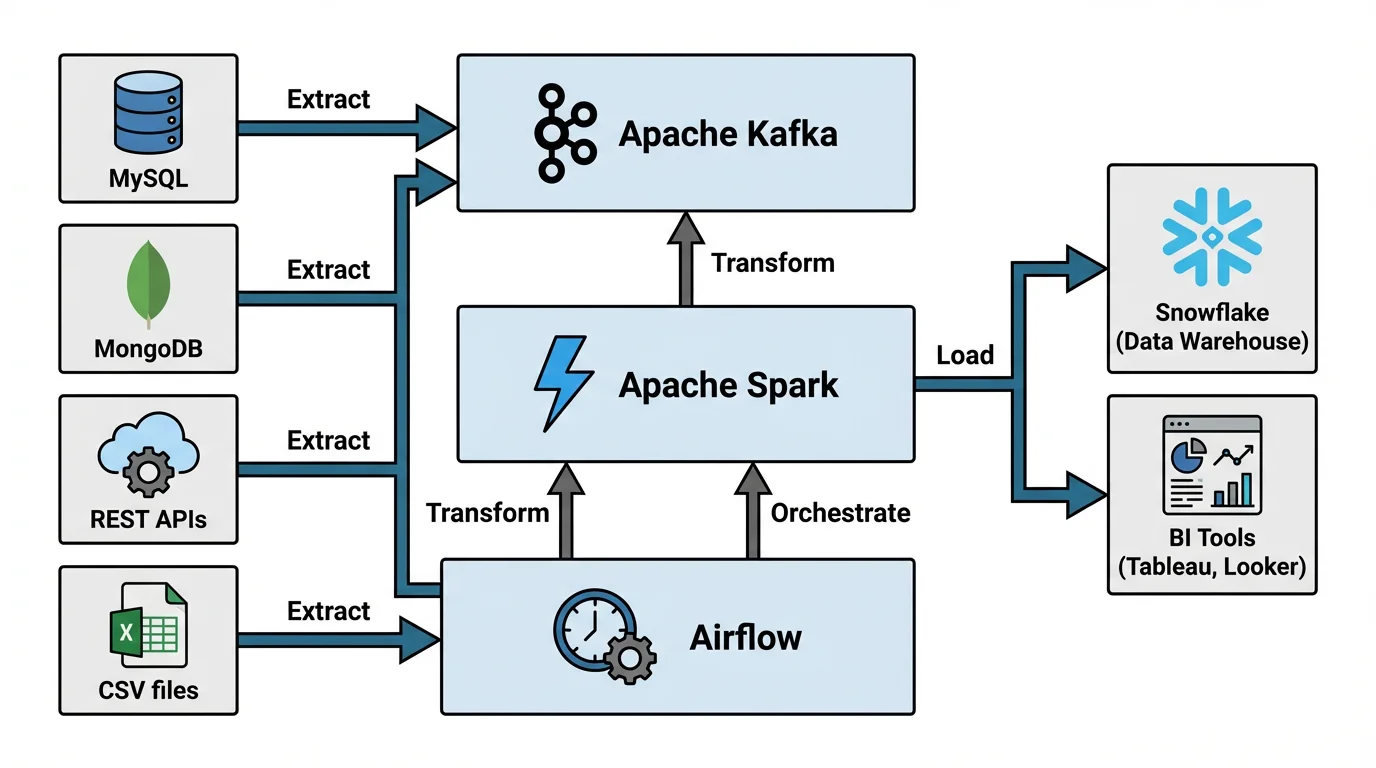
Well-designed diagrams communicate complex processes clearly--whether built with Mermaid or AI-powered tools
Troubleshooting Common Issues
Diagram Not Rendering
- Check syntax: Mermaid is whitespace-sensitive. Ensure proper indentation and no extra blank lines within node definitions.
- Verify version: Some diagram types (like
gitGraph) require newer Mermaid versions. Check mermaid.js.org for the latest syntax. - Escape special characters: Characters like
#,&, and<need escaping in some contexts.
Export Quality Is Low
- Use SVG instead of PNG for scalable output
- Increase the scale factor with
-s 2or-s 3in the CLI - Set explicit width and height to control output dimensions
- Enable transparent background to avoid white borders in dark-themed documents
CLI Fails to Install
- Ensure Node.js 18+ is installed
- Try running with
npxinstead of global install:npx @mermaid-js/mermaid-cli - On Linux, you may need additional dependencies for Puppeteer (Chromium headless browser)
- Use the Docker image as a fallback:
docker run --rm -v "$PWD:/data" minlag/mermaid-cli
Fonts Look Wrong in Export
- Specify fonts explicitly in your Mermaid config:
{ "theme": "default", "themeVariables": { "fontFamily": "Arial, sans-serif" } } - Pass the config file to the CLI:
mmdc -i input.mmd -o output.svg -c config.json
Frequently Asked Questions
How do I convert a Mermaid diagram to an image online?
The easiest way is to use the Mermaid Live Editor at mermaid.live. Paste your Mermaid code in the left panel, preview the rendered diagram on the right, then click the download button to export as PNG or SVG. No installation or account is required.
What is the best format for exporting Mermaid diagrams?
SVG is the best format for most use cases because it scales to any size without losing quality. Use SVG for publications, documentation, and web content. Use PNG when the target platform does not support SVG (such as email or certain presentation tools). Use PDF for print-ready documents.
Can I convert Mermaid diagrams to images without Node.js?
Yes. The Mermaid Live Editor (mermaid.live) works entirely in the browser with no installation. You can also use the Mermaid Ink API to generate images via URL, or right-click rendered diagrams on GitHub to save them as images. The CLI is only needed for automated or batch processing.
How do I batch convert multiple Mermaid files to images?
Use the Mermaid CLI (mmdc) with a shell script. Install it with npm install -g @mermaid-js/mermaid-cli, then loop through your .mmd files: for file in *.mmd; do mmdc -i $file -o ${file%.mmd}.svg; done. This is ideal for documentation projects with many diagrams.
Does GitHub render Mermaid diagrams automatically?
Yes. Since February 2022, GitHub natively renders Mermaid diagrams in Markdown files, issues, pull requests, and comments. Use a fenced code block with the mermaid language identifier, and GitHub displays the rendered diagram automatically. You can right-click the rendered image to save it.
How do I improve the quality of exported Mermaid images?
For higher quality exports, use SVG format whenever possible. If you need PNG, increase the scale factor using the CLI flag -s 2 or -s 3 for 2x or 3x resolution. Set explicit dimensions with -w and -H flags. Use a transparent background with -b transparent to avoid unwanted borders in your documents.
What are the best alternatives to Mermaid for creating diagrams?
Popular alternatives include PlantUML for UML-focused diagrams, Graphviz for graph visualization, draw.io for drag-and-drop editing, and AI-powered tools like ConceptViz for generating diagrams from natural language descriptions. Each has different strengths depending on whether you prefer code-based or visual editing.
Can I use Mermaid diagrams in LaTeX documents?
Mermaid does not integrate directly with LaTeX. The recommended workflow is to export your Mermaid diagram as SVG or PDF using the CLI (mmdc -i diagram.mmd -o diagram.pdf), then include the image in your LaTeX document using the includegraphics command. SVG can be converted to PDF using tools like Inkscape for optimal LaTeX compatibility.
Conclusion
Converting Mermaid diagrams to images is straightforward once you know the right tool for your situation:
- For quick, one-off exports -- use the Mermaid Live Editor
- For automated workflows -- use the Mermaid CLI (mmdc)
- For IDE-integrated work -- use VS Code extensions
- For repository documentation -- rely on GitHub or GitLab native rendering
- For non-technical users -- use AI-powered tools like ConceptViz's Text to Diagram Generator
- For URL-based embedding -- use the Mermaid Ink API
The method you choose depends on your workflow, technical comfort level, and how many diagrams you need to produce. For most researchers and developers, a combination of the Live Editor for quick exports and the CLI for automation covers all use cases.
Additional Resources
Категории
Ещё публикации
Motion Diagram Physics Guide: How to Draw and Read Motion Diagrams
Learn how to draw motion diagrams in physics, read dot spacing, velocity arrows, acceleration direction, and connect diagrams to graphs.
Scientific Illustration Guide 2026: Types, Tools & How to Get Started
What is scientific illustration? Learn the types (botanical, medical, technical), best free and paid tools, and how to create effective visuals.
Supply and Demand Graph: Equilibrium & Shifts
Learn how to read the supply and demand graph: why demand slopes down and supply slopes up, where they meet at equilibrium, plus shifts, surplus, and shortage.